
Open Broadcaster Software Audio Tips
If you want your live streams or recordings to sound professional, you need more than just a good microphone. Open Broadcaster Software (OBS) is a favorite tool for streamers and content creators. But many users struggle to get clear, balanced audio.
The truth is, OBS offers powerful features for controlling sound, but you need to know how to use them. This guide will show you practical and advanced audio tips for OBS, so your audience hears every word and effect clearly.
Whether you’re a gamer, educator, or podcaster, these tips will help you create a better listening experience.
Understanding Obs Audio Basics
Before diving into advanced tips, it’s important to understand how OBS audio works. OBS allows you to manage multiple audio sources at once. You can capture:
- Your microphone
- System sounds (like game audio or music)
- Application-specific audio (with plugins or virtual cables)
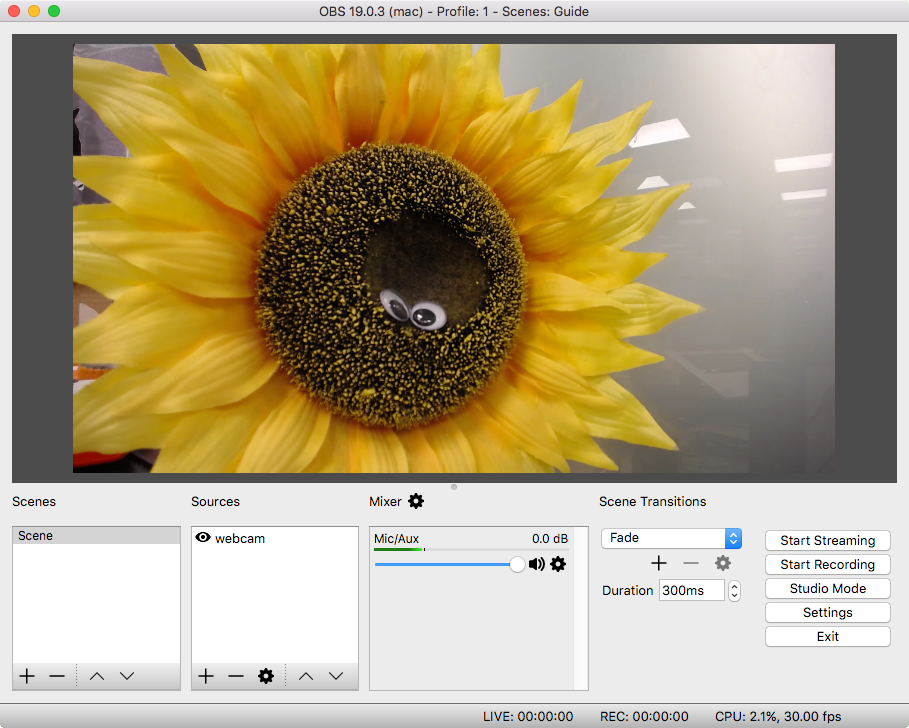
All these sources appear in the Audio Mixer at the bottom of OBS. Each source has its own volume slider and settings. If you want clear, balanced sound, start by naming your audio sources clearly. For example, name them “Mic,” “Game,” “Music,” and so on. This makes it easier to adjust levels during your stream.
One insight many beginners miss: OBS does not automatically balance your audio. If your game is too loud, it can drown out your voice. So, you must check and set levels manually.
Setting Up Your Microphone Correctly
A poor microphone setup can ruin your stream, no matter how good your content is. Here’s how to get it right:
- Choose the right microphone: USB microphones like the Blue Yeti are popular for beginners, while XLR mics offer better quality but require an audio interface.
- Set the correct input: In OBS, go to Settings > Audio. Select your microphone under “Mic/Auxiliary Audio.”
- Position the mic: Place the mic 6–12 inches from your mouth. Use a pop filter to reduce harsh “p” and “s” sounds.
- Adjust gain: Avoid setting your mic gain too high. This causes distortion and background noise. Speak at your normal volume and watch OBS’s mixer—aim for the yellow zone without hitting red.
- Test your audio: Record a short clip and play it back. This helps you catch problems before you go live.
Here’s a quick comparison of common microphone types:
| Microphone Type | Quality | Ease of Use | Cost |
|---|---|---|---|
| USB | Good | Easy (Plug and Play) | Low to Medium |
| XLR | Excellent | Needs Interface | Medium to High |
| Lavalier | Decent | Easy | Low |
Balancing Multiple Audio Sources
Streams often combine several audio sources: your voice, game sound, background music, and alert sounds. Mixing them well is essential. Here’s how to avoid common mistakes:
- Voice should be clear: Your microphone should always be the loudest source. If viewers can’t hear you, they’ll leave.
- Background music should be subtle: Keep music at 10–20% of your mic’s volume. It should fill silence, not compete with your voice.
- Game and alert sounds: These should not overpower your commentary. Run a test stream and listen back with headphones.
A practical trick: Use the colored bars in OBS’s mixer. Keep your mic in the yellow, background sounds in the green, and avoid red for any source.
Using Audio Filters For A Cleaner Sound
OBS offers powerful audio filters that can dramatically improve your sound. Here are the most important filters:
- Noise Suppression: Removes background hum, computer fans, or air conditioning. Add this filter to your mic source and choose “RNNoise” for good results.
- Noise Gate: Mutes your mic when you’re not talking. This keeps keyboard clicks and mouse movements from being heard.
- Compressor: Reduces loud spikes and boosts quiet sounds. Set the ratio to 4:1 or 5:1 for spoken voice. Threshold should be just below your normal speaking volume.
- Limiter: Stops your audio from getting too loud and distorting. Set the limit to around –3 dB.
To add filters, right-click your audio source in OBS, select Filters, then click the “+” icon.
One non-obvious insight: Filters should be in the right order. Always place Noise Suppression before Compressor. This gives the compressor a cleaner signal to work with.
Avoiding Common Audio Mistakes In Obs
Even experienced streamers make audio mistakes. Here are some to watch for:
- Forgetting to monitor audio: Always use headphones to check your stream’s sound. Speakers can cause echo and feedback.
- Not separating audio tracks: If you record your streams, set up multiple audio tracks in OBS (Settings > Output > Recording). This lets you edit your voice, game, and music separately later.
- Overusing filters: Too many filters can make your voice sound artificial. Use only the filters you need.
- Not muting unused sources: If you have a webcam mic, make sure it’s muted in OBS. Accidentally recording two mics causes echo and confusion.
Setting Up Advanced Audio Routing
Sometimes you want more control than OBS’s default setup allows. For example, maybe you want your viewers to hear music, but not your teammates on Discord. Or you want to capture game audio on a separate track. This is where virtual audio cables or plugins like Voicemeeter come in.
With a virtual audio cable, you can route specific apps to different sources in OBS. For example:
- Route game audio to “Cable Input”
- Route music to “Cable Input 2”
- Set Discord to play through your headphones only
This gives you full control in OBS. You can mute or adjust each source independently. While this setup takes a bit more time, it’s worth it for advanced streams.
Here’s a table comparing some popular audio routing tools:
| Tool | Platforms | Features | Learning Curve |
|---|---|---|---|
| Voicemeeter Banana | Windows | Virtual Mixers, Routing, Effects | Medium |
| BlackHole | MacOS | Multi-Channel Routing | Medium |
| VB-Audio Cable | Windows | Simple Virtual Cables | Low |
Credit: streamshark.io
Monitoring Your Audio In Real Time
Monitoring means listening to your stream audio as your audience hears it. In OBS, you can do this by:
- Clicking the gear next to your audio source in the mixer
- Selecting “Advanced Audio Properties”
- Setting “Audio Monitoring” to “Monitor and Output”
Use headphones to avoid feedback. Monitoring helps you catch problems like echo, clipping, or background noise instantly. But here’s a detail most skip: If you hear a delay (latency), reduce your audio buffer size in your sound card or interface settings.
Syncing Audio And Video
Nothing frustrates viewers more than out-of-sync audio and video. If your mouth doesn’t match your words, people will tune out. OBS lets you adjust sync easily:
- Click the gear next to your mic source in the mixer
- Select “Advanced Audio Properties”
- Use the “Sync Offset (ms)” box to add or subtract delay
A positive number delays your audio. A negative number speeds it up. Test with a clap (clap your hands on camera and listen for the sound). Adjust until the sound matches your action.
A pro tip: Cameras often have a small delay. Start by setting your mic sync offset to +100 ms and adjust as needed.
Choosing The Right Audio Bitrate
Audio bitrate affects both sound quality and stream stability. OBS lets you set this in Settings > Output > Audio Bitrate. Here’s a simple guideline:
- For voice only: 64–96 kbps
- For streams with music and effects: 128–192 kbps
Higher bitrate means better quality but uses more upload bandwidth. If your internet is slow, keep bitrate lower to avoid drops or buffering. Most streamers use 160 kbps for a good balance.
Recording Vs Streaming: Audio Settings Differences
Your needs are different for recording and streaming. For streaming, you must balance quality with bandwidth. For recording, you can use higher settings since the file is saved locally.
For recordings, set audio bitrate to 320 kbps if you want the best quality. Use separate audio tracks for mic, game, and music—this makes editing much easier later.
Here’s a table showing the recommended settings:
| Scenario | Audio Bitrate | Tracks | File Size |
|---|---|---|---|
| Streaming | 128–192 kbps | 1–2 | Low |
| Recording | 256–320 kbps | 2–6 | High |
Credit: www.sweetwater.com
Testing And Troubleshooting Your Obs Audio
Don’t trust your setup until you’ve tested it. Use these steps:
- Record a short video in OBS with all your sources (mic, music, game).
- Listen with good headphones.
- Ask a friend to join your stream and give feedback.
- Check for issues like:
- Echo or feedback
- Low or missing audio
- Audio cutting out
- Out-of-sync sound
If you hit a problem, start simple: Disable all filters and add them back one at a time. This helps you find which setting causes trouble.
One advanced tip: If you hear a “robotic” or stuttering sound, lower your sample rate (in Settings > Audio). 44.1 kHz is enough for most streams and more stable.
Keeping Up With Obs Audio Updates
OBS is open-source, and its features improve often. Check the official OBS Project site for updates. New versions add features like native support for application audio capture or better filters. Updating OBS can solve bugs or add helpful tools you didn’t know about.
Credit: www.youtube.com
Frequently Asked Questions
How Do I Remove Background Noise In Obs?
Add a Noise Suppression filter to your microphone source. Choose “RNNoise” or “Speex” for best results. You can also use a Noise Gate to mute your mic when not speaking.
Why Is My Audio Delayed In Obs?
Audio delay happens if your camera or capture card has latency. Fix this by adjusting the Sync Offset in “Advanced Audio Properties.” Start with +100 ms and adjust until audio matches video.
Can I Record Multiple Audio Tracks In Obs?
Yes, go to Settings > Output > Recording. Enable multiple tracks and assign your sources in the mixer. This lets you edit game, voice, and music separately in post-production.
What Is The Best Audio Bitrate For Streaming?
For most streams, 128–192 kbps is a good range. If you stream only your voice, 96 kbps is enough. Use 160 kbps for a balance of quality and bandwidth.
How Do I Listen To My Audio While Streaming?
Enable audio monitoring for your source in “Advanced Audio Properties.” Set it to “Monitor and Output.” Always use headphones to avoid echo or feedback.
Clear, high-quality audio can make your stream stand out. With these OBS audio tips, you’ll give your viewers a better experience and grow your audience faster. Take time to test, tweak, and update your setup—you’ll hear the difference.
