
Many laptop users want a larger screen for work, study, or entertainment. Using an external monitor is a great solution. But sometimes, you may want to close your laptop lid and use only the external display. This is helpful for saving space, reducing distractions, and improving your posture. However, closing the laptop lid usually puts it to sleep or turns it off. Is it possible to keep your laptop running and show everything only on the external monitor? Yes, and it’s easier than you think. This guide explains how to close your laptop and use an external monitor only, step by step, for both Windows and Mac users. You’ll also learn useful tips, common mistakes, and answers to important questions.
Why Use An External Monitor With A Closed Laptop?
Many people set up an external monitor for better viewing and productivity. Here are some reasons to use this setup:
- Bigger screen: A larger display helps with multitasking, design, and detailed work.
- Better ergonomics: Placing the monitor at eye level can reduce neck and back pain.
- Less clutter: Closing your laptop saves desk space and looks cleaner.
- Improved focus: Only one screen means fewer distractions.
- Longer laptop life: Using an external keyboard and mouse reduces wear on your laptop’s built-in parts.
What most beginners miss is that laptops are not designed by default to keep running when the lid is closed. You need to change some settings to avoid losing your work.
What You Need Before You Start
To use your external monitor with your laptop closed, gather these items:
- Laptop (Windows or Mac)
- External monitor
- Monitor cable (HDMI, DisplayPort, VGA, USB-C, depending on your laptop and monitor)
- External keyboard and mouse (USB or wireless is fine)
- Laptop power adapter (especially for Mac users)
Make sure your laptop supports external displays. Almost all modern laptops do, but very old models may not.
Credit: askubuntu.com
How To Set Up: Step-by-step For Windows
Windows laptops need a few setting changes. Here’s what to do:
1. Connect The External Monitor
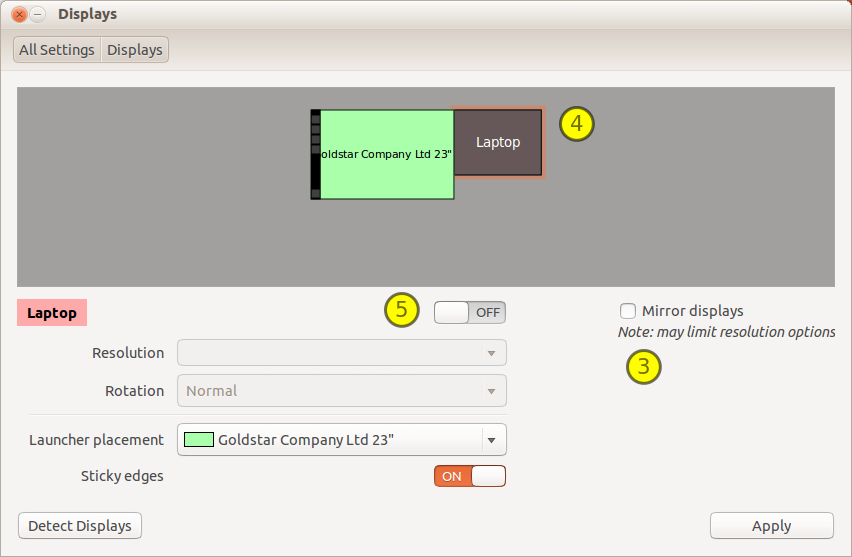
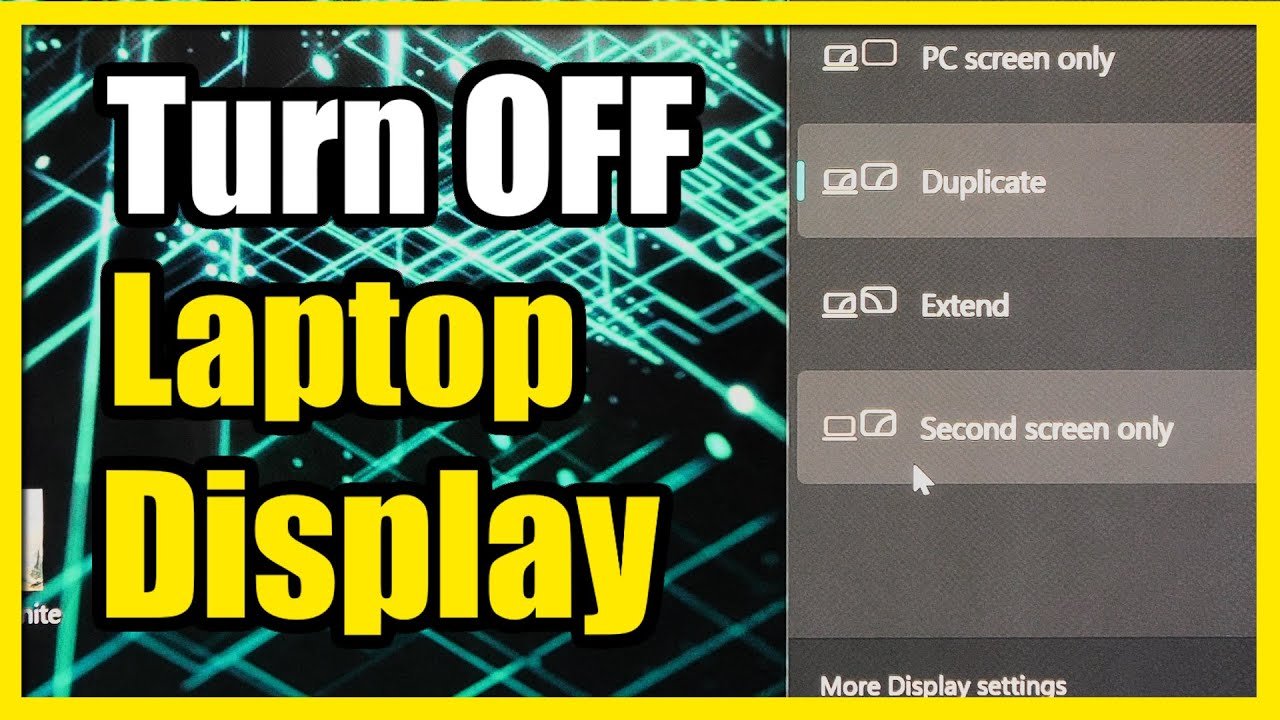
Plug your monitor into the laptop. Most laptops detect it automatically. If the screen stays blank, press Windows + P to open the display menu. Choose “Duplicate” or “Extend” to see your desktop on both screens.
2. Set Display To External Monitor Only
To use only the monitor:
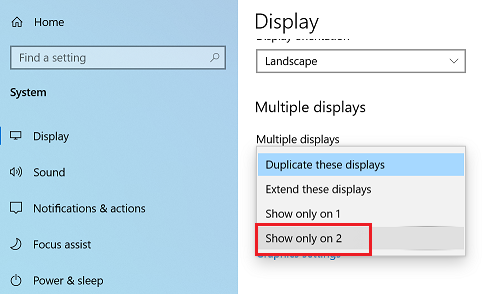
- Right-click on the desktop and select Display settings.
- Scroll to “Multiple displays.”
- Select Show only on 2 (or the number of your external monitor).
- Click Apply.
Now, your main display is the external monitor.
3. Change Power Settings To Prevent Sleep
By default, closing the lid puts your laptop to sleep. Change this:
- Open the Control Panel.
- Go to Hardware and Sound > Power Options.
- On the left, click Choose what closing the lid does.
- In “When I close the lid,” select Do nothing for both “On battery” and “Plugged in.”
- Click Save changes.
Now, your laptop keeps running when you close it.
4. Close Your Laptop
Gently close the lid. Your external monitor should stay on, and your laptop remains active. If the screen goes black, double-check the settings.
Common Mistakes On Windows
- Forgetting to change the “close lid” action leads to sudden sleep or shutdown.
- Using a low-quality cable can cause flickering or lost signal.
- Not connecting the power adapter may drain the battery quickly.
How To Set Up: Step-by-step For Mac (macbook)
Apple calls this feature Clamshell Mode. Setting it up is straightforward, but there are some key differences.
1. Connect The External Monitor
Plug the monitor into your MacBook using the right adapter (HDMI, USB-C, or Thunderbolt).
2. Plug In Power Adapter
For most MacBooks, power is required to use closed-display mode. Plug in your charger.
3. Connect Keyboard And Mouse
Use a USB or Bluetooth keyboard and mouse. If you use wireless, make sure they’re paired before closing the lid.
4. Set Display To External Monitor
Usually, your Mac will mirror the display at first. To use only the external monitor:
- Open System Settings (or System Preferences on older macOS).
- Go to Displays.
- Arrange the displays, or drag the menu bar to the external monitor to make it the main screen.
5. Close The Macbook Lid
Gently close the lid. The external monitor stays on, and your MacBook’s display turns off. Your keyboard and mouse continue working.
Common Mistakes On Mac
- Forgetting to connect power—MacBook may sleep instantly.
- Not pairing Bluetooth devices before closing the lid.
- Using poor quality adapters or cables can cause the monitor to disconnect.
Credit: www.youtube.com
Comparison: Windows Vs Mac For Closed Laptop Mode
Here’s a quick look at the main differences.
| Feature | Windows | Mac |
|---|---|---|
| Power Adapter Needed? | No (but recommended) | Yes (required) |
| Setting Location | Control Panel & Display Settings | System Settings & Displays |
| Bluetooth Devices | Can pair after closing lid | Must pair before closing lid |
| Default Lid Action | Sleep/Hibernate | Sleep |
Best Practices For Closed Laptop And External Monitor Use
To keep your setup running smoothly and avoid problems, follow these tips:
- Ventilation: Laptops can get hot when closed. Place your laptop on a stand to improve airflow.
- Power supply: Always use the charger for long sessions. This prevents sudden shutdowns and battery drain.
- Monitor resolution: Set your external monitor to its native resolution in display settings for the best picture.
- Wake from sleep: If your laptop sleeps, pressing a key or clicking the mouse usually wakes it up. On Mac, sometimes opening and closing the lid once helps.
- Protect your laptop: Avoid stacking heavy objects on a closed laptop, as this can damage the screen.
Many beginners forget about ventilation. Laptops cool themselves with air from the keyboard area. When closed, heat can build up quickly, especially during heavy use.
Troubleshooting: If Things Don’t Work
Sometimes, your monitor stays black, or your laptop sleeps anyway. Here’s how to fix common issues.
External Monitor Not Detected
- Try unplugging and reconnecting the cable.
- Check if the cable is damaged.
- Restart your laptop with the monitor connected.
Laptop Sleeps When Lid Is Closed
- Double-check the “close lid” action (Windows) or power connection (Mac).
- Update your graphics drivers.
- On Windows, run powercfg /requests in Command Prompt to see what’s keeping the display awake or asleep.
Keyboard Or Mouse Not Working
- Use a wired keyboard/mouse for testing.
- On Mac, ensure Bluetooth devices are paired before closing the lid.
- Change batteries in wireless devices if needed.
Advanced Tips For Productivity
Once you’ve mastered the basics, try these advanced ideas:
- Use a laptop stand: Elevate your laptop for better airflow and a cleaner desk.
- Multiple monitors: Some laptops can support two or more external monitors. Check your model’s specs.
- Desktop docking stations: These hubs connect power, monitors, and USB devices with a single plug.
- Software shortcuts: On Windows, use Windows + P to quickly switch display modes. On Mac, use the Mission Control feature to manage windows.
| Accessory | Benefit |
|---|---|
| Laptop Stand | Improved cooling and desk space |
| Docking Station | Easy connection for all devices |
| Wireless Keyboard/Mouse | Flexible movement, less clutter |
When Not To Use This Setup
While using an external monitor with your laptop closed is helpful for many, there are cases where it’s not ideal:
- Gaming: Laptops heat up fast during gaming. Closed laptops can overheat.
- Heavy processing: Video editing or rendering can produce a lot of heat. Leave the lid open or use a cooling pad.
- Old laptops: Some older laptops may not support closed-lid operation well and may overheat or fail to output to the monitor.
If you notice your laptop fan running constantly or the system feeling hot, try leaving the lid slightly open or adjust your workflow.
Security And Power Saving
One often missed benefit is security. With the laptop closed, it’s harder for someone to access your keyboard or touchpad without you noticing. But remember, the screen is still active, so lock your laptop when away.
For power saving, dim the external monitor when not in use, and set your system to sleep after a period of inactivity. This reduces power waste and extends the life of your devices.
Real-world Example
Anna, a freelance graphic designer, uses a 15-inch MacBook Pro. She connects it to a 27-inch external monitor and a wireless keyboard and mouse. With her laptop closed and placed on a stand, she has a cleaner desk and less neck strain.
She says, “At first, I didn’t know I needed to plug in power, so my Mac kept sleeping. Now, I can work all day with zero problems, and my workspace looks much better. ”
A Quick Look: Laptop Lid Actions
Here’s a summary of what happens with different laptop lid settings on Windows:
| Lid Action | Result |
|---|---|
| Do Nothing | Laptop stays on, external monitor works |
| Sleep | Laptop sleeps, all displays turn off |
| Hibernate | Laptop saves work and turns off |
| Shut Down | Laptop powers off completely |
Credit: support.lenovo.com
Additional Resources
For a more technical explanation of closed-display mode on Mac, you can visit the official Apple Support page.
Frequently Asked Questions
What Happens If I Close My Laptop Without Changing The Settings?
If you don’t adjust the settings, your laptop will likely go to sleep or turn off the display. This will interrupt your work and disconnect the external monitor.
Is It Safe To Use My Laptop With The Lid Closed?
Yes, as long as your laptop has good ventilation. Place it on a hard, flat surface or use a stand to prevent overheating. Avoid heavy workloads if you notice it getting hot.
Do I Need An External Keyboard And Mouse?
You need them if you want to control your laptop while the lid is closed. Built-in devices won’t be accessible when the laptop is shut.
Will Using An External Monitor Drain My Laptop Battery Faster?
Yes, external displays use extra power. Always plug in your laptop for long sessions to avoid unexpected shutdowns.
Can I Use Multiple External Monitors With My Laptop Closed?
Yes, if your laptop supports it and you have enough ports or a docking station. Check your laptop’s specifications for the maximum number of supported monitors.
Setting up your laptop to use only an external monitor with the lid closed is simple once you know the steps. Remember to adjust your system settings, connect all devices, and pay attention to cooling. This setup can boost your productivity and comfort, whether you work from home or at the office.
