
Setting up a taskbar on both monitors can change the way you use your computer every day. If you work with two screens, you know how frustrating it can be to move your mouse back to the main monitor every time you want to open an app or see notifications. Extending the taskbar brings tools, shortcuts, and system info right where you need them—no more wasted time or extra mouse movements.
But making the taskbar show on both displays isn’t always simple. Different versions of Windows, Mac, and Linux all have their own methods. Some users want the taskbar to look the same on both screens, while others want to customize what appears on each.
There are also special settings for gamers, designers, and people who like to tweak every detail. This guide will walk you through everything you need to know, with practical steps, tips, and solutions for common problems.
Why Use The Taskbar On Both Monitors?
People add a taskbar to both monitors for more than just convenience. Here are a few real reasons:
- Faster workflow: You can launch apps from either screen.
- Easier multitasking: Notifications and status info appear no matter where you look.
- Consistent experience: Both monitors feel equally useful.
- Less mouse travel: No need to cross large monitors just for the Start menu.
Advanced users, like video editors and stock traders, also benefit from having quick access to tools on all screens. Even casual users notice less frustration switching between apps.
How Windows Handles Multiple Taskbars
Windows gives the most flexibility for taskbar on both monitors. Windows 10 and 11 have built-in options, but older versions need extra tools.
Setting Up On Windows 10 And 11
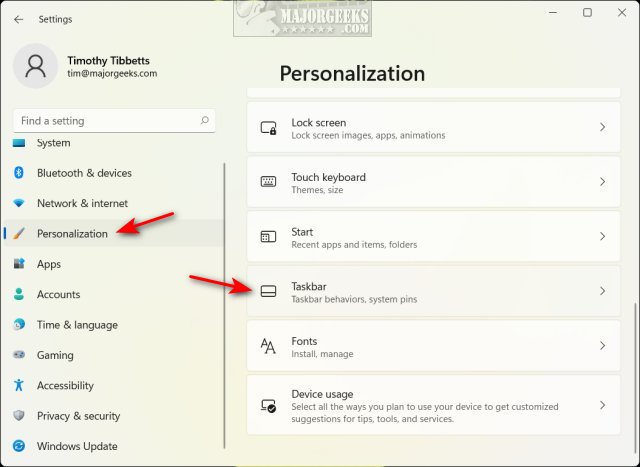
- Right-click the taskbar and choose Taskbar settings.
- Scroll to Multiple displays.
- Turn on Show taskbar on all displays.
Now, each monitor will show a taskbar. You can decide what appears on each:
- All taskbars: Every open app shows on every taskbar.
- Main taskbar and where window is open: Each app appears on your main taskbar and the one where its window is active.
- Taskbar where window is open: Apps only show on the taskbar of the monitor they’re used on.
These options help avoid confusion when you have many windows open.
Example: Two-monitor Setup In Windows 11
Suppose you have a laptop and an external monitor. If you open Chrome on the external screen, you’ll see its icon on both taskbars (or only that screen, if you pick that option). If you drag Chrome to the laptop, the taskbar changes instantly.
Taskbar Placement
You can also move the taskbar to the left, right, or top of the screen on each monitor. Right-click an empty part of the taskbar, unlock it, and drag to your preferred edge.
Windows 7 And 8: Third-party Tools
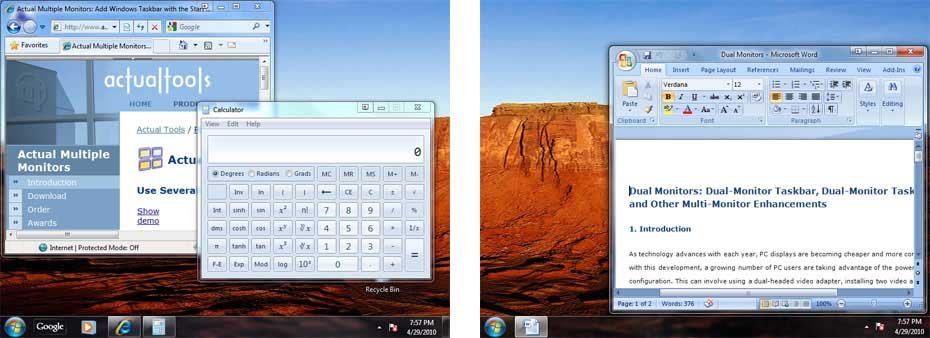
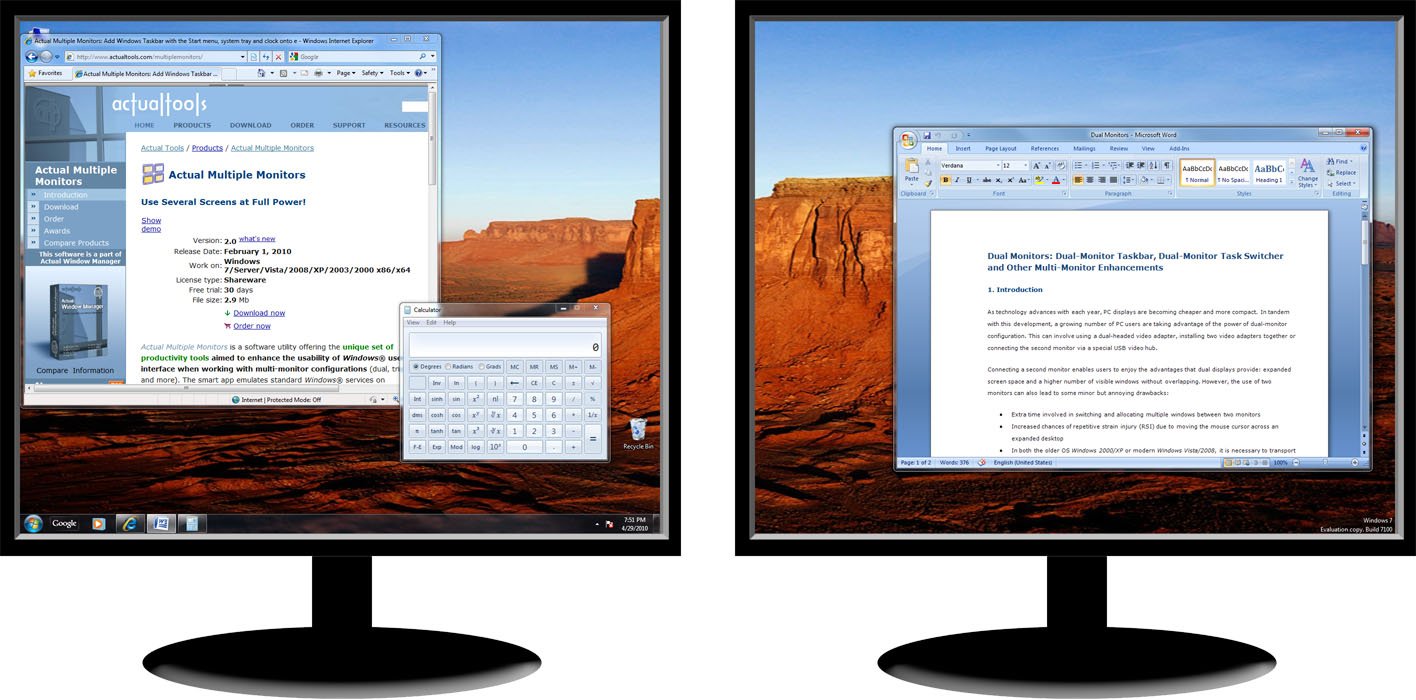
Windows 7 and 8 do not support multi-monitor taskbars natively. But tools like DisplayFusion and Actual Multiple Monitors fill this gap.
- DisplayFusion: Free and paid versions, highly customizable.
- Actual Multiple Monitors: Paid, with a 30-day trial.
These apps let you:
- Add taskbars to extra monitors
- Control what icons appear
- Add Start buttons and notification areas
Quick Comparison
| Feature | DisplayFusion | Actual Multiple Monitors |
|---|---|---|
| Free Version | Yes | No |
| Start Button | Yes | Yes |
| Notification Area | Partial | Full |
| Highly Customizable | Yes | Yes |
Customizing The Multi-monitor Taskbar
You can change how the taskbar looks and behaves on each monitor:
- Combine buttons: Choose whether to group app windows.
- Auto-hide: Hide taskbars when not in use.
- Notification area: Show system icons on all, one, or selected monitors.
To access these, go to Taskbar settings > Multiple displays.
Credit: m.majorgeeks.com
Setting Up Taskbar On Both Monitors In Macos
Mac computers do not have a Windows-style taskbar, but the Dock acts as a similar feature.
How To Show Dock On Both Monitors
By default, the Dock appears only on your main display. But with macOS Mojave and newer:
- Move your mouse to the bottom of your secondary monitor.
- The Dock will jump to that screen.
However, it doesn’t show on both screens at the same time. Only one Dock is visible at a time.
Workaround: Third-party Tools
Some users try apps like MultiMonitorTool or iCollections, but these only provide partial solutions.
- ICollections: Lets you create custom launchers on any screen.
- MultiMonitorTool: For advanced window management, not Dock duplication.
Notification Center And Menu Bar
Since macOS Monterey, the menu bar appears on all displays. This helps you access system menus no matter which screen you use.
| macOS Version | Dock Behavior | Menu Bar |
|---|---|---|
| Mojave and up | Moves to active display | Main and secondary monitors |
| Monterey and up | Same | All monitors |
Taskbar On Both Monitors In Linux
Linux offers more control, but setup depends on your desktop environment (DE).
Gnome
GNOME Shell only shows the top bar on the main screen. You can use Dash to Dock or Dash to Panel extensions for extra flexibility:
- Dash to Dock: Add docks to all monitors.
- Dash to Panel: Create taskbar-like panels everywhere.
These are installed via the GNOME Extensions website.
Kde Plasma
KDE Plasma lets you add a full panel (taskbar) to any screen:
- Right-click your desktop.
- Choose Add Panel > Default Panel.
- Move it to your desired monitor.
Each panel can be customized—different widgets, shortcuts, and system trays.
Xfce, Mate, And Others
Most lightweight desktops allow panels on all monitors. Right-click the panel, select Panel Settings, and assign it to another screen.
Example: Xfce Dual Monitor Panel
You can add one panel to each monitor, or even two on the same screen. Widgets can be different for each.
Advanced Tweaks And Customizations
Multi-monitor setups offer room for personal style. Here are a few ideas:
- Different wallpaper on each monitor: Supported by most modern systems.
- Unique taskbar color or transparency: In Windows, use personalization settings.
- App shortcuts per monitor: Pin only certain apps to the taskbar of one screen.
- Auto-hide on some screens only: Reduce visual clutter.
- Notification area customizations: Choose which system icons appear where.
Non-obvious Tips
- On Windows, if you use auto-hide, make sure your mouse sensitivity is not too high. Sometimes, the taskbar may not appear quickly on a secondary monitor.
- On macOS, dragging a window to another screen and clicking the menu bar there makes that screen the “active” one, which can change where notifications and the Dock appear.
Common Problems And Solutions
Taskbar Not Showing On Second Monitor
- Windows: Check Taskbar settings under Multiple displays.
- Mac: Move mouse to bottom of second screen.
- Linux: Make sure the right extension or panel is added.
Taskbar Appears But Doesn’t Work
Sometimes the taskbar is visible but won’t let you click icons. Try:
- Restarting Windows Explorer (Windows).
- Logging out and back in.
- Checking for driver or graphics card updates.
Taskbar Flickers Or Moves
If your monitors are set to different resolutions or refresh rates, the taskbar can act strangely. Make sure both screens use compatible settings.
Apps Only Show On Main Taskbar
In Windows, change this in Taskbar settings. In Linux, adjust your panel or dock configuration.
Practical Use Cases
- Developers: Run code on one screen, with debugging tools accessible from the taskbar on the other.
- Gamers: Game on one monitor, with Discord and performance stats on the second.
- Designers: Main taskbar for creative tools, second for reference and system info.
Here’s a real-world example: Sarah, a graphic designer, keeps Photoshop on her main monitor. She pins her email and calendar to the taskbar on her second screen. This lets her check messages without breaking focus.
How To Choose Third-party Tools
When built-in options are not enough, a third-party tool can help. Look for these features:
- Easy setup: Should not require complex configuration.
- Good support: Active updates and help available.
- Customizable: Can change appearance and behavior.
- Lightweight: Doesn’t slow down your system.
Avoid tools that are no longer updated, as they may not work with new Windows or macOS versions.
Credit: www.actualtools.com
Security And Privacy Concerns
Some third-party apps ask for access to your system. Only download from trusted sources. Read privacy policies and avoid apps that collect unnecessary data.
If you use a work computer, check with your IT department before installing extra software.
Comparing Built-in Vs. Third-party Taskbars
Here’s a side-by-side look:
| Feature | Built-In Taskbar | Third-Party Tool |
|---|---|---|
| Easy to set up | Yes | Depends on tool |
| Highly customizable | Basic | Advanced |
| Compatible with all Windows versions | No | Yes |
| Support for Dock on macOS | Limited | Partial with tools |
| Extra features (hotkeys, special menus) | Few | Many |
If you want the simplest setup, use built-in tools. For more power, try a third-party app, but check user reviews and compatibility.
Credit: www.actualtools.com
Frequently Asked Questions
How Do I Make The Taskbar Show On Both Monitors In Windows?
Go to Taskbar settings, find Multiple displays, and turn on Show taskbar on all displays. You can control which apps appear on each taskbar using the options below that setting.
Can I Have A Different Taskbar On Each Monitor?
Yes, in Windows you can choose to show only the open apps for each screen’s taskbar. In Linux, panels are highly customizable. On Mac, this is not possible with the Dock, but you can add custom launchers.
Why Does My Taskbar Not Show Up On The Second Monitor?
Check your display settings. For Windows, make sure Extend these displays is enabled in Display Settings, and check Taskbar settings. On Mac, only one Dock appears at a time; you need to move your cursor to the other screen to show it.
Are There Any Risks To Using Third-party Multi-monitor Taskbars?
There can be security risks if you use untrusted software. Always download from the official website. Some tools may slow your system or conflict with updates, so read reviews and choose actively supported apps.
Where Can I Learn More About Advanced Multi-monitor Setups?
For in-depth guides and the latest software, visit the Wikipedia Multi-monitor page. It covers setup, history, and advanced tips.
Adding a taskbar to both monitors can make your work smoother and faster. Whether you use Windows, Mac, or Linux, you now have the knowledge to set up, customize, and troubleshoot your multi-monitor taskbar. With the right setup, your screens become true productivity tools, ready for anything you need.
