
Microsoft Teams Audio Settings: Everything You Need To Know
Microsoft Teams has become the backbone of online meetings for millions of people. Whether you work from home or join hybrid teams, clear audio is essential. Poor sound can ruin meetings and waste valuable time. But many users don’t realize how powerful and flexible the audio settings in Microsoft Teams are. With the right setup, you can improve sound quality, reduce background noise, and solve most audio issues before they interrupt your calls.
This guide explores all aspects of Microsoft Teams audio settings. You’ll learn how to set them up, troubleshoot problems, and get the most out of every call. Both beginners and advanced users will find practical advice, step-by-step instructions, and tips for getting professional sound—even with basic equipment.
Understanding Microsoft Teams Audio Settings
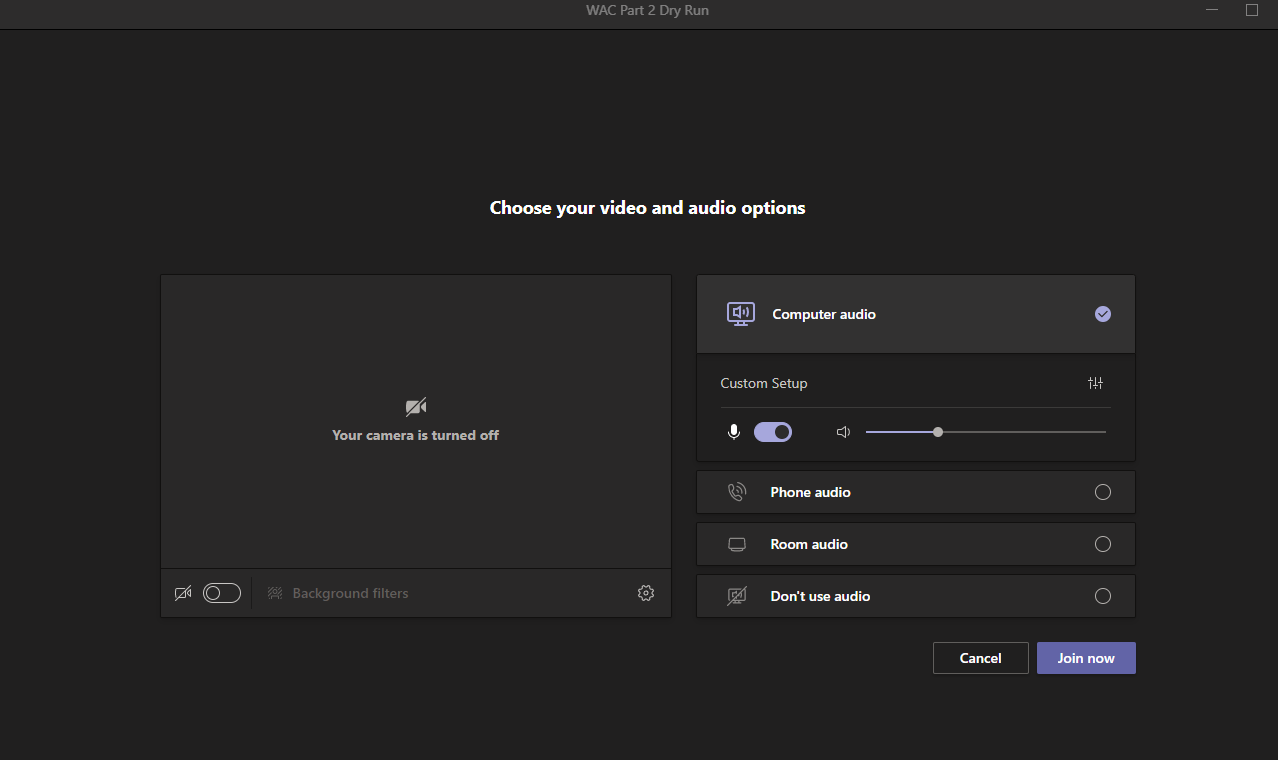
Microsoft Teams offers a variety of audio controls to help users manage their meeting experience. These settings are not just for changing your microphone or speaker—they affect how you sound to others and what you hear.
Key Audio Controls
- Microphone selection: Choose which mic Teams uses, especially important if you have a headset and laptop mic.
- Speaker selection: Pick the output device, like headphones or external speakers.
- Noise suppression: Removes unwanted background sounds.
- Call quality settings: Adjust for better performance if your internet is slow.
- Test call: Check how you sound before joining a meeting.
- Advanced device settings: For users who need more control, like musicians or presenters.
Many people overlook these controls, relying on default settings. But Teams lets you customize almost every aspect of your audio experience.
How To Access Microsoft Teams Audio Settings
Getting to the audio controls is simple, but the exact steps depend on your device.
On Windows And Mac
- Open Microsoft Teams.
- Click your profile picture (top right corner).
- Select Settings.
- Go to Devices.
This menu shows options for audio devices, speaker, microphone, noise suppression, and more.
During A Meeting
You can adjust settings while in a call:
- Click the three dots (…) on the meeting toolbar.
- Select Device settings.
- Change your mic, speaker, or camera here.
This is useful if you need to switch to a headset or fix an audio issue on the spot.
On Mobile Devices
- Tap your profile icon.
- Go to Settings > Calling.
- Here, you can change ringtone and call controls.
Most advanced audio settings are available on desktop only.
Choosing The Right Microphone And Speaker
Selecting the correct input and output devices is the foundation of good audio.
Microphone Types
- Built-in microphones: Common on laptops, but often pick up background noise.
- USB headsets: Provide clear sound and are easy to set up.
- Bluetooth headsets: Wireless, but can have connection problems.
- External USB microphones: Best for presentations, podcasts, or music.
For Teams meetings, a basic USB headset is often the best choice. It reduces background noise and keeps your voice clear.
Speaker Options
- Laptop speakers: Fine for solo calls, but can create echo in group meetings.
- Headphones: Prevent feedback and keep conversations private.
- External speakers: Good for group calls in a meeting room.
Setting Your Devices
In the Devices menu, pick your preferred microphone and speaker from the dropdown lists. Always test them before important meetings.
Using Noise Suppression In Teams
Noise suppression is a powerful feature that removes background sounds like keyboard clicks, pets, or traffic.
Levels Of Noise Suppression
Teams offers several choices:
- Auto: Teams chooses the best level for you.
- Low: Reduces persistent noise (like computer fans) but keeps music and voices.
- High: Removes almost all background noise. Good for busy environments but may affect music or soft voices.
- Off: No noise suppression, for cases where you want every sound to come through (like music lessons).
To set noise suppression:
- Open Settings > Devices.
- Find Noise suppression.
- Choose your preferred level.
Real-world Example
If you work in a shared office, set noise suppression to High. For music lessons or singing, turn it Off so Teams doesn’t block your instrument or voice.
Credit: learn.microsoft.com
Making A Test Call
Testing your audio is a step many people skip, but it can prevent problems during real meetings.
How To Make A Test Call
- Go to Settings > Devices.
- Click Make a test call.
- Speak after the beep; Teams will record and play back your voice.
If you hear yourself clearly, your settings are correct. If not, check your microphone or network.
Why Test Calls Matter
A test call checks not just your device, but also the connection to Teams servers. Sometimes, your microphone works in Windows but fails in Teams due to permissions or other apps blocking access.
Advanced Device Settings
For users who need more control—like presenters, streamers, or musicians—Teams offers advanced audio settings.
High-fidelity Music Mode
This mode is designed for sharing music or high-quality audio.
- What it does: Sends uncompressed audio for better sound.
- How to enable: Go to Settings > Devices, then turn on High-fidelity music mode.
This is useful for music teachers or anyone broadcasting concerts or podcasts via Teams.
Stereo Vs. Mono Audio
Most meetings use mono audio for better bandwidth use. But with High-fidelity mode, you can send stereo audio if your equipment supports it.
Sample Rate And Bitrate
Teams usually manages this automatically. However, if you notice poor sound, check your device driver settings to ensure they match Teams’ defaults (typically 16 kHz for calls).

Credit: mcgill.service-now.com
Troubleshooting Common Audio Problems
Even with good equipment, problems can happen. Here’s how to fix the most frequent issues.
People Can’t Hear You
- Check your microphone selection.
- Make sure the mic isn’t muted (both in Teams and on your headset).
- Update your audio drivers.
- Try unplugging and reconnecting your device.
- Close apps that might be blocking your microphone (like Skype or Zoom).
You Can’t Hear Others
- Verify the correct speaker is selected.
- Increase the volume (on your device and Teams).
- Test with another headset or speaker.
- Restart Teams.
Echo Or Feedback
- Use headphones instead of speakers.
- Lower your mic or speaker volume.
- Mute yourself when not speaking.
Audio Drops Or Delays
- Check your internet connection speed. Teams needs at least 1 Mbps for good audio.
- Close extra apps using bandwidth (like streaming services).
- Switch to a wired connection if possible.
Comparison: Teams Audio Settings Vs. Zoom And Google Meet
How does Teams compare to other top meeting platforms? Here’s a quick overview.
| Feature | Microsoft Teams | Zoom | Google Meet |
|---|---|---|---|
| Noise Suppression | Yes (multiple levels) | Yes (basic, always-on) | Yes (AI-powered, auto only) |
| Test Call | Yes | Yes | No |
| High-Fidelity Audio Mode | Yes | Yes (Music mode) | No |
| Device Selection During Call | Yes | Yes | No |
Teams offers more control over noise suppression and device selection than Google Meet, and matches Zoom for most advanced features.
Optimizing Audio For Different Environments
Audio needs change based on where you work. Here’s how to set up Teams for different situations.
Home Office
- Use a USB headset or good quality external mic.
- Set noise suppression to High if there’s background noise.
- Mute your mic when not speaking.
Open Office
- Always use headphones.
- Set noise suppression to High.
- Use push-to-talk (hold space bar) if your environment is very noisy.
Meeting Room
- Use a conference speaker/mic device.
- Place the device in the center of the table.
- Test all devices before the meeting.
On The Go (mobile)
- Use a wired headset for best sound.
- Keep your phone steady; avoid walking while speaking.
- Use mute as needed to block wind or traffic noise.
Tips For The Best Audio Quality In Teams
Many issues can be prevented with good habits and small adjustments.
- Update Teams regularly to get the newest audio features and fixes.
- Position your mic about 6 inches from your mouth for clear sound.
- Avoid talking over others. Teams can only transmit one voice clearly at a time.
- Check permissions: Sometimes, Teams can’t access your microphone due to system settings.
- Test before big meetings: Use the test call feature every time.
- Restart Teams if audio glitches appear.
- Close other call apps: Apps like Zoom or Skype may block your mic.
- Use wired connections: Both for headsets and internet, for more stable audio.
- Monitor your network: If video lags, turn off your camera to improve audio.
- Label devices clearly: If you have multiple headsets or mics, rename them in Windows Sound settings for easy selection.
Credit: learn.microsoft.com
Advanced Troubleshooting: Real-world Scenarios
Sometimes, audio issues are more complex than a simple mute or wrong device selection. Here are two scenarios where deeper troubleshooting is needed.
Scenario 1: Audio Cuts Out For Some Users Only
If only some people can’t hear you:
- Ask them to check their own device settings.
- Send them a test recording.
- Make sure your Teams app is updated (some updates improve compatibility with new microphones).
Scenario 2: Teams Detects No Microphone
- Check Windows privacy settings: Go to Settings > Privacy > Microphone and make sure Teams is allowed.
- Restart your computer.
- Try using Teams in a browser as a temporary fix.
For more advanced help, Microsoft has a dedicated support page at Microsoft Support.
Data Table: Popular Audio Devices For Teams
Here’s a look at some of the most used devices for Teams meetings.
| Device Name | Type | Average Price (USD) | Noise Cancellation |
|---|---|---|---|
| Jabra Evolve 40 | Wired headset | 80 | Passive |
| Logitech H390 | Wired headset | 30 | None |
| Blue Yeti USB Mic | Desk microphone | 120 | None |
| Bose QuietComfort 35 II | Bluetooth headset | 250 | Active |
Choosing a device with passive or active noise cancellation can make a big difference in busy environments.
When To Use External Audio Software
Some advanced users may want more control than Teams offers. External software like VoiceMeeter or OBS lets you:
- Mix multiple audio sources.
- Add effects or filters.
- Record calls locally.
However, these tools add complexity and are best for presenters or streamers—not everyday meetings.
Frequently Asked Questions
What Is The Best Audio Device For Microsoft Teams?
A good USB headset is the best choice for most users. It offers clear sound, easy setup, and reduces background noise better than built-in microphones.
How Can I Stop Background Noise During Teams Meetings?
Enable noise suppression in Teams settings and use a headset with noise-canceling features. Mute your microphone when not speaking, and avoid noisy environments if possible.
Why Can’t People Hear Me In Teams?
Check if your microphone is correctly selected in Teams. Make sure it’s not muted in Teams or on the device itself. Also, verify that Teams has microphone access in your computer’s privacy settings.
Does Microsoft Teams Support Stereo Audio?
Yes, but only in High-fidelity music mode. For regular meetings, Teams uses mono audio to save bandwidth. Enable high-fidelity mode in Settings > Devices for stereo sound.
Can I Use External Audio Tools With Teams?
Yes, software like VoiceMeeter or OBS can be used to mix or improve audio. However, these tools require extra setup and are mainly for advanced users or presenters.
Microsoft Teams audio settings are more powerful than most people realize. Taking the time to set up your devices, use noise suppression, and test your equipment will deliver smoother, more professional meetings. Whether you’re in a quiet office or a busy home, these tips help you sound your best every time you join a call. For more detailed technical information, check the official Microsoft Teams documentation.
