
If you want to enjoy music, join a meeting, or dive into a game, your headset’s audio quality makes a big difference. But how do you know if your headset is really good? Sometimes, even expensive headsets can sound bad, while cheaper ones can surprise you.
Testing audio quality is not just about plugging in and listening. You need to check several things to make sure you get clear sound, strong bass, and a comfortable fit. This guide will show you how to test headset audio quality in simple steps, even if you are new to audio tech.
Why Headset Audio Quality Matters
A headset with good audio quality helps you hear every detail. This is important for music lovers, gamers, and people who join online meetings. Bad audio can make voices sound muddy, music lose its excitement, or even cause ear fatigue after long use. Testing your headset helps you avoid these problems and choose the best option for your needs.
Preparing For The Test
Before you start, make sure you are in a quiet room. Background noise can confuse your ears and make testing difficult. Also, check that your headset is properly connected to your device—whether it’s through a headphone jack, USB, or Bluetooth. If you use wireless headsets, ensure they are fully charged.
You will also need:
- A smartphone, computer, or audio player
- Music or test audio files (more on this below)
- A notepad or app for taking notes
What To Listen For: Key Audio Qualities
When testing a headset, focus on these key aspects:
- Clarity – Are the sounds crisp, or do they blur together?
- Bass – Does the headset produce deep, strong bass without rumbling?
- Treble – Are high notes clean, or do they sound sharp and harsh?
- Balance – Do all parts of the music sound even, or does one part dominate?
- Soundstage – Can you feel space and direction in the sound, or does it feel flat?
- Distortion – Do you hear unwanted buzzing, crackling, or static?
- Volume Range – Can you listen quietly and loudly without losing quality?
- Comfort – Does wearing the headset for 30-60 minutes cause pain or heat?
Each of these points reveals something about the headset’s strengths and weaknesses.
Playing The Right Test Sounds
Not all music or sounds will show a headset’s true quality. Here’s what to use:
- Frequency sweeps: These play tones from low bass to high treble. You can find these on YouTube or download free files.
- Music tracks: Choose songs you know very well, with a mix of vocals, instruments, and quiet parts.
- Binaural recordings: These are special 3D sound files. They show how well the headset creates a “space” for your ears.
- Gaming or movie clips: For headsets used mainly for games or films, test with real gameplay or scenes.
An extra tip: use high-quality (lossless) audio files if possible, such as FLAC or WAV. Compressed files like MP3 can hide problems.
Step-by-step Testing Guide
1. Start With Fit And Comfort
Put on the headset and adjust the headband and ear cups. It should feel snug but not tight. Wear it for at least 20-30 minutes. Notice if you feel pressure on your ears or head, or if your ears get hot.
2. Check For Sound Leaks And Isolation
Play music at medium volume. Ask someone nearby if they can hear what you’re listening to. Good headsets keep sound inside. Next, listen for outside noise—do you hear a lot of the room, or does the headset block it out?
3. Test Frequency Response
Play a frequency sweep from 20 Hz to 20,000 Hz. Most people can hear between these ranges. Notice:
- Does the bass (20–200 Hz) sound deep and strong?
- Are there any sudden drops or boosts in the midrange (200–4,000 Hz)?
- Is the treble (4,000–20,000 Hz) clear or piercing?
If you hear crackling, buzzing, or uneven volume, the headset may have poor drivers.
4. Try Different Music Styles
Play several types of music: pop, classical, rock, jazz, or hip-hop. Good headsets sound clear with every style, not just one. For example, do drums sound punchy in hip-hop? Are vocals clear in pop? In classical, can you pick out each instrument?
5. Evaluate Soundstage And Imaging
Some headsets make sounds feel like they come from different directions. Play a binaural recording or a live concert. Close your eyes and see if you can tell where each sound comes from. Soundstage is important for gaming and movies, too.
6. Check For Distortion And Volume
Turn the volume up and down. At low volume, sounds should stay clear. At high volume, there should not be any buzzing, rattling, or loss of detail. If you hear distortion, the headset may not handle power well.
7. Microphone Quality (if Present)
If your headset has a microphone, record your voice in a quiet room. Listen for background noise, clarity, and if your voice sounds natural.
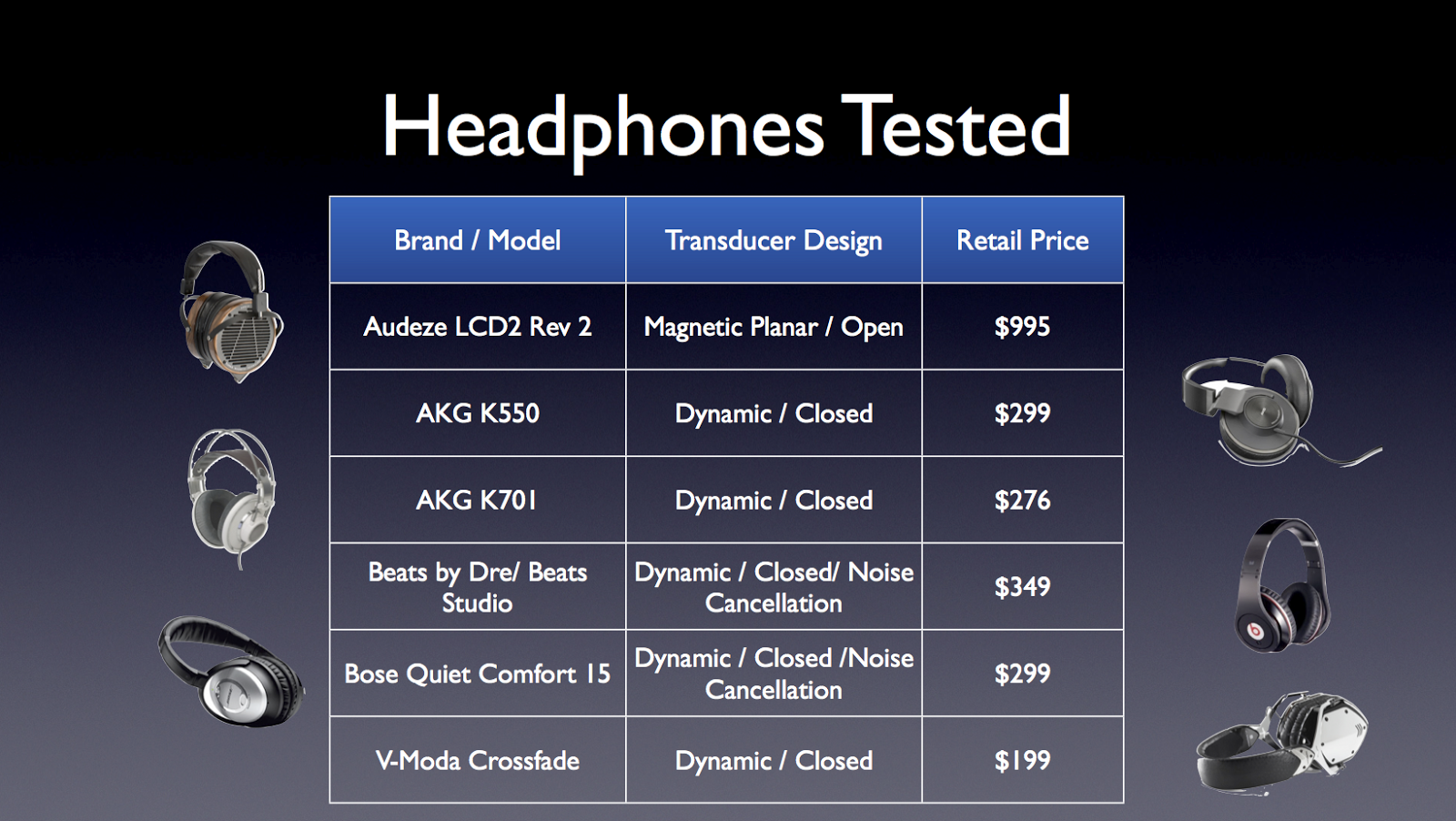
8. Compare With Other Headsets
If you have access to more than one headset, compare them directly. Switch back and forth using the same song or test file. Sometimes, differences become obvious only when you listen side-by-side.
Comparing Wired Vs Wireless Headsets
Each type has unique strengths and weaknesses. Here’s a summary:
| Feature | Wired Headsets | Wireless Headsets |
|---|---|---|
| Sound Quality | Usually better, no compression | May have compression, sometimes less detail |
| Latency | Very low | Can be higher, may affect gaming |
| Convenience | Limited by cable length | Freedom to move, no cables |
| Battery Life | No battery needed | Needs regular charging |
| Price | Often cheaper | Can be more expensive |
Credit: seanolive.blogspot.com
Important Technical Specs To Check
Numbers on a box can be confusing, but a few specs matter:
- Frequency response: Shows the range of sounds (lows to highs) the headset can produce. A common range is 20 Hz – 20,000 Hz.
- Impedance: Lower numbers (16–32 ohms) are good for phones. Higher impedance (more than 50 ohms) may need a headphone amp.
- Sensitivity: How loud the headset gets at a certain power. Higher is louder, but too high can pick up noise.
Here’s a quick comparison of common spec ranges:
| Spec | Entry-Level | Mid-Range | High-End |
|---|---|---|---|
| Frequency Response | 30–18,000 Hz | 20–20,000 Hz | 15–25,000 Hz |
| Impedance | 16–32 ohms | 32–64 ohms | >64 ohms |
| Sensitivity (dB) | 90–100 dB | 100–110 dB | >110 dB |
Common Mistakes When Testing
Many people make small mistakes that can lead to the wrong judgment. Here are things to avoid:
- Testing with low-quality files. Compressed MP3s can hide problems.
- Ignoring comfort. Even the best-sounding headset is useless if it hurts after 10 minutes.
- Testing only one music type. Some headsets handle bass well but fail with vocals.
- Using only default device settings. Try turning off effects like “bass boost” or “surround sound” to get the real sound.
- Judging from short tests. Wear the headset for an hour or more for a true comfort test.
Credit: nuroum.com
Non-obvious Insights
Beginners often miss two important things:
- Ear shape matters: The shape and size of your ears can change how a headset sounds. Try to test before buying, or buy from stores with return policies.
- Burn-in is real (sometimes): Some headsets sound better after 20–40 hours of use. This “burn-in” period is debated, but it can help drivers settle and sound smoother.
Practical Tips For Accurate Testing
- Always test at your normal listening volume, not too loud or too soft.
- Clean your ears and headset pads before testing. Dirt can block sound.
- If you wear glasses, test with them on. Some headsets fit differently with glasses.

Credit: www.vecteezy.com
When To Upgrade Your Headset
If your current headset fails in these areas, consider upgrading:
- Voices or instruments sound muffled
- Headset feels uncomfortable after 30 minutes
- Ear cups or headband are worn out
- Microphone is noisy or unclear
Remember, even a small upgrade can make meetings, games, or music much more enjoyable.
External Resources
For more in-depth testing files and guides, check out RTINGS Headphone Sound Quality Tests, which offers detailed explanations and downloadable test files.
Frequently Asked Questions
What Is The Best Type Of Music For Testing Headset Audio Quality?
Choose music with a wide range of sounds, like classical, jazz, or live concert recordings. These will show how well the headset handles different instruments and vocals.
How Can I Tell If My Headset Has Too Much Bass?
Play a song with strong bass (like hip-hop or electronic). If the bass covers up vocals or makes other sounds hard to hear, the headset may have too much bass boost.
Does The Quality Of My Audio Source Affect The Test?
Yes. High-quality (lossless) files will reveal more details and flaws. Streaming music at low quality or using old sound cards can hide problems or make the headset sound worse.
How Do I Test The Microphone On My Headset?
Record your voice using a voice recorder app or your computer. Listen to the playback for clarity, background noise, and natural sound.
Is It Better To Test Headsets In A Store Or At Home?
Testing at home is better because you can take your time, use your own device, and listen in a quiet space. If testing in a store, bring your own music and try to block out noise.
Headset audio quality can change how you experience music, calls, or games. With these steps, you’ll be able to judge your headset like a pro—even if you’re not an audio expert. Take your time, trust your ears, and don’t be afraid to try different models until you find the perfect sound.
