
Setting up a desk charging station can transform your workspace from a tangled mess of cables to a clean, organized hub where all your devices stay powered up. With more gadgets becoming part of everyday work and study life—phones, tablets, smartwatches, wireless earbuds—the need for an efficient charging station grows.
But simply plugging devices anywhere often leads to clutter, wasted time, and sometimes even damaged electronics. The good news is, creating your own desk charging station is easier and more rewarding than you might think.
This guide will walk you through the process, offering clear steps, practical tips, and expert insights that most beginners miss. By the end, you’ll have a desk charging station that saves time, looks professional, and keeps your devices ready whenever you need them.
Understanding Your Charging Needs
Before buying anything, take a few minutes to think about what you really need. Most people overlook this step and end up with a station that’s too small, too complicated, or not future-proof.
- List Your Devices: Write down all devices you charge regularly at your desk—smartphone, tablet, laptop, smartwatch, wireless earbuds, and any others.
- Count Charging Ports Needed: Note how many devices might need charging at the same time. Some gadgets, like wireless keyboards or power banks, may need charging only once a week.
- Check Charging Speeds: Do you have devices that support fast charging? Laptops often need more power (like USB-C PD 60W+) compared to phones (typically 18W to 30W). Mixing slow and fast devices on the same low-power charger can cause frustration.
- Consider Device Placement: Where do you want your devices to sit while charging? Some people prefer to hide devices in a drawer, while others want them on display for easy access.
Non-obvious insight: Don’t forget to check if you need to charge work and personal devices separately. You may want a discreet area for private devices.
Choosing The Right Charging Station
Not all charging stations are equal. There are several types, each with pros and cons.
Main Types Of Desk Charging Stations
| Type | Best For | Common Drawbacks |
|---|---|---|
| Multi-Port USB Hub | Multiple phones, tablets, earbuds | Often lacks wireless charging |
| Wireless Charging Pad | Qi-enabled phones, earbuds, smartwatches | Slower charging, limited device support |
| Power Strip with USB Ports | Laptops, monitors, phone chargers | Bulky, visible cables |
| Custom Organizer Box | Hiding cables, mixing device types | More expensive, takes setup time |
Pro tip: Consider a hybrid setup. For example, a multi-port USB hub for most devices and a wireless pad just for your phone.
What To Look For
- Wattage and Amps: Ensure each port provides enough power.
- Number of Ports: At least one per device, plus one extra.
- Cable Management: Look for stations with built-in cable routing or slots.
- Size and Design: Should fit your desk and match your style.
- Safety Features: Over-current and over-voltage protection are important.

Credit: www.reddit.com
Gathering Supplies And Tools
Setting up a desk charging station doesn’t require advanced tools, but having the right items makes the process smooth.
- Charging station or hub (the main unit)
- Charging cables (preferably short or right-angle ones)
- Power strip (if your outlet is far or you need more sockets)
- Cable clips or ties (for organizing cords)
- Label stickers (optional, to mark cables or device spots)
- Double-sided tape or Velcro (to secure the station)
- Cleaning supplies (to clear your desk before setup)
Beginner mistake: Many people forget to buy extra USB-C or Lightning cables. Always get one or two more than you think you need.
Preparing Your Desk Space
A good charging station starts with a clean, clear space.
- Clear the area: Move everything off the desk where you want the station.
- Wipe surfaces: Dust and wipe to ensure good grip for cable clips or tape.
- Plan cable routes: Decide if cables will run behind, under, or along the desk.
- Find power access: Identify the nearest wall outlet or surge protector.
Expert tip: If your desk has a grommet hole (a round hole for cables), use it to keep things neat.
Setting Up The Charging Station
Now, let’s put everything together step by step.
Step 1: Position The Charging Hub
Place your charging hub or power strip where you want it. Common spots are the back corner of the desk, inside a drawer, or along the side if you have limited space.
Step 2: Connect Power
Plug the charging station into the wall or a surge protector. Make sure the cord can reach without stretching.
Step 3: Arrange Charging Cables
Plug each cable into the appropriate port on the station. Use shorter cables to reduce clutter. Coil any extra length and secure with a cable tie.
Step 4: Use Cable Clips
Attach cable clips to your desk to hold cables in place. Space them out so each device’s cable is easy to grab.
Step 5: Organize Device Placement
Decide where each device will sit while charging. You can use small stands, trays, or even a DIY box with slots for each device.
Step 6: Secure The Station
If the charging hub slides around, use double-sided tape or Velcro to fix it in place. This keeps everything tidy and prevents accidents.
Step 7: Test Everything
Connect your devices and check that each one charges as expected. Make sure cables are not too tight or tangled.
Hidden insight: Keep one port free for guests, new devices, or emergencies. This saves you from swapping cables all the time.
Advanced Organization Tips
A basic charging station works, but small details can make your setup much better.
Reduce Cable Mess
- Use right-angle cables to minimize sticking out.
- Choose flat or braided cables for durability and less tangling.
- Color-code or label cables by device type.
Hide Cables
If you want a minimalist look, run cables under a desk mat or through adhesive cable channels. Organizer boxes can hide both the charging hub and excess cable.
Add Device Holders
Use stands or racks to keep devices upright and safe from spills. For tablets or laptops, vertical holders save a lot of space.
Integrate Wireless Charging
If you have newer devices, add a wireless charging pad to your station. Some stations combine wireless and wired charging for convenience.
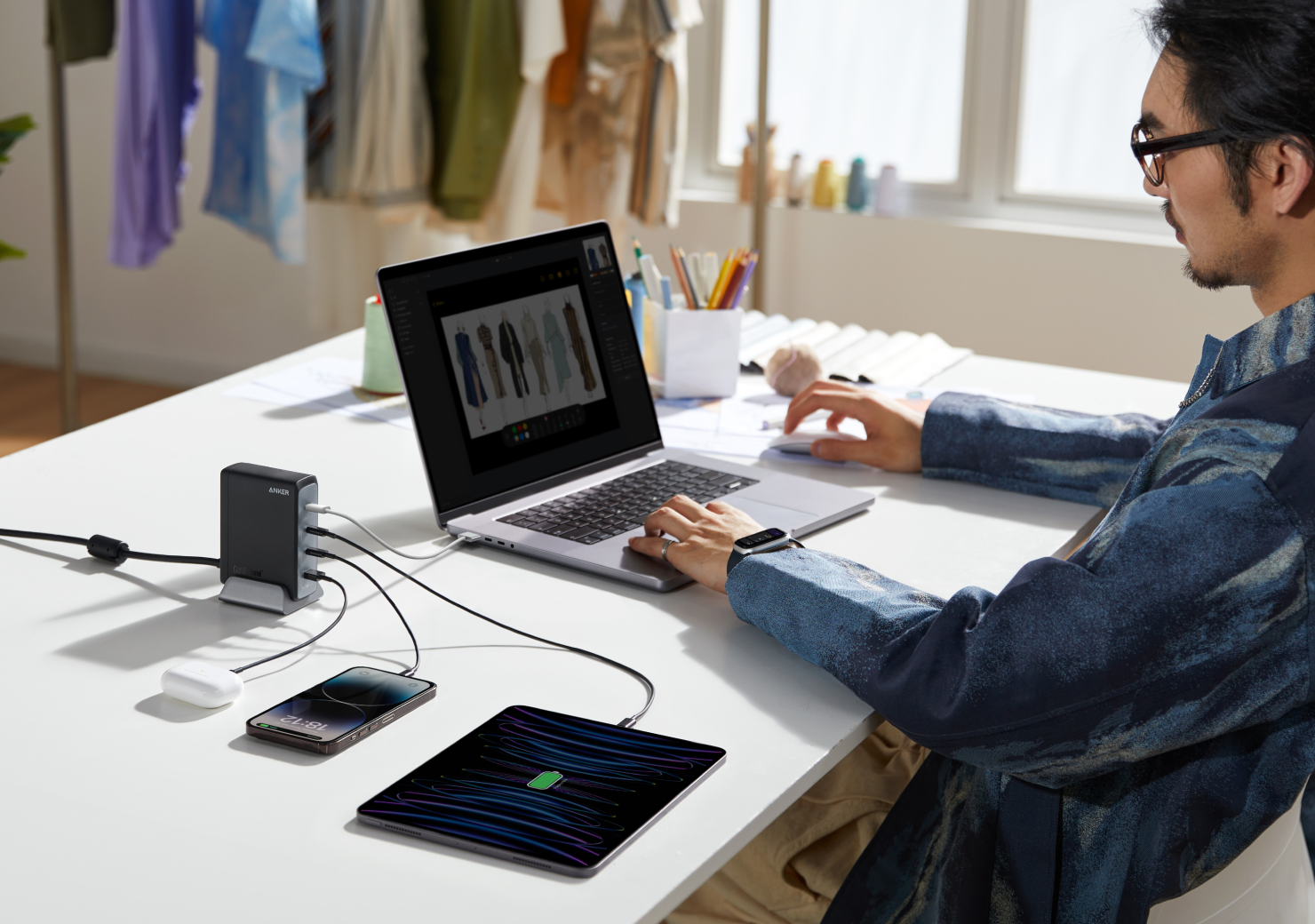
Credit: www.anker.com
Comparing Popular Desk Charging Station Options
Here’s a quick look at how three common setups compare:
| Feature | Multi-Port USB Hub | Wireless Charging Pad | Custom Organizer Box |
|---|---|---|---|
| Number of Devices | 4-8 | 1-3 | 5-10 |
| Charging Speed | Fast (depends on model) | Medium/Slow | Fast/Medium |
| Cable Management | Basic | Excellent (few cables) | Excellent (hidden cables) |
| Price Range | Low to Medium | Medium | Medium to High |
| Desk Space Used | Small | Small | Medium/Large |
Personalization tip: Mix and match options to suit your needs. For example, use a custom box for tablets and a wireless pad for your phone.
Keeping Your Charging Station Safe
Safety is a big deal with electronics. Here’s how to avoid accidents and device damage.
- Don’t overload outlets: Use a surge protector if you have many devices.
- Use certified cables and chargers: Cheap, untested products can be dangerous.
- Check for overheating: If a charger or device gets too hot, unplug it and check for problems.
- Keep liquids away: Charging stations and drinks don’t mix.
- Regularly inspect cables: Replace any that are frayed or damaged.
Maintenance And Upgrading
A good charging station should last years, but a little maintenance helps it stay efficient.
- Dust weekly: Dust can build up around cables and ports.
- Check for loose connections: Make sure all plugs are secure.
- Update for new devices: Add or swap cables as you get new tech.
- Review your needs every 6 months: Your device lineup might change.
Hidden insight: Keep a spare cable or charger in your drawer. If one fails, you won’t be left without power.
Example Of A Simple Desk Charging Station
To help you visualize, here’s a basic setup for a home office:
- Power strip with surge protector under the desk.
- Multi-port USB hub on top, secured with Velcro.
- Three short cables: USB-C for a phone, Lightning for an iPad, Micro-USB for wireless earbuds.
- Cable clips guide the cables neatly to the edge of the desk.
- Vertical phone and tablet stand keeps devices upright while charging.
- Wireless charging pad next to the hub for quick phone charging.
This setup supports up to four devices, keeps the desk tidy, and takes less than 30 minutes to assemble.
Common Mistakes To Avoid
It’s easy to rush and make mistakes. Here’s what to watch out for:
- Buying too few ports: Always plan for one or two extra.
- Using long, messy cables: Short cables look better and reduce tangling.
- Ignoring charging speed: Slow chargers can frustrate you if you need a quick top-up.
- Not securing the hub: A loose charger can fall behind the desk and cause cable chaos.
- Placing in a hard-to-reach spot: Make sure you can easily connect or disconnect devices.
Sustainability: Make Your Charging Station Eco-friendly
If you care about the environment, choose chargers and cables certified for energy efficiency. Unplug your station when not in use to save power, and recycle old cables and electronics responsibly. Many cities have e-waste programs, and some tech stores accept old chargers for recycling.
More Resources
For deeper reading on USB charging standards and device safety, see the Wikipedia USB page.
Frequently Asked Questions
What Is The Best Location For A Desk Charging Station?
Place your charging station within easy reach but out of the way of your main work area. A back corner or side of the desk works well. If you have a drawer with cable access, you can hide the station for a cleaner look.
Can I Use A Regular Power Strip As A Charging Station?
Yes, but it’s less efficient. Regular power strips are designed for bigger plugs, not many USB devices. It’s better to use a power strip with built-in USB ports or a dedicated USB charging hub for faster, safer charging.
How Do I Keep My Charging Station Organized?
Use short cables, cable clips, and device stands to reduce clutter. Organizer boxes can hide cables, while color-coded or labeled cables make it easy to identify each device’s charger.
Is Wireless Charging Better Than Wired Charging?
Wireless charging is convenient but usually slower than wired charging. It’s a good option for devices you use often, like your phone, but not always best for larger devices or fast charging needs.
How Can I Prevent My Charging Station From Overheating?
Use only certified chargers and cables, avoid overloading outlets, and keep the area around your station clear. Check devices and chargers regularly for heat, and unplug everything if you notice overheating.
A well-designed desk charging station keeps your workspace tidy, your devices powered, and your mind focused on what matters. With a little planning and the right tools, anyone can set up a station that works perfectly for their needs.
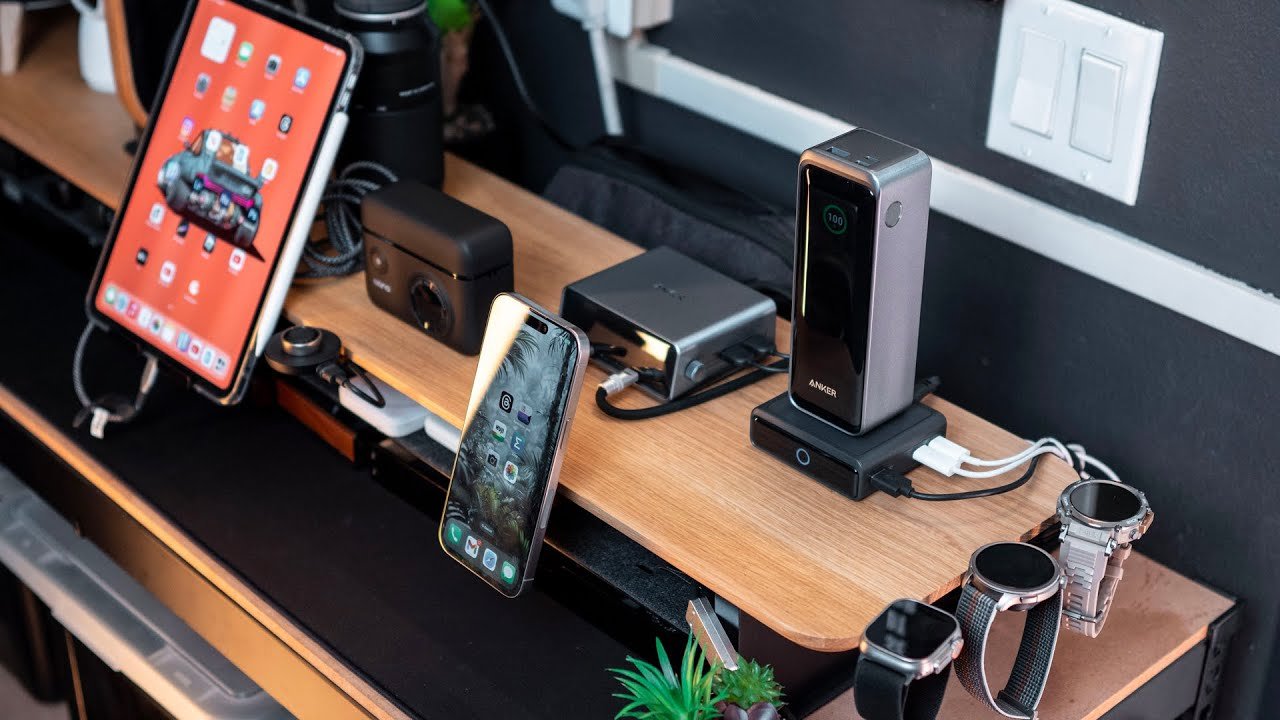
Credit: www.youtube.com
Related Office Guides
Continue with these related workspace guides:
