
A completely wireless office setup is no longer just a dream for tech enthusiasts. Today, it is a practical goal for businesses and home offices alike. Getting rid of messy cables leads to a cleaner space, greater flexibility, and a modern look.
But going truly wireless means more than just buying a wireless mouse. It involves careful planning, the right technology, and smart choices. In this article, you will find everything you need to know to build a fully wireless office—from core devices to network setup, power solutions, and even handling common challenges.
Whether you are upgrading your workspace or starting from scratch, you’ll discover practical advice and helpful insights to make your wireless transition smooth.
Why Go Completely Wireless?
Traditional offices are often filled with cables for computers, phones, printers, and even charging. These wires cause clutter, limit where you can work, and make the office harder to clean. A wireless office solves these problems in several ways:
- Clean workspace: Fewer cables mean less dust and easier cleaning.
- Mobility: You can move devices or rearrange furniture without unplugging anything.
- Flexibility: Employees can work from any desk or meeting room.
- Safety: Reduced risk of tripping over wires.
- Modern image: Clients notice a tidy, high-tech office.
Some people worry that wireless devices are less reliable. However, today’s technology has solved most common issues, and security is stronger than ever.
Essential Devices For A Wireless Office
Building a wireless office starts with the right equipment. Here are the must-have devices and what to look for.
Laptops And Tablets
Desktops are powerful but often rely on cables for power, network, and peripherals. Laptops and tablets are designed for wireless use. They connect to Wi-Fi, use Bluetooth for accessories, and have batteries for untethered work.
Consider:
- Battery life: Choose models with at least 8 hours per charge.
- Weight: Lighter devices are easier to move around.
- Wi-Fi 6 or 6E support for faster, more reliable internet.
Wireless Keyboards And Mice
Wireless keyboards and mice now match wired versions in speed and reliability. Most use Bluetooth, which saves USB ports and works with almost any device.
Tips:
- Rechargeable models reduce battery waste.
- Look for ergonomic shapes to avoid wrist pain.
- Multi-device support allows one keyboard/mouse for several computers.
Wireless Monitors
A real wireless office includes wireless monitors. These connect to laptops or tablets via Wi-Fi or a dedicated transmitter, removing the need for HDMI or DisplayPort cables.
Two common standards:
- Miracast: Built into many Windows devices.
- AirPlay: For Apple products.
Wireless monitors are getting better each year, though 4K streaming may lag compared to cables. Always check compatibility with your main computer.
Wireless Printers And Scanners
Printers and scanners with Wi-Fi or Bluetooth let you place them anywhere. Many models even support printing from mobile devices. Look for:
- Cloud printing support (Google Cloud Print, AirPrint)
- Mobile apps for easy scanning
- High-yield ink or toner options
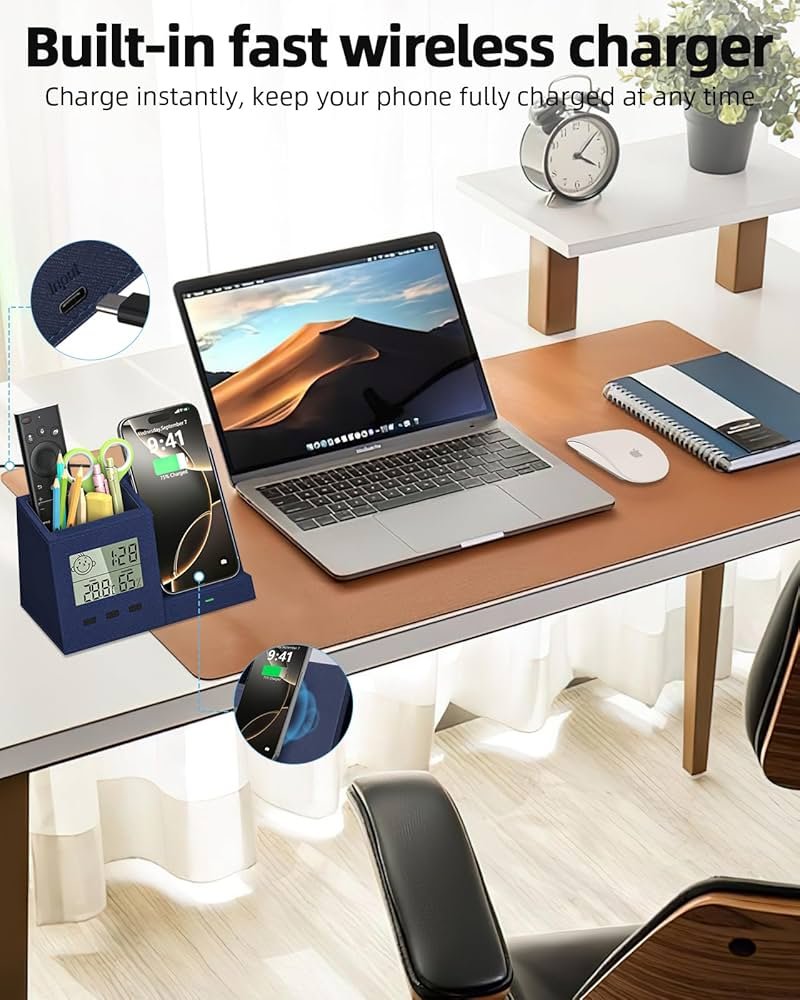
Wireless Charging Stations
A completely wireless setup means not even charging cables. Wireless charging pads and stands are now common for phones, earbuds, and even some laptops.
- Place charging pads at each desk or in shared spaces.
- Choose pads with multiple device support (Qi standard).
- For laptops, check if your model supports wireless charging or consider a battery pack.
Wireless Audio Devices
Headphones, earbuds, and even speakers can all be wireless. Bluetooth models are available in every price range.
- Noise-canceling headphones are great for open offices.
- Conference speakers with Bluetooth are perfect for group calls.
- Some wireless earbuds switch easily between phone and computer.
Wireless Video Conferencing
Modern meeting rooms use wireless cameras and microphones. These can connect to laptops or even work independently with smart TVs.
- Look for plug-and-play models.
- Built-in noise reduction is a plus.
- Some systems support instant sharing from any device in the room.
Credit: www.amazon.com
Wireless Network Infrastructure
All your devices rely on a strong wireless network. Many offices underestimate this step, leading to slow speeds or dropped connections. Here’s what you need to know.
Choosing The Right Router
Your Wi-Fi router is the heart of a wireless office. For best results:
- Get a router with Wi-Fi 6 or Wi-Fi 6E for more speed and device support.
- Dual-band or tri-band routers reduce interference.
- Prioritize security features like WPA3 encryption.
Mesh Network Vs. Traditional Router
Large offices often have Wi-Fi “dead zones.” A mesh network solves this by using several access points that work together.
Here’s a simple comparison:
| Feature | Traditional Router | Mesh Network |
|---|---|---|
| Coverage Area | Limited | Wide (expandable) |
| Setup Complexity | Simple | Moderate |
| Cost | Lower | Higher |
| Seamless Roaming | No | Yes |
For offices over 1000 square feet or with thick walls, mesh networks are usually the best choice.
Network Security
Wireless networks can be targets for hackers. Secure your network by:
- Using strong passwords (not the default).
- Enabling WPA3 encryption.
- Hiding your network name (SSID) if possible.
- Keeping router firmware updated.
- Setting up a guest network for visitors.
Bandwidth Management
Video calls, cloud storage, and streaming can slow down your office if the internet connection is weak. Here’s how to avoid problems:
- Check your internet plan’s speed (aim for at least 100 Mbps for small offices).
- Use routers with Quality of Service (QoS) features to prioritize business traffic.
- Limit non-work streaming during office hours.
Power Solutions For A Wireless Office
Going wireless means fewer data cables, but you still need to power your devices. Here are smart ways to minimize power cord clutter.
Power Over Ethernet (poe)
While PoE is not truly “wireless,” it lets you power devices like access points or phones over a single network cable, reducing the number of plugs needed.
Battery Backup And Uninterruptible Power Supply (ups)
Power cuts can disrupt work and damage devices. A UPS keeps your router, modem, and main devices running during outages.
- Choose a UPS that supports Wi-Fi routers and a few critical devices.
- Calculate total power draw to pick the right model.
Smart Power Strips And Outlets
Replace old power strips with smart outlets that let you control power remotely, set schedules, or monitor energy usage.
- Mount power strips under desks to keep floors clear.
- Use cable clips to guide remaining cords out of sight.
Wireless Charging Comparison
Not all wireless charging pads are equal. Here’s a quick look at options for phones and laptops:
| Device Type | Standard | Max Power (Watts) | Notes |
|---|---|---|---|
| Smartphone | Qi | 15W | Most common; supported by iPhone and Android |
| Laptop | Proprietary/USB-C | Up to 60W | Few laptops support true wireless charging |
| Earbuds | Qi | 5W | Slow charging, but convenient |
Organizing Your Wireless Office Space
Once you have the right devices and network, it’s time to design your workspace for wireless living.
Desk And Room Layout
- Place desks near power outlets for easy charging.
- Use furniture with built-in cable management to hide any remaining cords.
- Arrange shared devices (like printers or charging pads) in central spots.
Minimalist Accessories
Choose accessories that don’t add clutter:
- Wireless lamps with rechargeable batteries.
- Desk organizers with built-in wireless chargers.
- Wall-mounted shelves for routers and charging stations.
Labeling And Device Tracking
Wireless devices are easier to move—and easier to lose. Keep track by:
- Naming devices clearly on your network.
- Using asset tags or stickers for company equipment.
- Installing device tracking apps if supported.
Real-world Example: Small Office Wireless Setup
A five-person marketing agency decided to go fully wireless. They replaced desktops with laptops, installed a mesh Wi-Fi system, and switched to Bluetooth keyboards and mice. Each desk got a wireless charging pad, and the conference room used a wireless camera and speaker system for video calls.
The results:
- Desk clutter dropped by 70%
- Employees could move to any desk or room with no setup
- Cleaning took half as long
- IT support requests for cable problems dropped to zero
They faced a few challenges, like finding a wireless monitor that worked with all laptops and keeping enough charging pads for everyone. Still, the benefits outweighed the small issues.
Credit: www.lapitadearborn.com
Common Challenges And How To Solve Them
No setup is perfect, and a wireless office has its own unique problems.
Interference
With many devices using the same frequency (2.4 GHz or 5 GHz), signals can clash. Solve this by:
- Using dual-band or tri-band routers.
- Placing Wi-Fi access points away from microwaves or cordless phones.
Battery Management
More wireless gadgets mean more batteries to charge.
- Set a weekly schedule for charging shared devices.
- Use devices with long battery life.
- Keep a few backup wired keyboards and mice for emergencies.
Device Compatibility
Not all wireless gadgets work well together. Before buying, check:
- Compatibility lists from device makers.
- User forums for real-life reviews.
- Return policies in case something doesn’t work.
Security Risks
Wireless means more ways for hackers to attack. Lower your risk by:
- Enabling device encryption.
- Using strong, unique passwords.
- Training staff to spot phishing and fake Wi-Fi networks.
Future Trends In Wireless Offices
The next few years will bring even more wireless options:
- Wi-Fi 7 promises faster speeds and lower lag.
- More laptops may support true wireless charging.
- Offices will use sensors and wireless controls for lighting and climate.
- Virtual and augmented reality meetings will run on wireless headsets.
Staying up to date means your office will remain efficient and attractive to new talent.

Credit: global.microless.com
Frequently Asked Questions
What Is A Completely Wireless Office Setup?
A completely wireless office setup is a workspace where all main devices—computers, printers, audio, and video systems—connect without physical cables, except for power. The goal is maximum mobility, flexibility, and a clean look.
Is It Possible To Run An Office Without Any Cables?
While you can remove most cables, you still need power cords unless you use battery-powered devices everywhere. Today, it’s practical to make everything except power wireless.
Are Wireless Devices Secure For Business Use?
Yes, as long as you use modern security protocols like WPA3, strong passwords, and keep firmware updated. For extra safety, create a separate guest network for visitors. For advanced guidance, see CISA’s official tips.
What Are The Main Drawbacks Of A Wireless Office?
Possible issues include signal interference, shorter battery life, and occasional compatibility problems. However, with good planning and the right products, these can be minimized.
How Much Does It Cost To Go Completely Wireless?
Costs vary by office size and needs. A small office can start with under $1,000 (for a mesh router, basic wireless peripherals, and a printer), while larger setups may spend several thousand dollars for high-end devices and infrastructure.
A completely wireless office is more than just a tech upgrade—it’s a chance to rethink how you work. With modern devices and a smart plan, you can enjoy a workspace that’s flexible, easy to manage, and ready for the future.
