
Setting up a conference call at home can seem confusing at first, but with the right guidance, anyone can do it. Whether you want to connect with coworkers, family, or clients, conference calls help people communicate clearly, even from different places.
Today, many people work from home, so learning how to set up a conference call is a valuable skill. In this guide, you’ll discover everything you need to know, from choosing the best tools to solving common problems. You will also find practical tips and expert advice that make your calls run smoothly every time.
Understanding Conference Calls
A conference call is a phone or video meeting with several people at the same time. It is useful for group discussions, team meetings, and sharing important information. You can use conference calls for business, education, or family gatherings. At home, conference calls help you stay connected without traveling.
There are two main types of conference calls:
- Audio conference call: Only voice, no video.
- Video conference call: Voice and video, so you can see each other.
Both options have their own benefits. Audio calls use less internet and are simple, while video calls allow face-to-face conversations.
Choosing The Right Platform
The first step is selecting the best platform for your needs. There are many tools available, each with unique features. Here is a comparison of popular platforms:
| Platform | Audio/Video | Free Version | Max Participants | Device Support |
|---|---|---|---|---|
| Zoom | Audio & Video | Yes | 100 | PC, Mac, Phone |
| Google Meet | Audio & Video | Yes | 100 | PC, Mac, Phone |
| Skype | Audio & Video | Yes | 50 | PC, Mac, Phone |
| Microsoft Teams | Audio & Video | Yes | 100 | PC, Mac, Phone |
| FreeConferenceCall.com | Audio & Video | Yes | 1000 | PC, Mac, Phone |
Consider these factors when picking a platform:
- Number of participants: Some tools limit how many people can join.
- Audio vs. video: Decide if you need video, audio, or both.
- Cost: Free options work well for small groups.
- Ease of use: Choose a platform that is simple to set up and join.
A non-obvious insight: Some platforms work better with slow internet. For example, Zoom can adjust video quality automatically, so calls don’t drop.
Preparing Your Equipment
To have a good conference call at home, you need the right equipment. Here’s what you should check:
- Computer or smartphone: Most platforms work on both.
- Microphone: Built-in microphones are fine, but a headset or external mic gives clearer sound.
- Camera: For video calls, use a webcam or your phone’s front camera.
- Internet connection: A stable internet is important. Test your connection before the call.
- Headphones: Reduce background noise and help you hear better.
A practical tip: If your Wi-Fi is weak, try moving closer to your router or use a wired connection.
Setting Up The Conference Call
Once you have chosen your platform and checked your equipment, it’s time to set up the call. Here are the key steps:
Step 1: Create An Account
Most platforms require you to sign up. Use your email to create an account. This lets you schedule meetings and invite people.
Step 2: Schedule The Call
- Open the platform and select Schedule a meeting or Create a call.
- Set the date and time.
- Add a title and description to help participants know the purpose.
Step 3: Invite Participants
- Enter emails or phone numbers of the people you want to join.
- The platform will send an invite with a link or dial-in number.
- Remind everyone to check their email before the meeting.
Step 4: Set Up Your Space
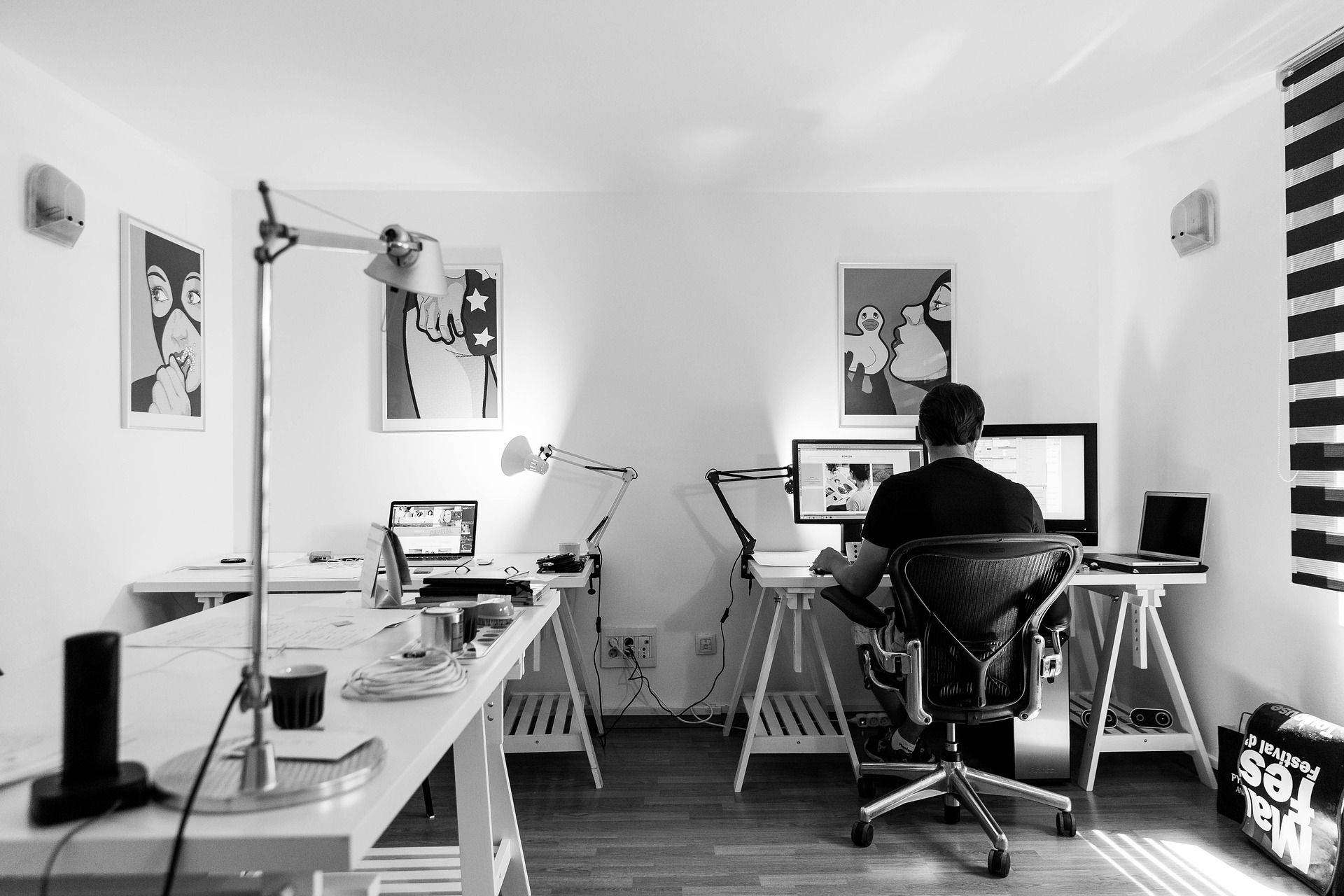
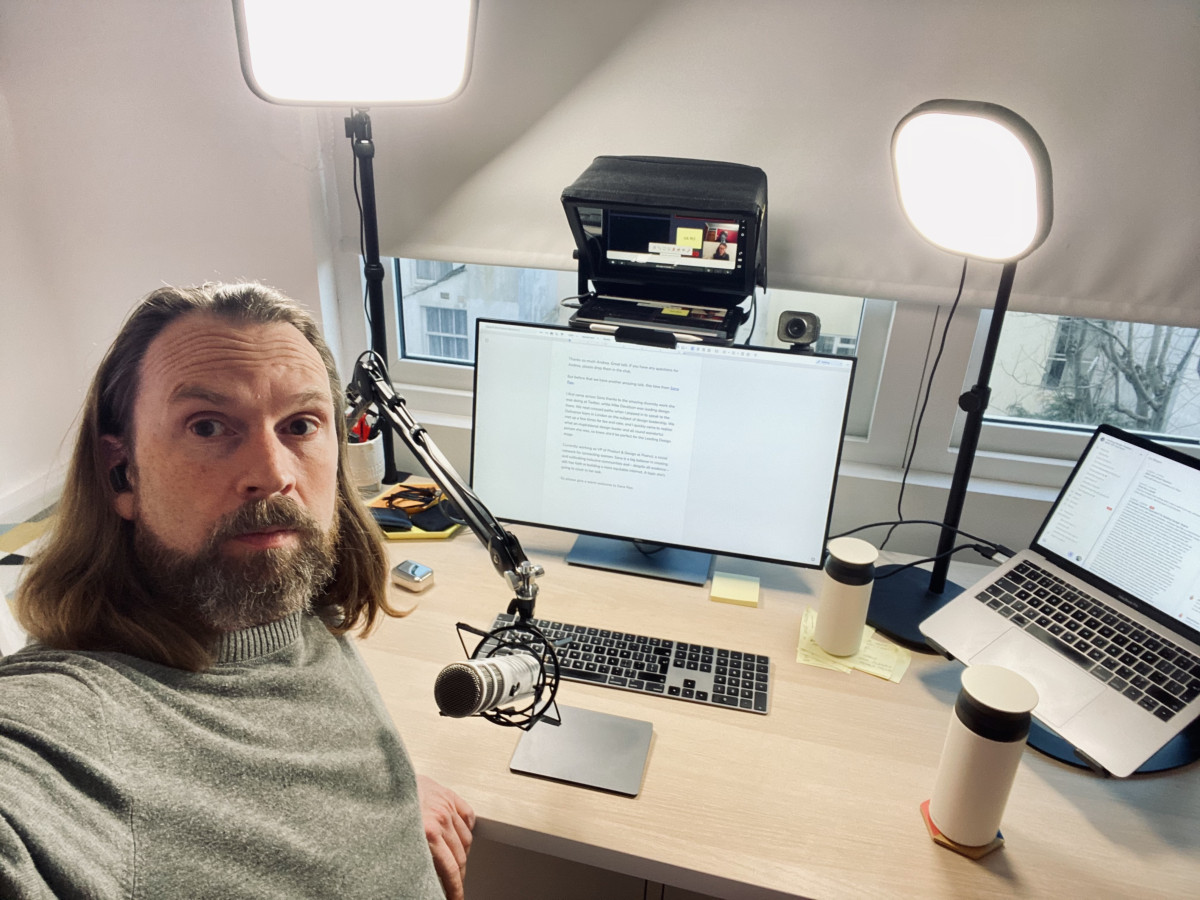
Choose a quiet spot at home. Make sure your background is tidy for video calls. Good lighting improves video quality.
Step 5: Test Everything
A few minutes before the call, check your microphone, camera, and internet. Most platforms have a Test Call feature.
Step 6: Start The Call
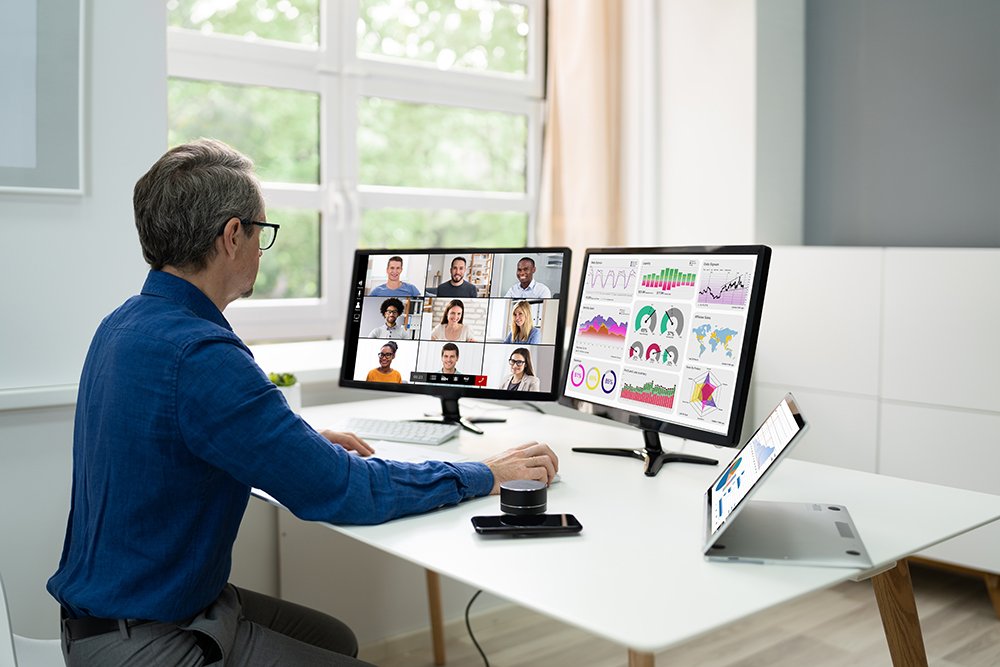
At the scheduled time, open the platform and click the invite link. Admit participants as they join. Begin the meeting when everyone is ready.
Credit: fittingimage.ie
Managing The Conference Call
A successful conference call depends on how you manage the session. Here’s how to keep things running smoothly:
- Mute when not speaking: This avoids background noise.
- Speak clearly: Slow down so others can understand.
- Use the chat feature: Share links or ask questions without interrupting.
- Record the meeting: Some platforms let you record for later review.
- Share your screen: Show presentations or documents to everyone.
A non-obvious insight: If many people join, assign a moderator. This person can manage questions and keep the discussion focused.
Troubleshooting Common Issues
Problems can happen during conference calls. Here are common issues and solutions:
- Poor sound quality
- Solution: Use headphones, mute when not speaking, and close other apps.
- Video not working
- Solution: Check camera settings, restart the platform, or switch to audio only.
- Dropped calls
- Solution: Move closer to your router, use a wired connection, or ask others to turn off their video.
- Echo or feedback
- Solution: Lower your speaker volume, or use headphones.
- Participants can’t join
- Solution: Double-check the invite link, and resend if needed.
If you need more help, many platforms have support pages and help centers. For example, Zoom Support gives guides for solving problems.
Credit: www.megameeting.com
Advanced Features To Improve Your Calls
Some conference platforms offer advanced features that can make your calls more effective:
- Breakout rooms: Divide participants into smaller groups for focused discussions.
- Polling: Ask questions and get instant feedback.
- Virtual backgrounds: Hide messy rooms or create a professional look.
- Live transcription: Automatic text of everything said. This helps non-native speakers follow along.
- Hand raise: Lets people show they want to speak without interrupting.
Using these features can make your calls more interactive and inclusive.
Safety And Privacy
When setting up conference calls at home, protect your privacy:
- Use passwords for meetings to prevent unwanted guests.
- Do not share meeting links publicly.
- Lock the meeting once everyone has joined.
A key insight: Some platforms use encryption to keep your conversations safe. Always check privacy settings before starting.
Comparing Audio Vs. Video Conference Calls
You might wonder which type of call is best for your needs. Here’s a quick comparison:
| Feature | Audio Call | Video Call |
|---|---|---|
| Internet Needed | Low | High |
| Face-to-Face | No | Yes |
| Data Usage | Low | High |
| Distractions | Fewer | More |
| Group Engagement | Medium | High |
Choose audio calls if you have slow internet or only need to talk. Use video calls for team meetings, presentations, or when body language is important.
Best Practices For Conference Calls At Home
To make your conference calls professional and productive, follow these best practices:
- Prepare an agenda: List topics you want to discuss.
- Join early: Arrive a few minutes before the start.
- Dress appropriately: Even at home, wear clean and simple clothes for video.
- Limit distractions: Turn off TV, silence your phone, and ask family to avoid interrupting.
- Keep meetings short: Long calls are tiring. Try to finish in 30–60 minutes.
- Summarize key points: At the end, quickly review what was discussed.
- Follow up by email: Send notes or action items after the meeting.
A helpful tip: If you work with people from different time zones, use online tools to find the best meeting time for everyone.
Credit: andybudd.com
Real Examples: Conference Calls At Home
Many people have successfully set up conference calls at home. Here are two examples:
- Business team meeting: Sarah leads a remote team. She uses Google Meet, sends an agenda before the call, and records meetings for those who can’t join live. Her team feels connected and knows what to do.
- Family call: The Patel family uses Skype to connect with relatives in India and the UK. They use video for birthdays and audio for regular chats. By setting a fixed weekly time, everyone joins easily.
These examples show that with the right approach, conference calls can be effective for any purpose.
Frequently Asked Questions
How Can I Improve Sound Quality During Conference Calls?
Use headphones and a microphone instead of your computer’s built-in speakers. Mute your microphone when not speaking, and close any background apps to reduce noise.
What Is The Best Platform For Large Conference Calls?
Platforms like FreeConferenceCall.com and Zoom support large groups. Check each platform’s participant limit and features before choosing.
How Do I Make My Home Background Look Professional?
Pick a clean, quiet spot with good lighting. Some platforms offer virtual backgrounds to hide your real room.
Can I Record Conference Calls?
Yes, most platforms like Zoom and Microsoft Teams let you record calls. Always ask permission from all participants before recording.
What Should I Do If My Internet Connection Is Weak?
Use audio-only calls, switch off video, or move closer to your router. If possible, use a wired connection for more stability.
Setting up a conference call at home is easier than ever with today’s technology. By choosing the right platform, preparing your space, and following best practices, you can run meetings, connect with family, or learn new skills without leaving your house.
Remember to test your setup, use helpful features, and protect your privacy. With these steps, your conference calls will be clear, smooth, and successful every time.
