
Charging your phone at your desk seems simple, but many people struggle with slow charging, messy cables, or dead batteries during important calls. If you spend long hours at your desk, charging your phone efficiently can make your workday smoother and keep you connected.
This guide will help you get the most from your desk charging setup, avoid common mistakes, and even improve your workspace comfort.
Why Desk Charging Matters
Your desk is more than just a place to work—it’s your control center. Keeping your phone charged at your desk is not only about convenience. It helps you:
- Stay reachable for calls and messages
- Use your phone for quick research or two-factor authentication
- Avoid battery anxiety during long meetings
A good charging setup can also protect your phone battery and keep your workspace neat.
Choosing The Right Charging Equipment
Not all chargers or cables are the same. Making smart choices helps you charge faster and safer.
Cables: More Than Just A Wire
A high-quality charging cable does more than connect your phone to power. It affects the speed and safety of charging.
- Cheap cables often slow down charging and break easily.
- Certified cables (like MFi for iPhones) are tested for safety and speed.
- Cable length matters: Longer cables (over 2 meters) can reduce charging speed.
Power Adapters: Speed And Compatibility
Using the right adapter is crucial.
- Original adapters that come with your phone are safest.
- Many modern phones support fast charging (like 18W, 30W, or higher). Check your phone’s specs.
- Using a lower-power adapter (like 5W) with a fast-charging phone will slow down charging.
Desk Charging Stations
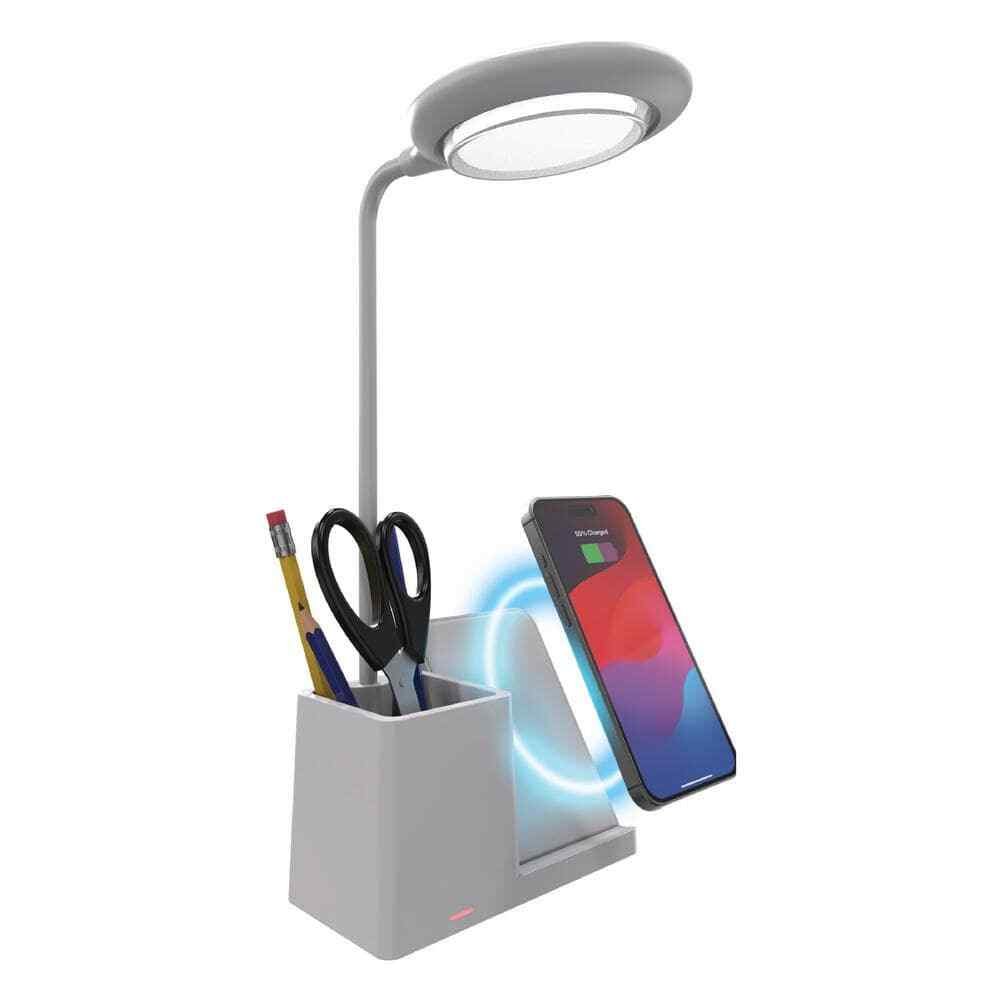
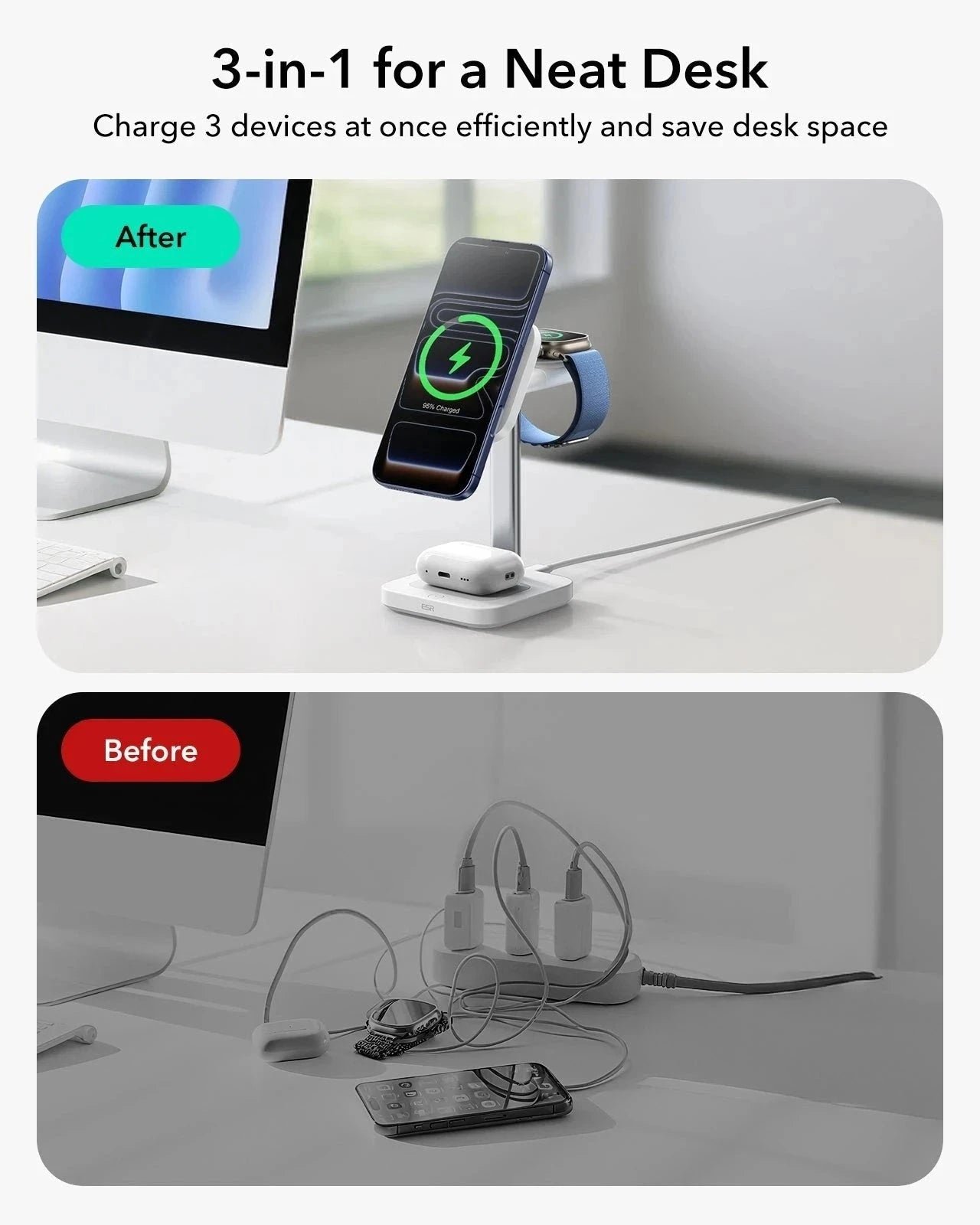
If you have multiple devices, a charging station can keep everything organized. Look for stations with:
- Multiple USB ports
- Support for fast charging
- Built-in cable management
Here’s a quick comparison of common charging options:
| Charger Type | Max Output | Devices Supported | Best For |
|---|---|---|---|
| Single USB Adapter | 5W-30W | 1 | Personal Use |
| Charging Station | Up to 100W | 3-6 | Multiple Devices |
| Wireless Pad | 5W-15W | 1 | Quick Access |
Credit: www.ebay.com
Desk Setup For Efficient Charging
Your desk layout affects how you charge your phone and stay productive.
Place Outlets Within Reach
Try to position your charging outlet or power strip close to your dominant hand. This reduces cable clutter and makes it easier to check your phone without pulling on cables.
Manage Cables Smartly
Cables can quickly become a tangled mess. Use:
- Cable clips to hold cables on the edge of your desk
- Cable sleeves to bundle several cords together
- Magnetic cable holders for easy grabbing
A tidy desk is not just about looks—it also prevents cables from bending and breaking, which can slow charging or cause safety risks.
Use A Phone Stand
A simple phone stand can improve both charging and usability. Your phone stays visible for notifications, and the cable is less likely to get damaged.
Many stands have holes or grooves for charging cables. This small detail can extend your cable’s life and keep your desk clean.
Optimizing Charging Speed
Getting your phone charged quickly is useful, especially if you’re in meetings all day.
Use Fast Charging If Possible
Check if your phone supports quick charge or Power Delivery (PD). Use compatible cables and adapters for best results. For example, most iPhones since the iPhone 8 support fast charging, but only with a USB-C to Lightning cable and a 20W adapter.
Avoid Laptop Usb Ports For Charging
Laptop USB ports usually charge much slower (typically 2. 5W to 7. 5W) compared to wall adapters. If you want fast charging, plug your cable into a wall adapter or charging station.
Remove Your Phone Case
Some thick or metal cases block heat from escaping. Charging your phone without its case (or with a thin case) can help it charge faster and keep the battery healthy.
Don’t Use The Phone While Charging
Using your phone for video calls, gaming, or streaming while charging can slow down the process and heat up the battery. For the quickest charge, leave your phone alone.
Close Background Apps
Apps running in the background use power while your phone is charging. Closing unused apps can help your phone reach 100% faster.
Credit: www.esrtech.com
Protecting Your Battery Health
Battery health is about more than just charging speed. Poor habits can reduce battery life over time.
Don’t Leave Your Phone Plugged In All Day
Leaving your phone at 100% for hours can wear out the battery. Try to unplug it once it’s charged, especially if your phone gets warm.
Aim For 20%-80% Charge
Experts recommend keeping your battery between 20% and 80% for best long-term health. Letting your phone drop to 0% or keeping it at 100% all day stresses the battery.
Use Smart Charging Features
Many modern phones have optimized charging settings. For example, iPhones can delay charging past 80% until you need it. Check your battery settings and turn on these features if available.
Wireless Charging At Your Desk
Wireless charging is becoming more popular, but it has pros and cons.
Advantages
- No need to plug and unplug cables
- Less wear on charging port
- Quick to grab your phone and go
Disadvantages
- Usually slower than wired charging
- Phone must stay exactly on the pad
- Heats up more than wired charging
Here’s a comparison between wired and wireless charging:
| Feature | Wired Charging | Wireless Charging |
|---|---|---|
| Speed | Up to 100W (fastest) | 5W–15W (slower) |
| Convenience | Plug/Unplug needed | Just place on pad |
| Battery Heat | Lower (with good cable) | Higher |
| Port Wear | Possible over years | None |
Wireless charging is best for “top-off” charging—keeping your phone between 40% and 80% during the day. For a full, fast charge, wired is better.

Credit: cn.swanscout.com
Keeping Your Desk Safe
Electric safety is often ignored, but it matters.
- Use only UL-certified or brand-name chargers and cables.
- Don’t overload power strips with too many devices.
- Keep drinks away from cables and charging stations to avoid spills.
If you notice any cable heating up, stop using it immediately.
Non-obvious Tips Most People Miss
Here are some advanced insights that many overlook:
- Charge in Airy Spaces: Charging generates heat, which is bad for batteries. If your desk is in a hot corner or near a window in summer, your phone may overheat and slow its charging. Place your charger in a cool, shaded spot.
- Use Smart Plugs with Timers: Plug your charger into a smart plug and set a timer. This way, charging stops automatically when your phone is full or after a set period.
- Desk Mats with Built-In Chargers: Some desk mats have wireless chargers inside. These save space and reduce cable clutter, but check if the mat supports your phone’s charging standard.
Troubleshooting Slow Or Problematic Charging
Sometimes, charging slows down or stops. Here’s how to fix common issues:
- Cable or Adapter Faulty: Swap with another cable or adapter and see if charging improves.
- Port Dirty or Blocked: Dust and lint can block charging. Use a toothpick or air blower to clean your phone’s port gently.
- Background Syncing: Email or cloud sync can use a lot of power while charging. Pause heavy syncing tasks if possible.
If charging is still slow, try a different outlet or charger.
Organizing A Multi-device Desk
Many people charge phones, tablets, earbuds, and smartwatches together. To keep things efficient:
- Choose a multi-port charging station
- Color-code your cables for each device
- Use a charging tray to keep gadgets in one spot
This avoids forgotten devices and keeps your desk tidy.
Here’s a quick look at how different desk setups compare:
| Desk Setup | Best For | Cable Management | Charging Speed |
|---|---|---|---|
| Single Device | Minimalist users | Simple | Fastest |
| Multi-Device Station | Families/Tech lovers | Moderate | Depends on station |
| Wireless Only | Quick access | Very tidy | Slower |
Keeping Productivity High
Efficient charging isn’t just about full batteries—it keeps your work flowing. When your phone is always ready, you save time hunting for cables or outlets. You avoid interruptions in calls or video chats. A well-set-up charging space lets you focus on your work, not your battery level.
Frequently Asked Questions
How Can I Make My Phone Charge Faster At My Desk?
Use a high-quality, short cable and a fast-charging wall adapter. Avoid charging through your laptop’s USB port. Remove your phone case if it gets hot, and close unnecessary apps while charging.
Is Wireless Charging Bad For My Phone Battery?
Wireless charging creates more heat, which can age your battery faster if used all the time. For daily “top-up” charging, it’s fine. For the best battery health, mix wireless and wired charging.
Can I Use My Phone While It’s Charging At My Desk?
You can, but using your phone for heavy tasks (like video calls or games) while charging will slow charging speed and heat up the battery. For fastest and safest charging, let your phone rest.
How Do I Keep My Desk Charging Setup Tidy?
Use cable clips, sleeves, or magnetic holders to organize cables. Choose a charging station or a desk mat with a built-in charger for fewer visible wires. Keep chargers and cables near your main work area for easy access.
What Are The Risks Of Using Cheap Chargers?
Cheap, uncertified chargers can overheat, damage your phone, or even cause fires. Always use brand-name or certified chargers and cables. For more, see this Consumer Reports guide.
Efficient desk charging is simple when you choose the right equipment, set up your workspace well, and follow smart habits. With these tips, you can keep your phone ready, your desk tidy, and your workday smooth.
