
Getting your monitor brightness just right can make a big difference. It helps reduce eye strain, makes colors look natural, and gives you a better experience whether you’re working, gaming, or just browsing. But many people set their monitor brightness by guessing or using whatever looks good at the moment.
This often leads to tired eyes, washed-out images, or colors that look strange on other screens. Calibrating your monitor’s brightness is not only about comfort, but also about accuracy—especially if you edit photos, design graphics, or watch a lot of video.
If you’ve ever wondered why your friend’s photos look too dark on your screen or why your eyes hurt after a long session, poor brightness calibration might be the reason. The good news: you don’t need expensive tools or expert skills to get it right. With some simple steps, a little patience, and a few tricks, you can make your monitor look its best. This article will guide you through everything you need to know about how to calibrate monitor brightness, from basic concepts to advanced tips. Let’s get started on making your screen comfortable, accurate, and easy on the eyes.
Why Calibrating Monitor Brightness Matters
Many people underestimate the impact of correct brightness. When your monitor is too bright or too dim, several problems can occur:
- Eye strain: Overly bright screens tire your eyes quickly, especially in dark rooms.
- Color accuracy: Brightness affects how colors appear. Wrong settings can make designs or photos look different on other screens or in print.
- Energy consumption: Higher brightness uses more power, especially on large monitors or laptops.
- Image detail: Too much brightness washes out shadows; too little hides details.
A properly calibrated monitor helps you see content as the creator intended, keeps your eyes comfortable, and can even save energy.
Understanding Monitor Brightness
What Is Brightness?
Brightness is the overall light level your monitor emits. Most monitors let you adjust this with a simple slider or buttons. But brightness is not just about making things lighter—it changes how you see contrast, colors, and even sharpness.
How Monitors Measure Brightness
Monitor brightness is usually measured in nits (candelas per square meter, cd/m²). Most office monitors are between 200–350 nits, while high-end displays can reach over 1000 nits. For general work, 200–250 nits is comfortable in most rooms. Very bright monitors are good for well-lit spaces but can be uncomfortable in dark rooms.
Brightness Vs. Other Settings
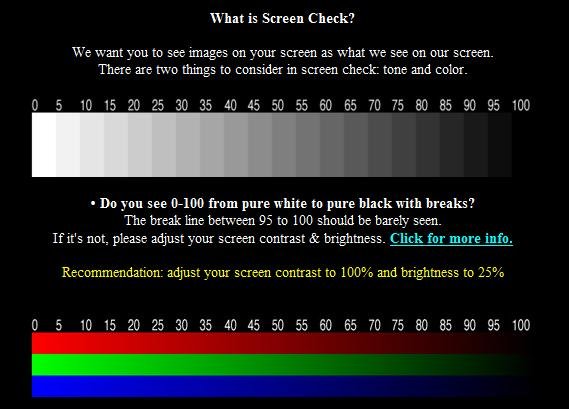
People often confuse brightness with contrast or gamma. Brightness controls the black level (how dark the darkest part of the image is), while contrast changes the difference between dark and light areas. Gamma adjusts how mid-tones look. Calibrating brightness is the first step before you tweak other settings.
Credit: www.ghacks.net
Preparing To Calibrate
Before you start, take a few minutes to set up your workspace. This makes calibration much more accurate.
- Room lighting: Calibrate your monitor in the lighting you use most often. If you work in daylight, don’t calibrate at night (and vice versa).
- Warm up your monitor: Turn it on for at least 30 minutes. Cold screens show colors differently.
- Reset monitor settings: If you’ve changed a lot, use the monitor’s menu to reset to factory defaults.
- Clean your screen: Dust or smudges can affect how you see brightness.
It’s a good idea to have a neutral background behind your monitor—like a white or light gray wall. Bright colors around your desk can influence how you see the screen.
Basic Steps To Calibrate Monitor Brightness
Many people use built-in tools or just their eyes. These methods are not perfect, but they’re a good start.
Using Built-in Monitor Controls
Most monitors have a menu button. Look for settings labeled Brightness, Backlight, or Luminance. Start with the slider around 50% as a baseline. Adjust up or down until the screen feels comfortable.
The White Paper Test
This simple test works well:
- Open a blank white document or browser page.
- Hold a piece of plain white printer paper next to the screen.
- Adjust monitor brightness until the white on screen matches the paper in your room’s lighting.
If the screen is much brighter than the paper, turn it down. If it’s much darker, turn it up. This helps your eyes relax and gives a neutral reference.
Check Black And Shadow Detail
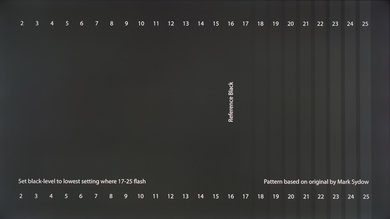
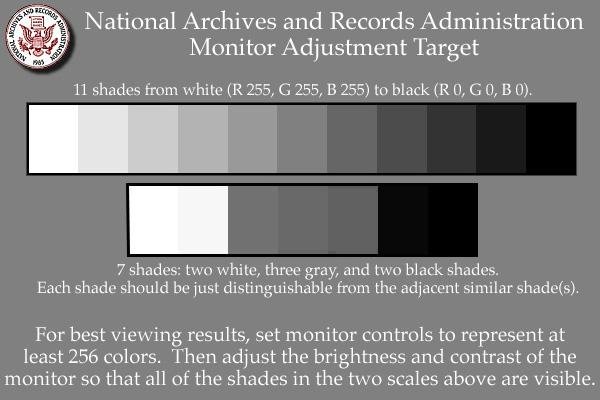
Open a photo or use an online test image with dark and bright areas. You should be able to see details in shadows without making the bright parts too dazzling. A good balance means you can see both, not just one.
Credit: www.rtings.com
Calibrating Brightness With Software
Modern operating systems have built-in tools to help.
Windows Display Calibration
- Search for Calibrate display color in Windows search.
- Follow the on-screen steps.
- The tool will show you images with gradients and black/white patterns. Adjust brightness when asked so you can see all the details.
Mac Display Calibration
- Go to System Preferences → Displays → Color → Calibrate.
- Use the assistant to adjust brightness and contrast.
- Look for the step where you should barely see the apple logo against a black background.
Online Calibration Tools
Several websites offer free calibration patterns. These display gradients, black/white bars, and test images. Example: Display Calibration. These guides walk you through each step and show what to look for.
Hardware Tools For Accurate Calibration
If you work with photos, video, or design, a hardware tool called a colorimeter is the best way to calibrate. Devices like the X-Rite i1Display or Datacolor Spyder measure screen brightness and color with sensors.
How It Works
- Install the included software.
- Place the device on your screen.
- The tool shows test colors and measures brightness.
- It creates a profile to adjust your monitor perfectly.
These devices cost $100–$300. For professionals, they are worth it. For normal use, software methods are usually enough.
Advanced Tips For Best Results
Most people stop after the basic steps. But a few extra actions can improve your calibration:
- Re-check regularly: Monitors change as they age. Calibrate every few months.
- Adjust for day and night: Your eyes see brightness differently based on room light. Some people use software (like f.lux or Windows Night Light) to lower brightness at night.
- Avoid glossy screens in bright rooms: Reflections can trick your eyes. Matte screens are easier to calibrate.
- Use consistent backgrounds: If you work with graphics, keep your desktop and apps neutral (gray or white).
- Turn off dynamic brightness: Some monitors or laptops adjust brightness automatically. Turn this off during calibration for accurate results.
Common Mistakes To Avoid
Many users make simple errors when calibrating brightness:
- Calibrating in different lighting: Your screen should match your usual room light, not just whatever’s on at the moment.
- Setting brightness too high: Many default settings are too bright. This makes whites look harsh and tires your eyes.
- Ignoring shadow detail: If you can’t see dark details, your brightness is too low.
- Using the same setting for all tasks: Video, gaming, and office work may need slightly different settings. Save profiles if possible.
Comparing Manual, Software, And Hardware Calibration
To help you choose the right method, here’s a comparison:
| Method | Accuracy | Cost | Skill Needed | Best For |
|---|---|---|---|---|
| Manual/Eye Test | Low to Medium | Free | Beginner | General use |
| Software Calibration | Medium | Free | Beginner to Intermediate | Office, home use |
| Hardware Calibration | High | $$ | Intermediate to Expert | Creative professionals |
Most users get good results with software tools, but serious editors need hardware calibration.
How Different Brightness Levels Affect Use
Let’s see how brightness settings change your experience in different environments.
| Environment | Recommended Brightness (nits) | Why |
|---|---|---|
| Dim Room | 100–150 | Reduces eye strain, avoids harsh whites |
| Office/Daylight | 200–250 | Matches ambient light, improves readability |
| Bright Sunlight | 300+ | Overcomes glare, keeps images visible |
Adjust your settings if your environment changes during the day.
Non-obvious Insights Most Beginners Miss
Even if you follow the steps above, here are some expert tips many people overlook:
- Your eyes adapt: After a few minutes, your eyes get used to the current brightness. Take short breaks, then look again to avoid setting brightness too high or low.
- Color temperature matters: Brightness isn’t the only thing. Warmer (yellowish) or cooler (bluish) screens affect how bright things look. Set color temperature to around 6500K (D65) for the most natural white.
- Laptop brightness is not always accurate: Some laptops limit how low or high you can set brightness to save battery. You might need to adjust in software or use an external display for best results.
Step-by-step Example: Calibrating A Monitor For Home Office
Let’s walk through a practical calibration session:
- Set up your room: Close curtains if needed. Turn on your usual desk lamp.
- Warm up your monitor: Leave it on for 30 minutes.
- Clean the screen: Remove dust and fingerprints.
- Reset settings: Go to your monitor’s menu and reset to defaults.
- Open a white page: Use a blank Word document or browser tab.
- Hold up printer paper: Place it next to the screen.
- Adjust brightness: Match the screen’s white to the paper.
- Check shadow detail: Open a photo with dark and bright areas. Make sure you see details in both.
- Use built-in calibration tool: Run the Windows or Mac calibration assistant for final tweaks.
- Save your settings: If your monitor allows, save as a profile.
Repeat every few months, and adjust if you move your monitor to a new room.
Credit: w4zt.com
Keeping Your Calibration Consistent
After calibration, small habits help keep things looking good:
- Avoid placing bright lamps behind your monitor.
- Use the same lighting each time you work.
- If you share the monitor, show others how to switch profiles.
- Write down your favorite settings in case you need to reset.
Frequently Asked Questions
Why Does My Monitor Look Different After Calibration?
Calibrating your monitor changes how it displays colors and brightness. At first, things may look strange—usually less bright or less blue. This is normal. Your eyes will adjust quickly, and you’ll notice better comfort and more natural colors.
Can I Use My Phone Or Tablet To Calibrate My Monitor?
Phones and tablets are not accurate tools for monitor calibration. Their screens use different technology and often look more colorful or brighter than monitors. For best results, use the built-in tools on your computer or a hardware colorimeter.
How Often Should I Recalibrate My Monitor Brightness?
Monitors change over time. Most people should recalibrate every 2–3 months. If you move your monitor to a new room or change your lighting, calibrate again. Creative professionals may calibrate every week.
Is Higher Brightness Always Better For Image Quality?
No. Too much brightness can wash out colors and hide shadow detail. It also increases eye strain. Set brightness to match your room’s lighting and make sure you can see both dark and light details clearly.
What’s The Difference Between Brightness And Contrast Settings?
Brightness changes the black level (darkest part of the image). Contrast changes the difference between light and dark areas. Start with brightness, then adjust contrast for the best picture.
Getting your monitor’s brightness just right is one of the simplest ways to improve your daily comfort and make your work look its best. With regular calibration and a few simple checks, your screen will always be easy on the eyes and ready for any task. For more details on color calibration, you can visit Wikipedia’s color calibration page.
