
Setting up your workspace is more than just arranging a desk and chair. With technology moving fast, many people now want their desks to be smarter, wireless, and more connected. One tool that often gets overlooked is AirPlay. AirPlay is Apple’s wireless streaming feature, and it can change how you use your desk for work, entertainment, or study. But what does AirPlay really add to a desk setup? Can it help you work better or just make things look modern? This guide explains everything you need to know about AirPlay in desk setups, including how to use it, its benefits, and what to watch out for. If you use Apple devices or want a wire-free workspace, this article will help you make the most of AirPlay.
What Is Airplay?
AirPlay is a wireless technology made by Apple. It lets you send video, music, photos, or your whole screen from one Apple device to another. For example, you can play music from your iPhone to your speakers, or show your MacBook screen on a bigger display. AirPlay works over Wi-Fi, so you do not need cables.
There are two main AirPlay versions:
- AirPlay 1: Basic streaming, mostly for audio.
- AirPlay 2: Supports multi-room audio, better video, and more control.
Most new Apple devices support AirPlay 2. This means you can connect to many speakers or TVs at once.
Why Use Airplay In Your Desk Setup?
A desk setup is where you spend hours working, learning, or relaxing. AirPlay can make this space more flexible, comfortable, and productive. Here’s why:
- No wires: AirPlay removes the need for HDMI or audio cables.
- Easy sharing: Show files, presentations, or media on a big screen quickly.
- Multiple devices: Use iPhones, iPads, and Macs together.
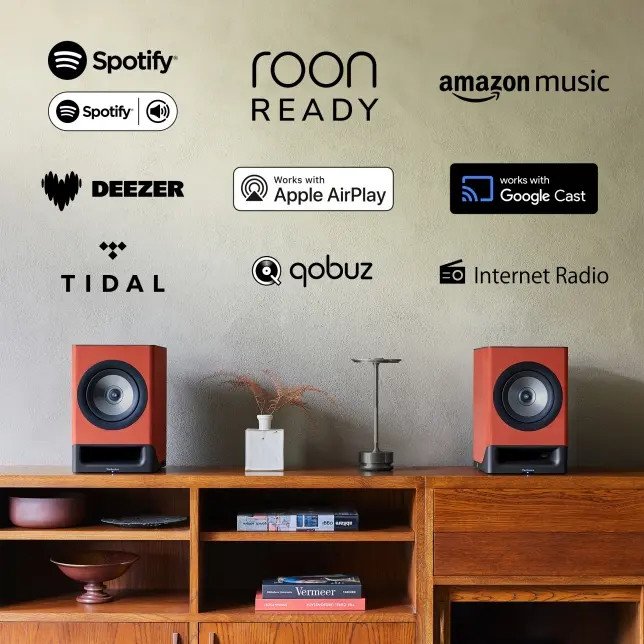
- Better sound: Connect to wireless speakers for clear audio.
- Smart control: Use your phone as a remote from anywhere in the room.
Many users do not realize that AirPlay can help with both work and fun. For example, you can jump between a video call on your Mac and music from your iPhone, all through the same speakers.
Credit: rms-store.eu
Devices That Support Airplay
Not all devices can use AirPlay, so it’s important to know what works. Here are the main options:
Apple Devices
- IPhone and iPad: Most models since 2012 support AirPlay.
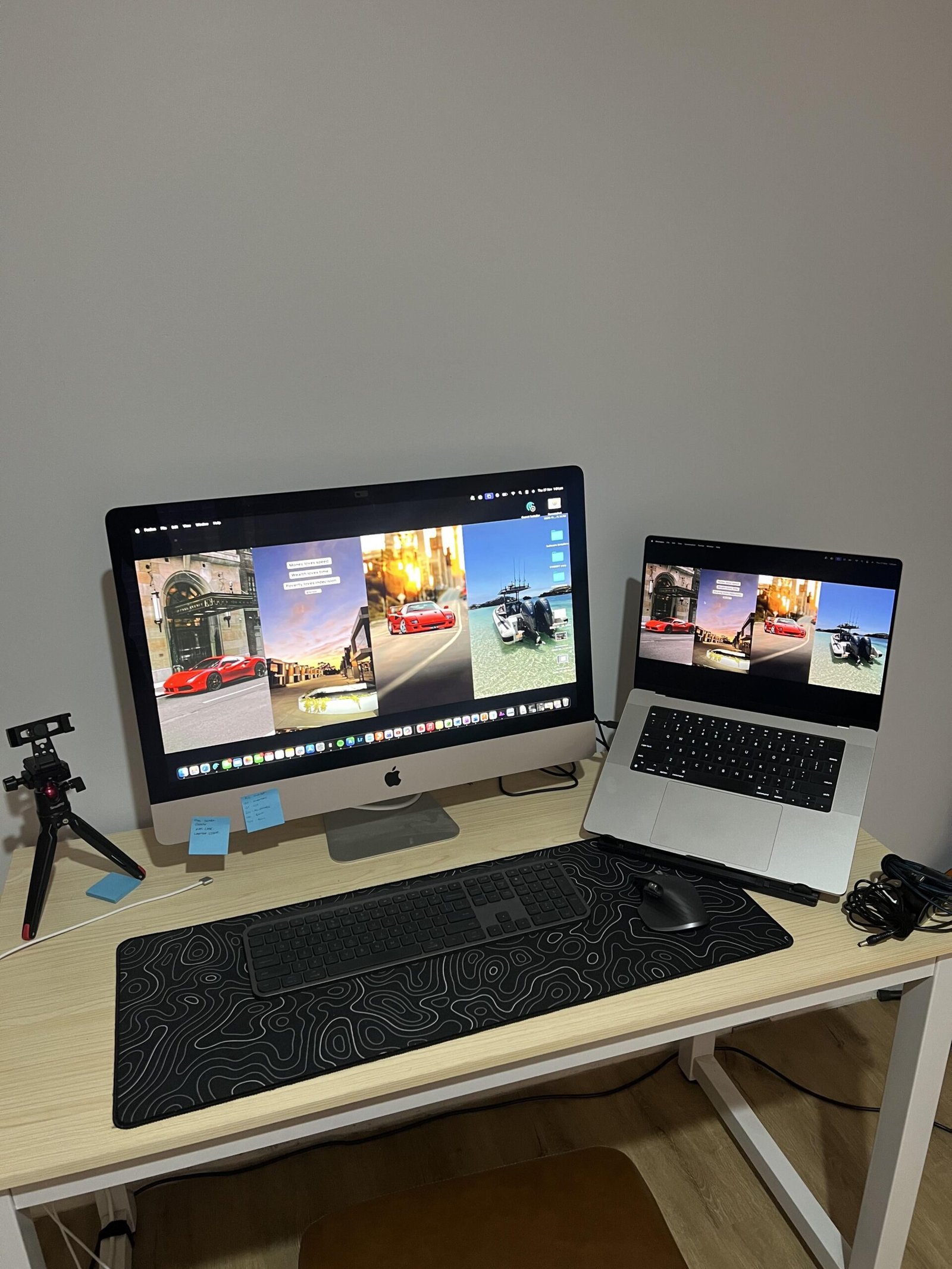
- Mac computers: AirPlay Mirroring is available on Macs from 2011 and newer, but AirPlay 2 works on macOS Monterey and above.
- Apple TV: Acts as a receiver for video and audio.
- HomePod and HomePod mini: Wireless speakers with AirPlay 2.
Other Brands
Some non-Apple products support AirPlay, but check compatibility before you buy:
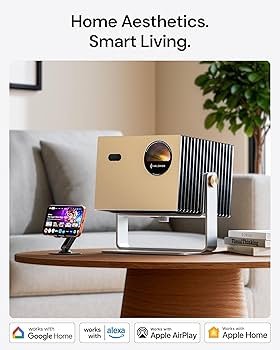
- Smart TVs: Many Samsung, LG, Sony, and Vizio TVs (2018+) have built-in AirPlay 2.
- Receivers and speakers: Brands like Sonos, Bose, and Yamaha offer AirPlay 2 support.
- Windows computers: Need third-party software like AirServer or Reflector.
Comparison Of Airplay-ready Devices
| Device | AirPlay Version | Use Case | Notes |
|---|---|---|---|
| iPhone 14 | AirPlay 2 | Audio/Video/Screen | Best for all features |
| MacBook Air (M1) | AirPlay 2 | Audio/Video/Screen | Needs macOS Monterey+ |
| Samsung QLED TV (2021) | AirPlay 2 | Video/Audio | Built-in, no Apple TV needed |
| Sonos One Speaker | AirPlay 2 | Audio only | Great for music |
How To Set Up Airplay In Your Desk Space
Getting AirPlay to work in your desk setup is simple if you follow these steps:
1. Connect All Devices To The Same Wi-fi Network.
AirPlay will not work if your iPhone and Mac are on different networks.
2. Check Device Compatibility.
Make sure your TV, speaker, or receiver has AirPlay 2.
3. Turn On Airplay On The Receiver Device.
On a TV, go to Settings → AirPlay. On a speaker, use the brand’s app.
4. Start Airplay From Your Source Device.
On iPhone/iPad: Swipe down to open Control Center, tap Screen Mirroring or the AirPlay icon.
On Mac: Click the AirPlay icon in the menu bar or use System Preferences.
5. Choose The Device You Want To Stream To.
For music, pick a speaker. For video, pick your TV or monitor.
6. Adjust Sound And Display Settings.
You can set the volume from your phone or Mac, and sometimes change picture quality.
Example: Airplay In A Student Desk Setup
Emma, a university student, uses a MacBook for schoolwork and an iPad for notes. With AirPlay, she mirrors her MacBook screen to a Samsung TV above her desk for research. She plays music through a Sonos speaker with AirPlay 2 during breaks.
No cables, and switching between devices is instant.
Best Uses For Airplay At Your Desk
AirPlay is more than a way to play music. Here are some smart ways to use it:
1. Wireless Second Display
If you want more screen space, you can use AirPlay to mirror your Mac or iPad to a big monitor or TV. This is great for:
- Coding or graphic design
- Watching tutorials while you work
- Having notes open during meetings
2. High-quality Audio Streaming
AirPlay sends lossless audio to compatible speakers. That means music and podcasts sound clear, even at high volume. You can also play the same music in different rooms, which is helpful if your desk is in a shared space.
3. Presentations And Meetings
You can instantly show a slideshow, spreadsheet, or website on a big screen. This is useful for:
- Online meetings
- Teaching or tutoring
- Group brainstorming
4. Quick Media Sharing
Take a break and watch a video, or share a funny clip with friends. AirPlay lets you do this without plugging in your phone or laptop.
5. Smart Home Control
Some smart speakers or TVs with AirPlay can be part of your home automation. For example, you can set up scenes that play music and adjust lights when you start work.
Airplay Vs. Other Wireless Options
You may wonder if AirPlay is better than Bluetooth, Chromecast, or Miracast. Here’s a simple comparison:
| Feature | AirPlay | Bluetooth | Chromecast | Miracast |
|---|---|---|---|---|
| Audio quality | High (lossless) | Medium | High | Medium |
| Video streaming | Yes | No | Yes | Yes |
| Multi-room support | Yes (AirPlay 2) | No | No | No |
| Apple device integration | Excellent | Good | Limited | Limited |
| Cross-platform | Mostly Apple | All devices | Android, iOS (with app) | Mostly Windows/Android |
Non-obvious insight: AirPlay usually has lower delay (latency) than Bluetooth for audio, so music and video stay in sync. Also, AirPlay 2 can group speakers, which Bluetooth cannot do.
Common Airplay Desk Setup Mistakes (and How To Avoid Them)
Even though AirPlay is easy, many users make mistakes that reduce its power.
1. Poor Wi-fi Signal
AirPlay needs a stable Wi-Fi connection. If your desk is far from the router, you might get lag or disconnects. Try using Wi-Fi extenders or moving closer to the router.
2. Mixing Old And New Devices
Some people try to use old Apple devices (like an iPad from 2012) with new AirPlay 2 speakers. This often causes problems because they use different AirPlay versions. Always check compatibility.
3. Ignoring Audio Sync
If you watch a video and the sound is late, check if “audio sync” settings are available on your TV or speaker. Not all devices handle AirPlay delay well, especially older TVs.
4. Overloading The Network
Streaming 4K video and audio at the same time can slow down your Wi-Fi. If your setup is in an office with many users, consider a separate Wi-Fi network for AirPlay devices.
5. Forgetting Security
By default, AirPlay lets anyone on your Wi-Fi network stream to your devices. Set a password or require device approval in settings to avoid unwanted interruptions.
Tip: You can check for software updates for your TV, speakers, and Apple devices. Updates often fix AirPlay bugs and improve performance.
How To Troubleshoot Airplay Problems
If AirPlay stops working, try these steps:
- Restart all devices. This solves most connection issues.
- Update software. Make sure your Apple devices and receivers have the latest updates.
- Check Wi-Fi. Weak or crowded networks cause most AirPlay failures.
- Sign out and in. For HomePods or Apple TVs, try signing out of your Apple ID and back in.
- Reset AirPlay settings. On your TV or speaker, turn AirPlay off and on again.
Credit: www.amazon.com
Airplay Desk Setup Ideas For Different Users
Not everyone uses their desk the same way. Here are some examples for different needs:
For Remote Workers
- Use AirPlay to mirror your Mac’s screen to a large TV for better video calls.
- Stream relaxing music to your HomePod mini during long work sessions.
For Students
- Show your iPad notes on a bigger display when studying with friends.
- Use AirPlay to play educational videos or podcasts while organizing your desk.
For Designers & Creatives
- Mirror your iPad to a 4K TV for drawing or editing photos.
- Play back creative work on high-quality speakers for accurate sound.
For Families
- Set up AirPlay speakers around the house, so you can play music for everyone.
- Kids can share videos from their iPhones to the living room TV.
Another non-obvious insight: AirPlay can be used as a presentation tool, not just for entertainment. Many forget that AirPlay works well for office training or even remote teaching.
Is Airplay Right For You?
AirPlay is best for people who already use Apple devices or want a simple, wireless desk. If you use Windows or Android, you might need extra apps or hardware. Before you buy new speakers or TVs, check for AirPlay 2 support.
In most cases, AirPlay gives you more flexibility than Bluetooth or cables, especially if you want to use several devices at once.
If you want more technical details, Apple’s own page covers supported devices and setup tips: Apple Support.
Credit: www.reddit.com
Frequently Asked Questions
How Do I Know If My Device Supports Airplay?
Most Apple devices made after 2012 support AirPlay. On iPhone or iPad, swipe down for Control Center and look for the AirPlay or Screen Mirroring icon. On Mac, check the menu bar for the AirPlay symbol.
Can I Use Airplay With Windows Or Android Devices?
Not directly. AirPlay is built for Apple devices. However, you can use third-party apps like AirServer or Reflector on Windows PCs to act as AirPlay receivers, but performance may vary.
Does Airplay Use Bluetooth?
No, AirPlay works over Wi-Fi, not Bluetooth. This means better quality and longer range, but you need a good wireless network.
Is Airplay Safe To Use At Work?
Yes, but be careful. If your network is open, others could send content to your devices. Set up a password or device approval in AirPlay settings for privacy.
Why Is There A Delay When I Play Video Or Music With Airplay?
A small delay (latency) is normal because AirPlay sends data over Wi-Fi. If the delay is long, check your Wi-Fi speed, move closer to the router, or update your devices.
Final Thoughts
AirPlay can make your desk setup smarter, cleaner, and more enjoyable. Whether you want to get rid of cables, share your screen, or fill the room with music, AirPlay offers easy ways to connect your Apple devices. Before setting up, think about what you need—bigger screens, better sound, or simple sharing—and match the right AirPlay devices.
With a little planning, you can transform your desk into a wireless hub for work, study, and play.
