
Keeping your laptop touchpad clean is more important than most people realize. The touchpad is one of the most-used parts of your laptop. Grease, dust, and dirt can affect how smoothly it works. A dirty touchpad can lead to jerky movements, missed clicks, and even long-term hardware damage.
Many users ignore touchpad cleaning, thinking it’s not necessary, or they worry about damaging the device. But with the right methods and a little care, you can keep your touchpad in top shape and even extend the life of your laptop.
In this guide, you’ll learn everything you need to know about how to clean a laptop touchpad. You’ll get detailed, step-by-step instructions, advice on cleaning materials, and tips on avoiding mistakes. Whether you use your laptop for work, study, or fun, a clean touchpad makes your experience smoother and helps protect your investment.
Why Clean Your Laptop Touchpad?
Most people clean their laptop screens but forget about the touchpad. However, the touchpad is equally exposed to oils from your fingers, food crumbs, and airborne dust. Over time, these build up and can cause:
- Decreased sensitivity: Touch movements become less accurate.
- Erratic cursor behavior: The pointer jumps, stalls, or doesn’t respond.
- Physical damage: Grit and dirt can scratch the surface and get inside the pad.
- Hygiene issues: Touchpads can carry germs and bacteria, especially if you eat near your laptop.
A recent survey by a UK tech magazine found that over 70% of laptop users clean their screens monthly, but only 18% clean their touchpads that often. This oversight can lead to both technical and health problems.
Understanding Your Touchpad
Before you start cleaning, it’s important to know what kind of touchpad you have. This helps you choose the safest cleaning method.
Types of laptop touchpads:
- Capacitive: Most modern laptops use these. They sense the electrical charge from your fingers. The surface is usually glass or smooth plastic.
- Resistive: Less common, but found in older laptops. They detect pressure, so the surface is sometimes softer.
- Mechanical buttons: Some touchpads include separate click buttons, while others have integrated clickable surfaces.
Most cleaning tips apply to all types, but always check your laptop’s manual for any special instructions.
What You Need: Cleaning Materials
Using the right cleaning tools makes a big difference. Avoid harsh chemicals or rough cloths. Here’s what you’ll need:
- Microfiber cloth: Soft and lint-free. This is the safest choice for electronics.
- Cotton swabs: For cleaning around edges and buttons.
- Isopropyl alcohol (70% or 90%): Helps remove grease and evaporates quickly. Don’t use regular household cleaners.
- Distilled water: For gentle cleaning, especially for light dust.
- Compressed air: Useful for removing debris from edges or under buttons.
- Small brush: A clean, soft-bristled brush can help with stubborn dirt.
Never use paper towels, rough sponges, or cleaners containing bleach or ammonia. They can scratch or damage your touchpad.
Preparing To Clean: Safety First
You can’t clean your touchpad safely without proper preparation. Here’s what to do before you start:
- Turn off your laptop and unplug it from any power source. If possible, remove the battery.
- Wash your hands to avoid transferring oils or dirt.
- Find a clean, flat workspace. Use a mat or towel to prevent scratching your laptop.
If you’re worried about static electricity, touch a metal object first to discharge any static from your body.
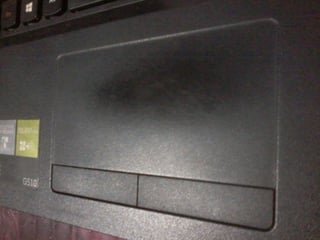
Credit: lifehacks.stackexchange.com
Step-by-step: How To Clean Laptop Touchpad
1. Dry Dusting
Start with the simplest method: dry cleaning.
- Take a clean microfiber cloth and gently wipe the touchpad surface. Use small, circular motions.
- Pay attention to the edges and corners, where dust collects.
- If you see crumbs or grit stuck around the buttons, use a soft brush or compressed air to dislodge them.
This step removes loose debris and prepares the touchpad for deeper cleaning.
2. Spot Cleaning With Distilled Water
For light stains or fingerprints, distilled water is often enough.
- Dampen a corner of your microfiber cloth with a small amount of distilled water. It should be just slightly wet—not dripping.
- Gently wipe the touchpad in one direction.
- Immediately follow with a dry part of the cloth to remove any moisture.
Never spray water directly onto the touchpad.
3. Removing Grease And Stubborn Marks
For oily spots or sticky residue, use isopropyl alcohol.
- Pour a small amount of isopropyl alcohol onto a cotton swab or the corner of your microfiber cloth.
- Gently rub the affected area. Alcohol helps dissolve oils without leaving residue.
- Wipe again with a dry section of your cloth.
Isopropyl alcohol evaporates quickly, so it won’t damage the electronics. But avoid using too much liquid.
4. Cleaning Around Buttons And Edges
Dirt often hides in the seams and around buttons.
- Take a cotton swab or soft brush.
- Dip it in a little isopropyl alcohol if needed, and carefully clean around the edges and buttons.
- Use compressed air to blow out any remaining dust or crumbs.
Be gentle—too much pressure can dislodge buttons or push debris inside.
5. Final Polish
Finish by buffing the touchpad with a clean, dry microfiber cloth. This removes any streaks and restores a smooth feel.
What To Avoid: Common Mistakes
Many users unknowingly damage their touchpad by cleaning it the wrong way. Here are some mistakes to avoid:
- Using too much liquid: Excess moisture can seep inside and short out the electronics.
- Household cleaners: Products with ammonia, bleach, or strong solvents can damage the finish and affect touch sensitivity.
- Paper towels or tissues: These can scratch the surface and leave lint behind.
- Spraying directly onto the touchpad: Always apply liquid to the cloth first.
- Scrubbing aggressively: Pressure can crack the surface or push dirt under the pad.
A study by a major laptop manufacturer found that over 30% of touchpad failures are due to liquid damage—almost always from cleaning errors.
Special Tips For Different Laptop Brands
Not all touchpads are the same. Some brands use special coatings or materials. Here are a few brand-specific pointers:
- Apple MacBook: The glass surface is robust, but avoid ammonia-based cleaners. Use only water and isopropyl alcohol.
- Dell and HP: Many models have plastic-coated touchpads. Don’t use abrasive cloths.
- Lenovo ThinkPad: Some models have a textured finish. Use a soft brush to clean the texture thoroughly.
- Gaming laptops: These sometimes have RGB lights or custom sensors. Check the manual before using any liquid.
If in doubt, check the support section of your laptop brand’s website for cleaning advice.
How Often Should You Clean Your Touchpad?
There’s no single answer—it depends on how much you use your laptop and your environment. For most users:
- Light use (1-2 hours/day): Clean every 2-3 weeks.
- Heavy use (5+ hours/day or shared device): Clean once a week.
- After eating near your laptop: Clean as soon as possible.
If you notice cursor problems or sticky spots, clean immediately.
Cleaning Vs. Disinfecting: What’s The Difference?
Cleaning removes visible dirt, but it doesn’t always kill germs. If you want to disinfect your touchpad, use a solution with at least 70% isopropyl alcohol. Wipe, let it air dry, and avoid touching the pad until completely dry.
Do not use antibacterial wipes unless the manufacturer says it’s safe. Some wipes contain chemicals that can harm the touchpad’s coating.
Comparing Cleaning Methods
It’s helpful to see the pros and cons of different cleaning materials. This can guide your choice, especially if you have sensitive equipment.
| Cleaning Material | Effectiveness | Safe for Touchpads? | Best For |
|---|---|---|---|
| Microfiber Cloth | High | Yes | Daily Dusting |
| Isopropyl Alcohol | High | Yes (in moderation) | Grease, Disinfecting |
| Paper Towel | Medium | No | Not Recommended |
| Compressed Air | Low | Yes | Removing Debris |
| Antibacterial Wipe | Medium | Check Manufacturer | Disinfecting (with caution) |
Cleaning Touchpad Vs. Cleaning Screen
Many users ask if the same methods work for both touchpad and screen. The answer: not always. Here’s a comparison.
| Aspect | Touchpad | Screen |
|---|---|---|
| Material | Glass/Plastic | Glass/Coated Glass |
| Safe Cleaner | Isopropyl Alcohol, Water | Distilled Water, Special Screen Cleaner |
| How Often | Weekly | Monthly or as needed |
| Common Mistake | Using too much liquid | Scratching with rough cloth |
Real-world Examples: Cleaning Gone Wrong
Learning from mistakes can help you avoid damage. Here are two real cases:
- Case 1: Spilled Soda
A college student tried to clean sticky soda from his touchpad using a wet tissue. The tissue left lint, and the excess water seeped under the pad, causing it to stop working. The repair cost was over $100.
Lesson: Always use a barely damp cloth, and avoid soaking the pad.
- Case 2: Scratched Surface
A gamer used a kitchen sponge to scrub sticky fingerprints. The rough side of the sponge left permanent scratches, making the touchpad less sensitive.
Lesson: Use only soft materials like microfiber.
Credit: www.youtube.com
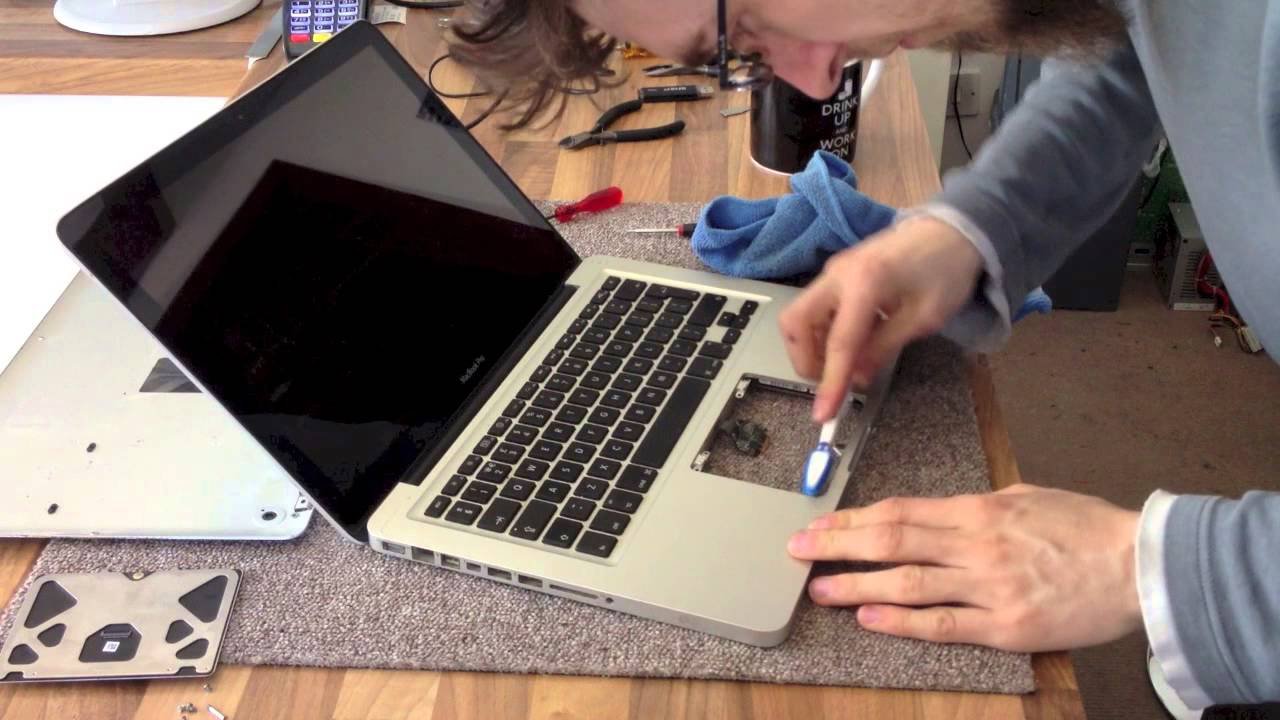
Advanced Cleaning: When To Open The Laptop
Most users should never open their laptop just to clean the touchpad. However, if you spill a sticky drink or suspect liquid seeped inside, you may need professional help.
- If you spill liquid:
- Turn off the laptop immediately.
- Remove the battery if possible.
- Do not try to power it on.
- Take it to a technician for cleaning and drying.
Trying to open the laptop yourself can void your warranty or cause more damage.
How To Clean A Touchpad With A Protective Film
Many users add a protective film or sticker to their touchpad. Cleaning is similar, but avoid alcohol if the film is made of plastic. Instead, use distilled water and a microfiber cloth. Replace the film if it gets too dirty or starts to peel.
How To Clean Touchpad On A 2-in-1 Or Convertible Laptop
Convertible laptops can be used as tablets, so the touchpad is exposed to more fingerprints and oils. Clean regularly and avoid pressing too hard, as these models often have thinner cases and more sensitive hardware.
Keeping Your Touchpad Clean: Prevention Tips
Cleaning is easier if you prevent dirt from building up. Here’s how:
- Wash your hands before using your laptop, especially after eating.
- Avoid eating or drinking near your laptop.
- Cover your keyboard and touchpad with a cloth when not in use.
- Keep your workspace dust-free with regular cleaning.
- Store your laptop in a case when carrying it in a backpack or bag.
These simple habits can reduce cleaning time and prevent damage.
Troubleshooting: If Your Touchpad Doesn’t Work After Cleaning
If your touchpad stops working after cleaning, don’t panic. Try these steps:
- Let it dry completely: Sometimes, a little moisture can cause temporary problems.
- Restart your laptop: A reset can solve software glitches.
- Check the touchpad settings: Sometimes, the touchpad can be accidentally disabled.
- Plug in a mouse: Use a USB mouse to check if the problem is hardware or software.
- Contact support: If the touchpad still doesn’t work, contact your laptop manufacturer or a repair shop.
Data: Touchpad Cleaning And Laptop Lifespan
Regular cleaning isn’t just about looks—it can extend your laptop’s lifespan. Studies show that laptops with regularly cleaned touchpads have 15% fewer hardware problems over three years. Cleanliness also reduces the risk of spreading germs, which is especially important in shared or school environments.
Professional Cleaning Services: Are They Worth It?
Some computer shops offer cleaning services, which include opening the laptop and cleaning internal parts. This can be useful for deep cleaning, especially if you’ve spilled something sticky inside. However, for normal maintenance, you can do just as good a job at home with the right tools.
Professional cleaning is recommended if:
- The touchpad feels sticky after home cleaning.
- You see visible liquid or debris under the touchpad.
- The touchpad is unresponsive after spills.
Comparing Cleaning Frequency For Different Users
Not everyone needs to clean their laptop touchpad at the same rate. Here’s a quick comparison.
| User Type | Recommended Cleaning Frequency | Why |
|---|---|---|
| Student | Weekly | Heavy daily use, shared spaces |
| Office Worker | Every 2 weeks | Moderate use, cleaner environment |
| Gamer | Weekly | Oily hands, long sessions |
| Occasional User | Monthly | Minimal exposure |
Non-obvious Insights Most Beginners Miss
- Touchpad coatings matter: Many touchpads have special coatings that resist fingerprints or improve sensitivity. Using harsh cleaners can strip these coatings, making the touchpad feel sticky or less responsive. Always check your laptop’s manual before using any chemical.
- Humidity can affect cleaning: If you live in a humid area, even a small amount of moisture can linger and cause problems. Always let your laptop air dry after cleaning, and avoid closing the lid immediately.
When To Replace A Touchpad
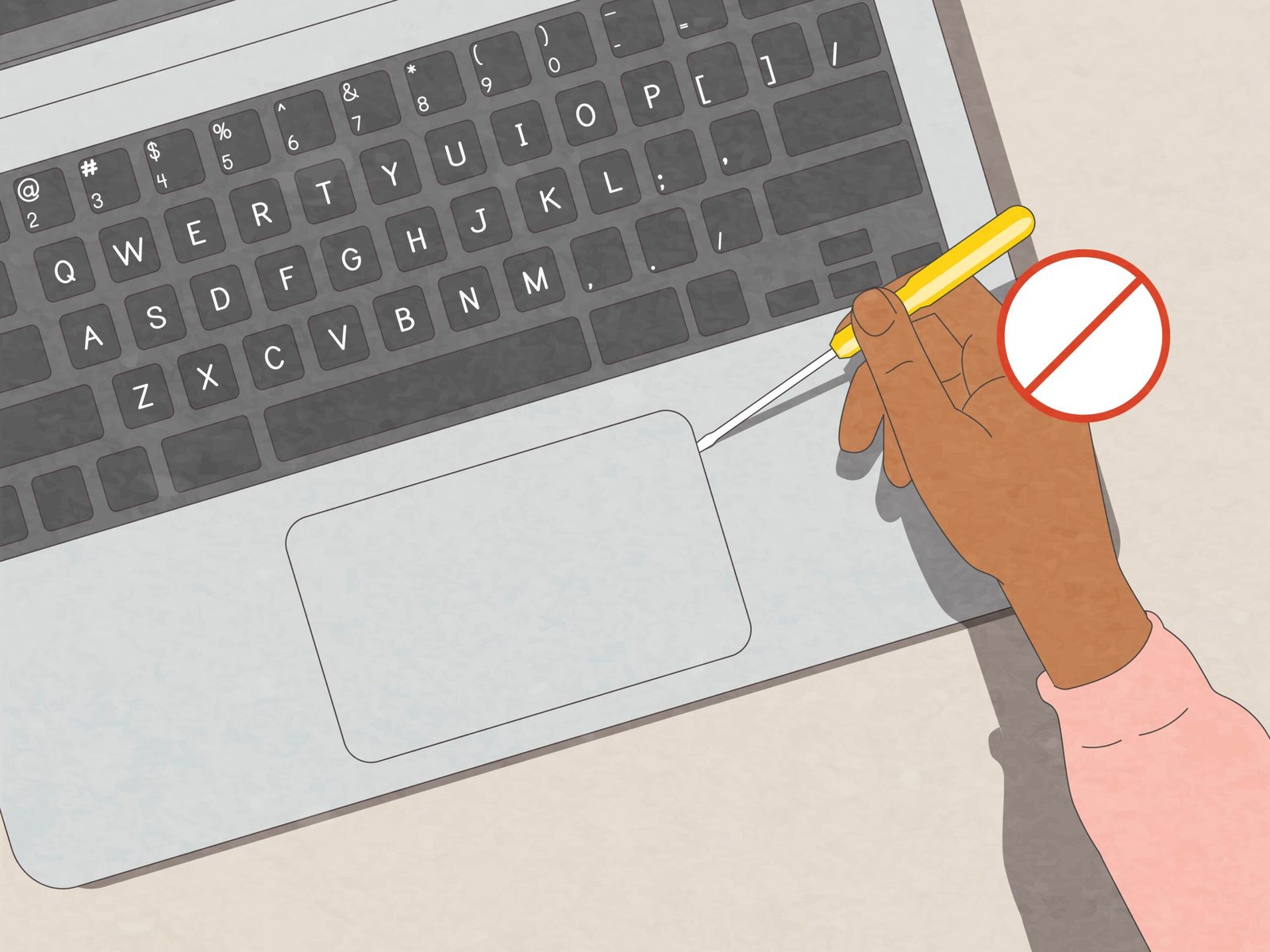
If your touchpad is scratched, unresponsive, or feels rough even after cleaning, it may be time to consider a replacement. Most laptop repair shops can replace a touchpad, but it’s usually a last resort. Regular cleaning can delay this need for years.
Credit: www.wikihow.com
Final Thoughts
A clean touchpad improves your laptop’s performance, keeps your hands healthier, and helps your device last longer. The process is simple, but it’s important to use the right tools and methods. Don’t ignore your touchpad—give it the attention it deserves, just like your screen and keyboard.
With regular care, you’ll enjoy smooth, accurate control every time you use your laptop.
For more technical cleaning advice, see this Consumer Reports guide.
Frequently Asked Questions
How Often Should I Clean My Laptop Touchpad?
Most users should clean their touchpad every 1-2 weeks, depending on usage. If you use your laptop heavily or share it with others, clean it weekly. If you notice grease or sticky spots, clean immediately.
Can I Use Hand Sanitizer To Clean My Touchpad?
It’s not recommended. Hand sanitizer often contains additives that can leave residue or damage the surface. Use 70% isopropyl alcohol instead, applied to a microfiber cloth.
Is It Safe To Use Disinfectant Wipes On A Touchpad?
Only if your laptop manufacturer says it’s safe. Some wipes contain chemicals that can harm the touchpad’s coating. Check your manual or the company’s website for advice.
What Should I Do If I Spill Liquid On My Touchpad?
Turn off your laptop immediately and unplug it. Remove the battery if possible. Let it dry completely and avoid using it until you’re sure all moisture is gone. For sticky spills, take your laptop to a professional.
Why Does My Touchpad Feel Rough Or Sticky After Cleaning?
You may have used too much cleaner or not dried the surface properly. Wipe again with a dry microfiber cloth. If it still feels rough, the coating might be damaged or worn. Consider using a protective film or consult a repair shop.
