
Keeping your laptop battery healthy is important for both performance and lifespan. Many people don’t realize that the way you charge your laptop can have a big impact. If you want your laptop to last longer and work better, learning how to charge it properly is a smart step.
This guide will help you understand the right methods, avoid common mistakes, and answer questions you might not even know to ask. Whether you use your laptop for work, study, or fun, these tips will help you get the most out of your device.
Why Charging Your Laptop Properly Matters
A laptop’s battery is like its heart. If you take care of it, your laptop will work well for years. If you don’t, you might see problems like short battery life, slow charging, or even a battery that stops working after just a year or two. Most modern laptops use lithium-ion or lithium-polymer batteries. These types of batteries are powerful, but they need special care. Bad charging habits are one of the biggest reasons laptops slow down or need repairs.
Improper charging can cause:
- Reduced battery lifespan: You may need to replace the battery sooner.
- Overheating: This can damage both the battery and internal parts.
- Unexpected shutdowns: Your laptop might turn off suddenly if the battery health gets bad.
A study by Battery University found that keeping a lithium-ion battery between 20% and 80% charge can double its lifespan compared to always charging to 100% or letting it drop to 0%. That’s a big difference, especially if you want your laptop to last for years.
Understanding Your Laptop Battery
Before you dive into charging tips, it helps to know a bit about what’s inside your laptop. Most laptops today use either lithium-ion or lithium-polymer batteries. Both are light, powerful, and can be recharged many times. But they don’t like being too full or too empty.
Key points about laptop batteries:
- Charge cycles: Each battery has a limited number of times it can be charged and discharged fully (usually 300-1000 cycles).
- Depth of discharge: Letting the battery drain too low, too often, can shorten its life.
- Heat: High temperatures are bad for batteries and can make them wear out faster.
Some laptops have built-in battery management software. These tools help control charging and may allow you to set limits to avoid overcharging. Check your laptop’s settings or manual to see if you have these features.
The Right Way To Charge A Laptop
Charging a laptop sounds simple: plug it in, wait, then unplug. But small changes in the way you charge can make a big difference. Here are the best practices, explained in detail.
1. Avoid Letting Your Battery Reach 0%
It’s tempting to use your laptop until the battery dies, but this is not good for lithium batteries. Try to plug in your laptop when the battery drops to around 20%. This helps avoid deep discharge, which can damage the battery over time.
2. Don’t Always Charge To 100%
Many people think keeping their laptop fully charged is best. However, charging to 100% all the time can speed up battery wear. If your laptop has a setting to stop charging at 80% or 90%, use it. Some brands, like Lenovo and Asus, offer this feature in their control panels.
If you don’t have such a setting, unplug your laptop once it’s around 80-90% charged if possible.
3. Use The Original Charger
Always use the charger that came with your laptop or a high-quality replacement from the same brand. Cheap or wrong chargers can:
- Deliver the wrong voltage
- Charge too fast or too slow
- Overheat the battery
This can cause damage or even safety risks.
4. Avoid Charging Overnight
Leaving your laptop plugged in overnight once in a while is not a disaster, but doing it every night is not ideal. Modern laptops have some protection against overcharging, but heat can build up over many hours, especially if your laptop is running tasks or updates.
If you must leave it plugged in, make sure it’s on a hard, cool surface so heat can escape easily.
5. Keep Your Laptop Cool While Charging
Heat is the enemy of batteries. Charging causes the battery to warm up, so don’t charge your laptop on a soft bed, pillow, or your lap. Use a hard, flat surface. If your laptop gets hot, consider buying a cooling pad or using a small fan.
6. Remove The Battery If Storing Long-term (if Possible)
If you have an older laptop with a removable battery, and you plan to store it for weeks or months, take out the battery and store it at about 50% charge. This helps keep it healthy.
Newer laptops often have non-removable batteries, so just try to store them with a half charge and in a cool, dry place.
7. Don’t Use Your Laptop For Heavy Tasks While Charging
Running games or heavy software while charging can cause extra heat and stress. If possible, let your laptop charge while idle or during light use.
8. Calibrate Your Battery Every Few Months
Calibration means letting your battery drain down to about 5-7%, then charging it back up to 100% once. This helps your laptop show the correct battery percentage and can sometimes improve performance.
Manufacturers recommend doing this every 2-3 months. But don’t do it too often, as deep discharge is not good for the battery.
9. Avoid Charging From Low-quality Power Sources
Charging from unstable power sources, like old extension cords or unreliable generators, can hurt your battery and even damage your laptop. Always try to use a stable wall outlet.
10. Update Your Laptop’s Software And Drivers
Laptop makers often release updates to help manage power and battery charging better. Keeping your laptop’s BIOS and drivers up to date can help protect your battery and improve charging speed.
Comparison: Proper Charging Vs. Common Mistakes
To make these tips clearer, here’s a comparison of good charging habits and bad charging mistakes.
| Good Charging Habits | Bad Charging Mistakes |
|---|---|
| Unplug at 80-90% if possible | Always charge to 100% and keep plugged in |
| Plug in at around 20-30% | Let battery drain to 0% often |
| Use original charger | Use cheap or wrong chargers |
| Keep laptop cool while charging | Charge on beds or soft surfaces |
| Update software regularly | Ignore BIOS and driver updates |
You can see that simple habits make a big difference for your battery’s health.

Credit: www.dell.com
How Different Laptop Brands Handle Charging
Some laptop brands have special charging features. Here’s how a few popular brands help users charge properly:
- Apple (MacBook): Recent MacBooks have a feature called Battery Health Management. It learns your charging habits and sometimes stops charging at 80% to extend battery life.
- Lenovo: Many Lenovo laptops offer a Conservation Mode. When turned on, the laptop charges only up to 60-80%.
- Asus: Some Asus models have a Battery Health Charging tool. You can set a maximum charge level (60%, 80%, 100%).
- Dell: Dell’s BIOS settings often include options to limit battery charging to a certain percentage.
If you have a different brand, check your power management software or the company’s support website for similar features.
Fast Charging: Is It Safe For Your Laptop?
Many new laptops offer fast charging. This means your laptop can go from empty to 50% or more in less than an hour. While this is convenient, it can also cause the battery to heat up more than normal.
Fast charging is safe if your laptop supports it and you use the original charger. However, using fast charging all the time can shorten battery lifespan slightly compared to regular charging. For daily use, try to use normal charging speed when you’re not in a rush.
Here’s a quick look at how different charging speeds affect battery wear:
| Charging Speed | Battery Wear (after 1 year) | Heat Produced |
|---|---|---|
| Normal Charging | Minimal | Low |
| Fast Charging | Moderate | High |
If you only use fast charging sometimes, the effect on battery life is small. But if you always fast charge, you might notice the battery aging a bit faster.
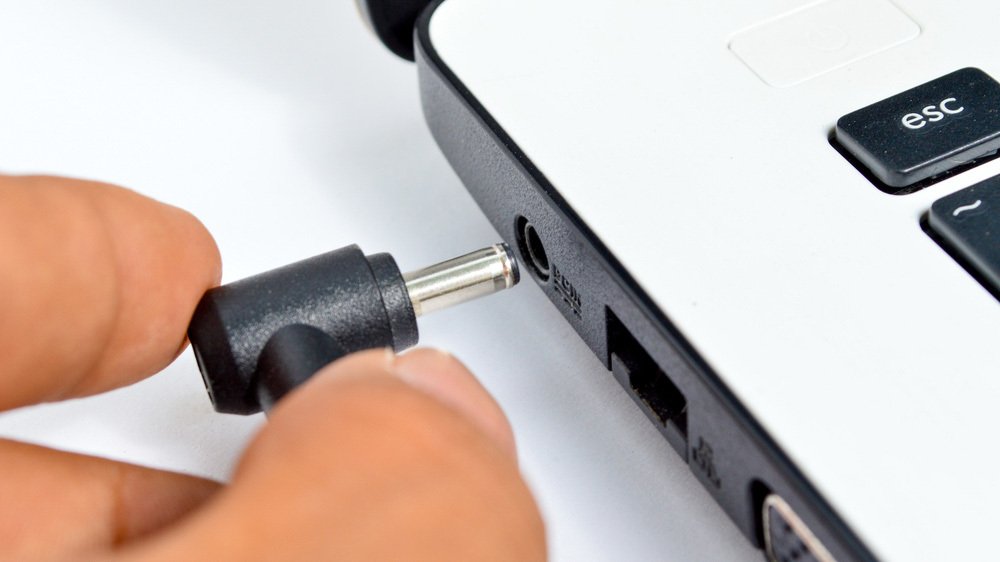
Credit: www.pcmag.com
Should You Keep Your Laptop Plugged In All The Time?
This is a common question with no simple answer. Modern laptops have protection circuits that stop charging the battery when it’s full. This means it’s usually safe to leave your laptop plugged in for hours, but it’s not always best for battery health.
If you use your laptop like a desktop (plugged in all day), try these tips:
- Turn on battery health or conservation modes if your laptop has them.
- Unplug the laptop for a few hours each week to let the battery cycle.
- If you have a removable battery, take it out when using the laptop plugged in for long periods.
If you use your laptop on battery often, follow the earlier tips about charging between 20% and 80%.
How To Store Your Laptop And Battery
If you won’t use your laptop for weeks or months, good storage habits can save your battery:
- Charge the battery to about 50%.
- Store the laptop in a cool, dry place (ideally between 15–25°C or 59–77°F).
- Turn off the laptop completely (don’t just put it to sleep).
- If possible, check the battery every few months and recharge to 50% if needed.
Storing a laptop with a full or empty battery for a long time can seriously hurt battery health.
Common Myths About Laptop Charging
There are many myths about charging laptops. Let’s clear up some confusion:
- Myth: You must always let the battery drain to 0% before recharging.
- Fact: This is only true for old NiMH or NiCd batteries. Modern lithium batteries prefer shallow discharges.
- Myth: Overcharging will explode the battery.
- Fact: Modern laptops have circuits to stop charging when full, so they won’t “overcharge.” But, heat from long charging sessions can still be a problem.
- Myth: It’s bad to use your laptop while it’s charging.
- Fact: Light use is fine. Heavy use can cause extra heat, which is what really hurts the battery.
- Myth: All chargers work the same.
- Fact: Using the wrong charger can damage your battery or laptop.
- Myth: Removing the battery always helps.
- Fact: Only older laptops allow this. Most new laptops have built-in batteries.
Real-world Examples: Charging Mistakes And Their Effects
Let’s look at two real stories:
Case 1: A student used his laptop plugged in 24/7 for two years. He never let the battery cycle and always charged to 100%. After two years, the battery lasted only 20 minutes unplugged.
Case 2: An office worker charged her laptop only when it fell below 10%, then always to 100%. After one year, the laptop started shutting down at 30% battery, showing the battery meter was no longer accurate.
These real examples show why the right charging habits matter. Batteries are expensive to replace, so taking care of them saves money and time.
Signs Your Laptop Battery Needs Attention
No battery lasts forever. Here are signs you might need a new battery or should check your charging habits:
- Your laptop shuts down suddenly even when the battery shows 20-30%
- The battery only lasts an hour or less
- The battery feels hot to the touch when charging
- Windows or MacOS shows “Replace Battery” or “Service Battery”
If you see these signs, try recalibrating the battery. If that doesn’t help, it’s time to consider a replacement.
Battery Saving Tips Beyond Charging
Charging habits are important, but you can also extend battery life with these tips:
- Lower your screen brightness
- Close apps you’re not using
- Turn off Wi-Fi and Bluetooth when not needed
- Use battery saver or eco mode
- Keep your laptop and software updated
Even small changes can make your battery last longer between charges.

Credit: www.hp.com
Comparing Laptop Battery Life By Brand And Model
Different laptops have different battery life, even with perfect charging habits. Here’s a look at how some popular models compare (average results under light use):
| Laptop Model | Battery Life (hours) | Battery Type |
|---|---|---|
| Apple MacBook Air M2 | 15-18 | Lithium-polymer |
| Dell XPS 13 | 12-14 | Lithium-ion |
| Lenovo ThinkPad X1 Carbon | 13-15 | Lithium-ion |
| HP Spectre x360 | 11-13 | Lithium-ion |
| Asus ZenBook 14 | 12-15 | Lithium-polymer |
These numbers can change based on use, but they give you an idea of what to expect.
Two Insights Many Beginners Miss
- Battery health is affected by temperature as much as by charging habits. Many people focus only on charge cycles, but overheating from blocked vents or using laptops on soft surfaces is just as damaging as bad charging.
- Software settings can make a big difference. Turning on built-in battery management tools, updating your BIOS, and using eco modes are small steps that can greatly increase battery lifespan.
When To Replace Your Laptop Battery
No battery is forever. Even with perfect habits, a laptop battery will start to wear out after a few years. If your laptop is more than three years old and the battery doesn’t last long, replacement may be the best option.
Check your laptop manual or manufacturer’s website for details on getting a genuine battery.
Frequently Asked Questions
How Often Should I Charge My Laptop?
Charge your laptop whenever it drops to around 20-30%. Don’t wait until it’s completely empty, and don’t keep it always at 100%. This helps your battery last longer.
Is It Okay To Leave My Laptop Plugged In All The Time?
Modern laptops have safety features to prevent overcharging, so it’s generally safe. But to maximize battery life, use built-in battery health modes or unplug it once in a while.
Can I Use My Laptop While It’s Charging?
Yes, it’s fine for light tasks. But avoid heavy gaming or video editing while charging, as it creates extra heat and can damage the battery faster.
How Do I Know If My Battery Needs To Be Replaced?
If your battery drains quickly, your laptop shuts down suddenly, or you see warnings like “Replace Battery,” it’s time to consider a replacement.
Do All Laptops Have Battery Health Management Tools?
Not all, but many modern laptops do. Check your manufacturer’s settings or support site. Features like Battery Health Management (Apple) or Conservation Mode (Lenovo) are common in recent models.
Taking care of your laptop battery is simple once you know the facts. With the right charging habits and a little attention, your laptop can last longer, run better, and save you money on repairs. For more in-depth research, you can visit Battery University, which offers expert insights into battery care and science.
