
A well-designed desk charging station is more than just a place to power your devices. It’s the heart of a productive workspace, helping you stay organized, reduce cable clutter, and keep every device ready to go. If you ever find yourself searching for a charger, untangling messy wires, or running out of outlets, a smart charging setup will change how you work.
Setting up a desk charging station may seem simple, but doing it well takes planning, good product choices, and smart organization. This guide walks you through everything—from choosing the right charging hub to practical cable management, and even some advanced ideas that most beginners overlook.
Why A Desk Charging Station Matters
The modern desk is a charging battlefield. Phones, tablets, smartwatches, wireless earbuds, power banks, and laptops all need regular charging. If you charge everything directly from wall outlets, you’ll face several problems:
- Cable clutter: Unmanaged cables make your desk look messy.
- Limited outlets: Most desks have only one or two wall sockets nearby.
- Device damage: Cheap chargers or overloading a socket can reduce device life.
- Time wasted: Searching for the right charger or cable slows you down.
A well-built charging station solves these issues. It gives every device a home, reduces clutter, and keeps your workspace clean and efficient.
Planning Your Desk Charging Station
Before you buy anything, take a moment to plan. Many people skip this step and end up with a setup that doesn’t meet their needs.
Assess Your Devices
Write down every device you charge at your desk regularly. Include:
- Smartphones (work and personal)
- Tablets or e-readers
- Laptops
- Smartwatches and fitness bands
- Wireless earbuds/headphones
- Portable power banks
- Accessories (wireless mice, keyboards, lamps)
For each device, note:
- The charging port type (USB-A, USB-C, Lightning, MagSafe, proprietary)
- Charging speed (regular or fast charge)
- Whether you prefer wired or wireless charging
This list helps you buy the right charging hub and cables.
Decide On Charging Locations
Think about where you want each device to sit when charging. For example:
- Phone within arm’s reach
- Laptop on a stand
- Smartwatch docked at the back corner
Planning locations helps you manage cable lengths and keep the setup tidy.
Measure Available Space
Measure your desk’s width and depth. Decide how much space you can dedicate to charging. Some people prefer a small tray, while others want a larger organizer.
Power Source And Safety
Locate the nearest wall outlet. If it’s far, you might need a power strip or extension cord. Make sure your setup doesn’t overload any single outlet—most home outlets support up to 15 amps (about 1800 watts). Avoid daisy-chaining multiple power strips, which is a common fire risk.
Choosing The Right Charging Hub
A charging hub is the core of your desk charging station. It determines how many devices you can charge and how fast.
Types Of Charging Hubs
- USB Charging Stations: These have multiple USB ports (often 4–10) and sometimes include USB-C for newer devices.
- Wireless Charging Pads: For Qi-compatible devices (most modern phones and earbuds). Some hubs combine both wired and wireless charging.
- Docking Stations: Often used for laptops, these provide charging plus extra ports for monitors and accessories.
- Power Strips with USB: Useful if you want to charge both AC devices (like a lamp) and USB-powered gadgets.
What To Look For
- Number of ports: Choose a hub with 1–2 more ports than you currently need.
- Power output: Check for fast-charging support (e.g., 18W, 30W, or higher for USB-C PD). Some laptops need 60W or more.
- Port types: Mix of USB-A and USB-C is best.
- Safety features: Overcurrent, overvoltage, and short-circuit protection.
Here’s a quick comparison of popular charging hub types:
| Type | Best For | Number of Ports | Fast Charging | Wireless Option |
|---|---|---|---|---|
| USB Charging Station | Phones, tablets, accessories | 4–10 | Yes (if USB-C PD) | No |
| Wireless Charging Pad | Phones, earbuds | 1–3 | Yes (up to 15W) | Yes |
| Docking Station | Laptops, monitors, USB devices | 6–12 | Yes (up to 100W for laptops) | Sometimes |
| Power Strip with USB | Mixed AC & USB devices | 3–8 (plus AC outlets) | Sometimes | No |
Real-world Example
If you have an iPhone, an iPad, wireless earbuds, a smartwatch, and a work phone, a 6-port USB charging station with at least one USB-C PD port works well. Add a wireless pad if you want no-cable phone charging.
Selecting Quality Cables And Adapters
The cables you use matter as much as the charging hub. Cheap or mismatched cables can slow charging or even damage devices.
Cable Types And Lengths
- USB-A to Lightning: For older iPhones and some iPads
- USB-C to USB-C: For new Android phones, some tablets, newer laptops
- USB-A to Micro-USB: For older devices or some accessories
- USB-C to Lightning: Fast charging for newer iPhones
Choose cables long enough to reach devices comfortably, but not so long they create a tangled mess. For most desks, 3–6 feet is ideal.
Key Features To Look For
- Certified cables: Look for MFi (Made for iPhone/iPad) for Apple, USB-IF for USB-C.
- Durability: Braided or reinforced cables last longer.
- Fast charge support: Make sure cables can handle the speed your charger provides.
Common Mistakes
- Mixing up USB-A and USB-C ports—using the wrong port can slow charging.
- Using old, damaged, or off-brand cables that lack protection.
Managing Cables For A Clean Desk
Cable management is the secret to a great charging station. Even with the best devices, messy cables ruin the look and feel.
Top Cable Management Tools
- Cable clips: Small adhesive holders that stick to your desk and keep cables in place.
- Cable sleeves: Fabric or plastic tubes that bundle several cables together.
- Cable boxes: Hide bulky power strips and extra cable length.
- Velcro ties: Keep excess cable rolled neatly.
Step-by-step Cable Management
- Plan cable paths: Decide where each cable should go—direct lines are best.
- Attach cable clips: Stick them near the edge of your desk for easy access.
- Bundle excess: Use Velcro ties or sleeves to group extra length out of sight.
- Hide power strips: Place them under the desk or in a cable box.
A neat trick: run cables along the back edge of the desk with clips, so they’re invisible from the front.
Advanced Tips
- Label each cable near the charging hub. This helps if you have many similar-looking wires.
- Use color-coded cables for different device types.
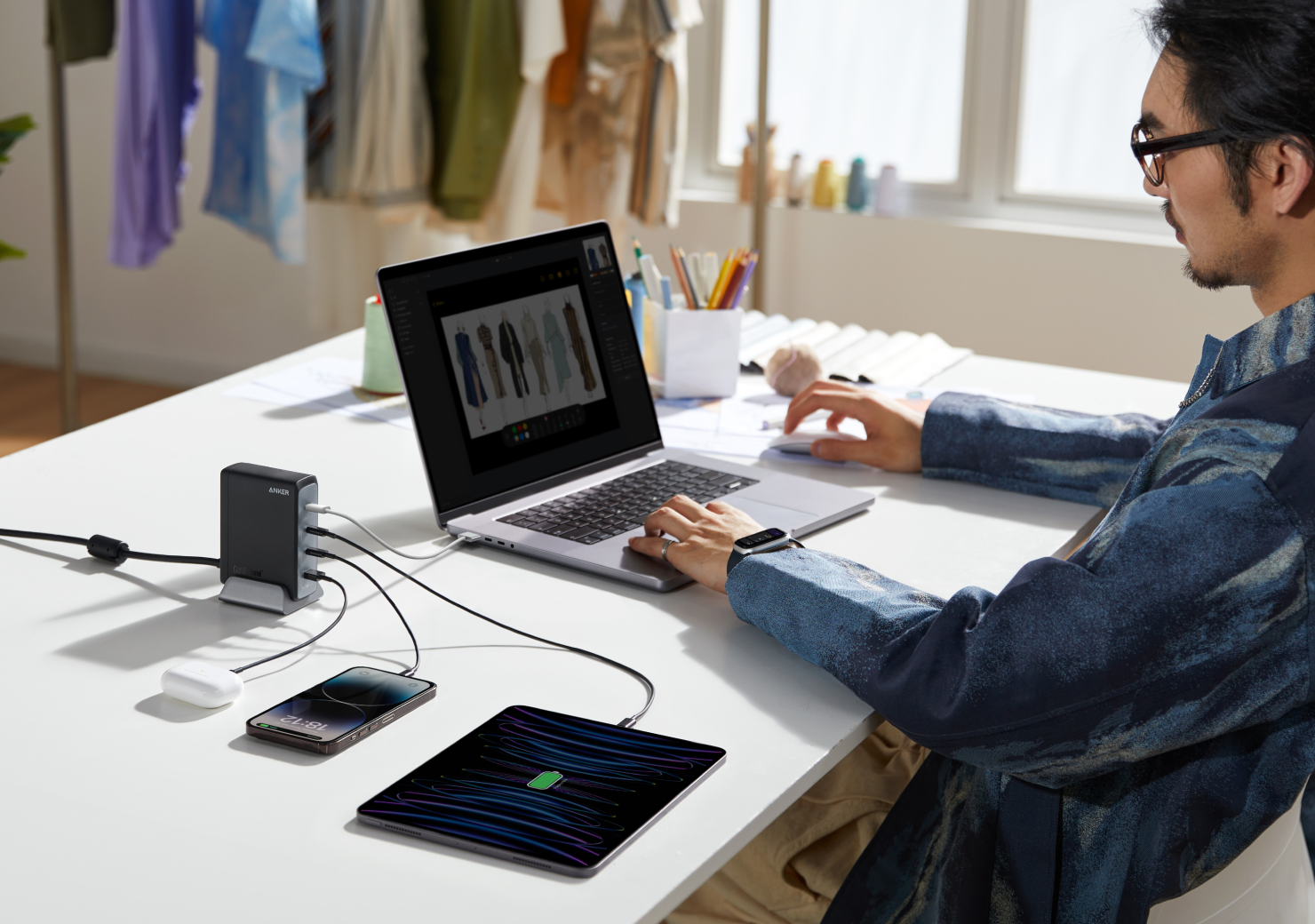
Organizing Devices On Your Desk
Where you place each device affects both charging efficiency and workflow. Some devices need to be close at hand, others can be further away.
Device Placement Ideas
- Phone: Place on a wireless pad or stand near your dominant hand.
- Tablet: Use a vertical stand if you use it for reference.
- Laptop: On a riser with charging from below.
- Smartwatch: Dock at the back or side, out of the main work area.
- Earbuds: In a charging case holder or tray.
Using Trays And Stands
Trays keep small devices like earbuds and watches organized. Vertical stands save desk space and make it easy to grab your phone or tablet. Look for stands with built-in cable guides.
Keeping Things Tidy
- Always return devices to their spot after use.
- Clean the charging area weekly to remove dust and clutter.
Credit: www.anker.com
Adding Wireless Charging
Wireless charging adds convenience and reduces cable wear. Most modern smartphones, earbuds, and even smartwatches support Qi wireless charging.
Pros And Cons
Pros:
- No plugging/unplugging cables
- Cleaner desk look
- Reduces wear on charging ports
Cons:
- Slightly slower than wired charging
- Not all devices support it
- Thick cases may block charging
Choosing A Wireless Charger
Look for:
- Qi certification: Ensures safety and compatibility
- Power output: 7.5W (iPhone), 10–15W (Android)
- Multiple coils: Easier alignment
Some charging hubs include built-in wireless pads for phones and earbuds.
Safety And Surge Protection
Power safety is often ignored until something goes wrong. Protecting your devices from surges, overheating, or accidental shorts is essential.
Surge Protectors
Always use a quality surge protector with your charging station. Surges from lightning or grid issues can destroy electronics.
Overload Protection
Never exceed the power rating of your outlet or power strip. For example, a typical 6-port USB hub plus a laptop charger can draw over 100W—well within the limit, but adding space heaters or other high-wattage devices is risky.
Fire Safety Tips
- Don’t cover power strips or adapters with paper or cloth.
- Unplug chargers when not needed for long periods.
- Replace damaged cables immediately.
Personalizing Your Charging Station
A charging station doesn’t have to be boring. Personalizing your setup can improve both mood and motivation.
Decor And Accessories
- Small plants: Add a touch of green to boost focus.
- Desk organizers: Hold pens, notes, and devices together.
- LED lights: Soft lighting can make the charging area inviting.
Tech Upgrades
- Smart plugs: Schedule charging or control via voice assistant.
- Charging station with display: Some hubs show current power usage or charging status.
A personalized space is more likely to stay organized because you enjoy using it.
Common Beginner Mistakes To Avoid
Many people set up charging stations that look great for a day but quickly become messy or underpowered. Here are pitfalls to avoid:
- Underestimating power needs: Buy a hub with extra ports and higher wattage than you need now.
- Ignoring cable length: Too-short cables force you to move devices, too-long cables clutter the desk.
- Mixing incompatible devices: Not all charging standards are equal—ensure your hub supports your devices’ requirements.
- Overloading power strips: Don’t plug too many high-wattage devices into one outlet.
- Neglecting airflow: Piling devices or covering chargers can cause overheating.
A little planning prevents these problems.
Advanced Desk Charging Station Ideas
If you want to go beyond basics, consider these upgrades:
Built-in Desk Charging
Some desks now come with built-in wireless charging pads or USB ports. If you’re handy, you can install a wireless pad under a wood desk (as long as it’s not too thick). This creates a seamless, invisible charging area.
Multi-device Charging Stands
Multi-device stands charge your phone, watch, and earbuds all at once. They’re ideal for Apple or Samsung users, with versions that match your device lineup.
Cable Management Channels
Install cable channels under the desk to hide all wires. This keeps your desktop completely clear and is especially helpful if your desk faces the room.
Modular Systems
Some brands offer modular charging stations, letting you add or remove charging pads, stands, or hubs as your needs change.
Power Monitoring
Use smart power strips or plugs that monitor energy usage. This can help you reduce standby power draw and spot faulty chargers.
Real-world Examples And Inspiration
Let’s look at a couple of real-life setups:
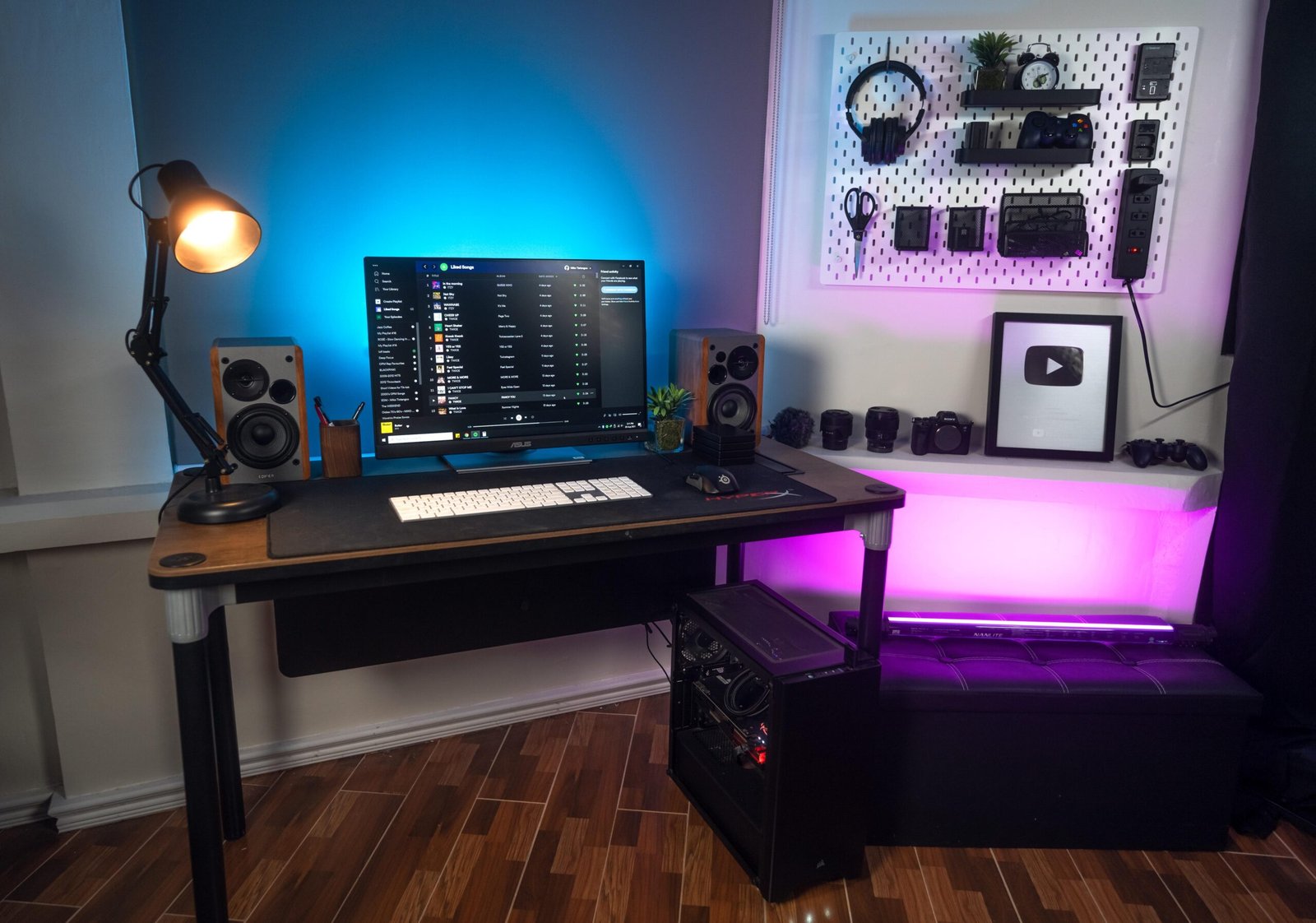
Minimalist Professional Desk
- Charging hub: 6-port USB-C with surge protection, mounted under the desk.
- Cables: Custom-length, color-matched to the desk.
- Device stands: Black aluminum for a modern look.
- Cable management: All wires run behind the monitor and under the desk with adhesive channels.
- Extras: Small bonsai plant, wireless mouse charger.
Student Study Corner
- Power strip: Includes three AC outlets and four USB ports.
- Wireless pad: For phone and earbuds.
- Tablet stand: Holds tablet for online classes.
- Cable clips: Bright colors for easy identification.
- Organization tray: For pens, sticky notes, and earbud case.
Family Charging Station
- Large organizer: Holds four phones, two tablets, and a Bluetooth speaker.
- Short cables: Prevents tangling.
- Each device slot labeled: So everyone knows where to put their device.
- Central location: Near kitchen, so all family members can access.
Credit: www.reddit.com
Sustainability And Power Efficiency
Charging many devices can add up in energy costs. Here’s how to minimize waste:
- Unplug chargers when not in use: Many draw power even when idle.
- Use smart plugs: Schedule charging during off-peak hours.
- Choose Energy Star certified hubs: They use less standby power.
- Charge only when needed: Overcharging shortens battery life for some devices.
A study by the US Department of Energy found that standby power can account for 5–10% of household electricity use. With so many devices, a smart charging setup helps you save both money and the environment.
Comparing Top Desk Charging Station Products
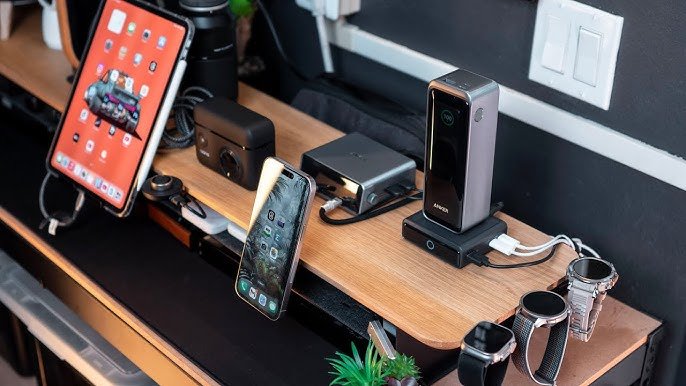
Choosing the right product can be overwhelming. Here’s a comparison of some popular options (as of 2024):
| Product | Ports | Max Power Output | Wireless Charging | Price Range (USD) |
|---|---|---|---|---|
| Anker PowerPort 6 | 6 (USB-A) | 60W total | No | $30–$40 |
| Baseus 65W GaN Charger | 3 (USB-C), 1 (USB-A) | 65W total | No | $35–$50 |
| Satechi Dock5 | 4 (USB), 1 wireless pad | 60W total | Yes (10W) | $60–$70 |
| Nomad Base Station Pro | 3 wireless, 2 USB | Up to 10W wireless, 18W USB-C | Yes | $150–$200 |
| Amazon Basics 10-Port USB | 10 (USB-A) | 96W total | No | $40–$50 |
Always check for the latest models and reviews, since charging technology evolves fast.
Credit: www.youtube.com
Frequently Asked Questions
How Many Devices Can I Safely Charge At Once?
You can safely charge as many devices as your charging hub supports, as long as you do not exceed the total power rating of the hub and the outlet. Most quality hubs manage power to each device automatically. If you use a power strip, do not plug in high-wattage appliances together with chargers.
Do Wireless Chargers Work Through Phone Cases?
Most wireless chargers work through cases up to 3–5 mm thick. However, metal cases or cases with magnets can block or reduce charging speed. Always check your case type if you use wireless charging.
What Is The Best Cable Length For A Desk Charging Station?
For most desk setups, 3–6 feet (1–2 meters) is ideal. Shorter cables reduce clutter, while longer cables are only needed if your desk is large or the charging hub is far from the device. Custom-length cables are available if you want a perfect fit.
Can I Use My Laptop’s Usb Ports To Charge Other Devices?
Yes, but laptop USB ports usually provide less power than dedicated chargers (often 2. 5W–7. 5W per port). This is fine for small devices, but slow for phones and tablets. For fast charging, use a dedicated charging station.
How Do I Know If My Charging Hub Is Safe?
Look for certifications like UL, CE, FCC, or USB-IF. Buy from reputable brands. Features like overcurrent, overvoltage, and short-circuit protection are important. Avoid very cheap, unbranded chargers, as these may lack safety features. For more details on electrical safety standards, see this Consumer Electronics Safety Guide.
A desk charging station is a small upgrade that makes a big difference. With good planning, the right equipment, and smart organization, you can create a workspace that looks great and keeps all your devices ready for action. Whether you prefer a minimalist look or a tech-filled hub, your perfect setup is just a few steps away.
