
In today’s fast-moving digital world, more people work on laptops, tablets, and smartphones. These devices are thinner and lighter than ever. But many users quickly realize a challenge: not enough ports for their needs. Enter the USB C docking station—a simple tool that transforms a single port into a powerful workstation hub. One of its most important features is charging. But how does it really work, what should you look for, and what mistakes do buyers often make? Let’s explore everything you need to know about USB C docking station charging, with practical advice and real-world examples.
What Is A Usb C Docking Station?
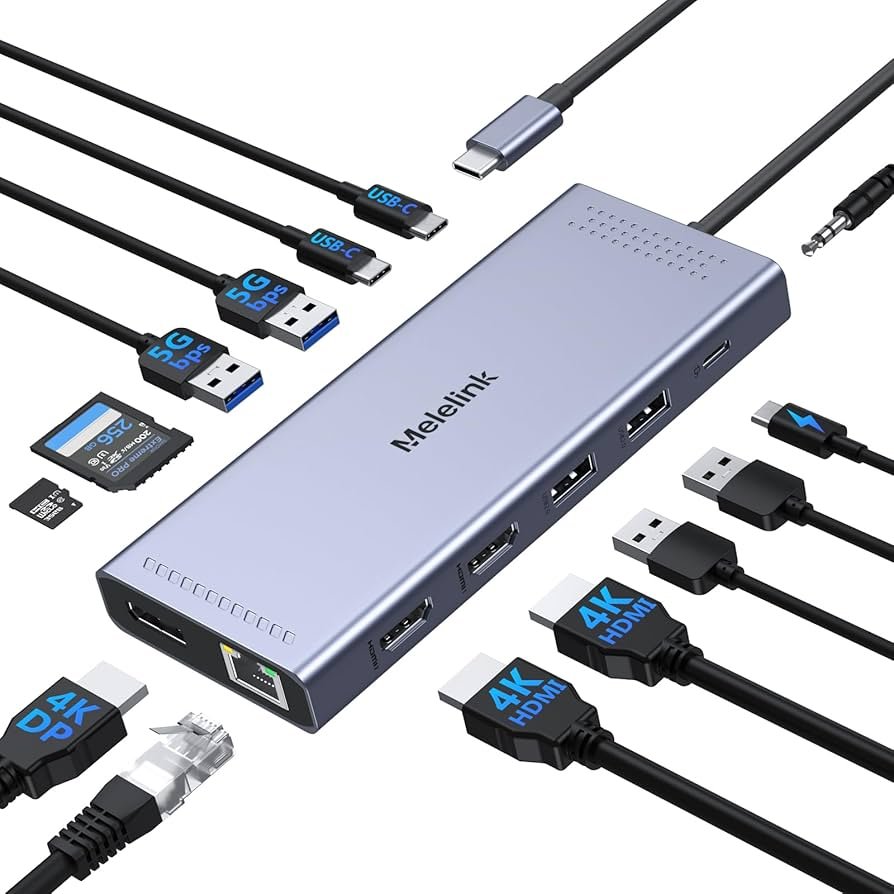
A USB C docking station is a device that connects to your laptop or tablet using a USB Type-C port. Once connected, it provides extra ports and features, such as:
- HDMI or DisplayPort for external monitors
- USB-A ports for older devices like mice and keyboards
- Ethernet for wired internet
- SD card readers for cameras
- Audio jacks for headphones
One key feature is charging—the ability to power your laptop and other devices while you work. This is often called Power Delivery (PD).
How Usb C Docking Station Charging Works
Most modern laptops support charging through the USB C port. A docking station with charging capability can provide power to your laptop, phone, or tablet, often replacing your normal charger. This is possible because of the USB Power Delivery (PD) standard. Here’s how it works:
- The docking station is plugged into the wall outlet.
- It connects to your device’s USB C port.
- The docking station “negotiates” with your device how much power it needs.
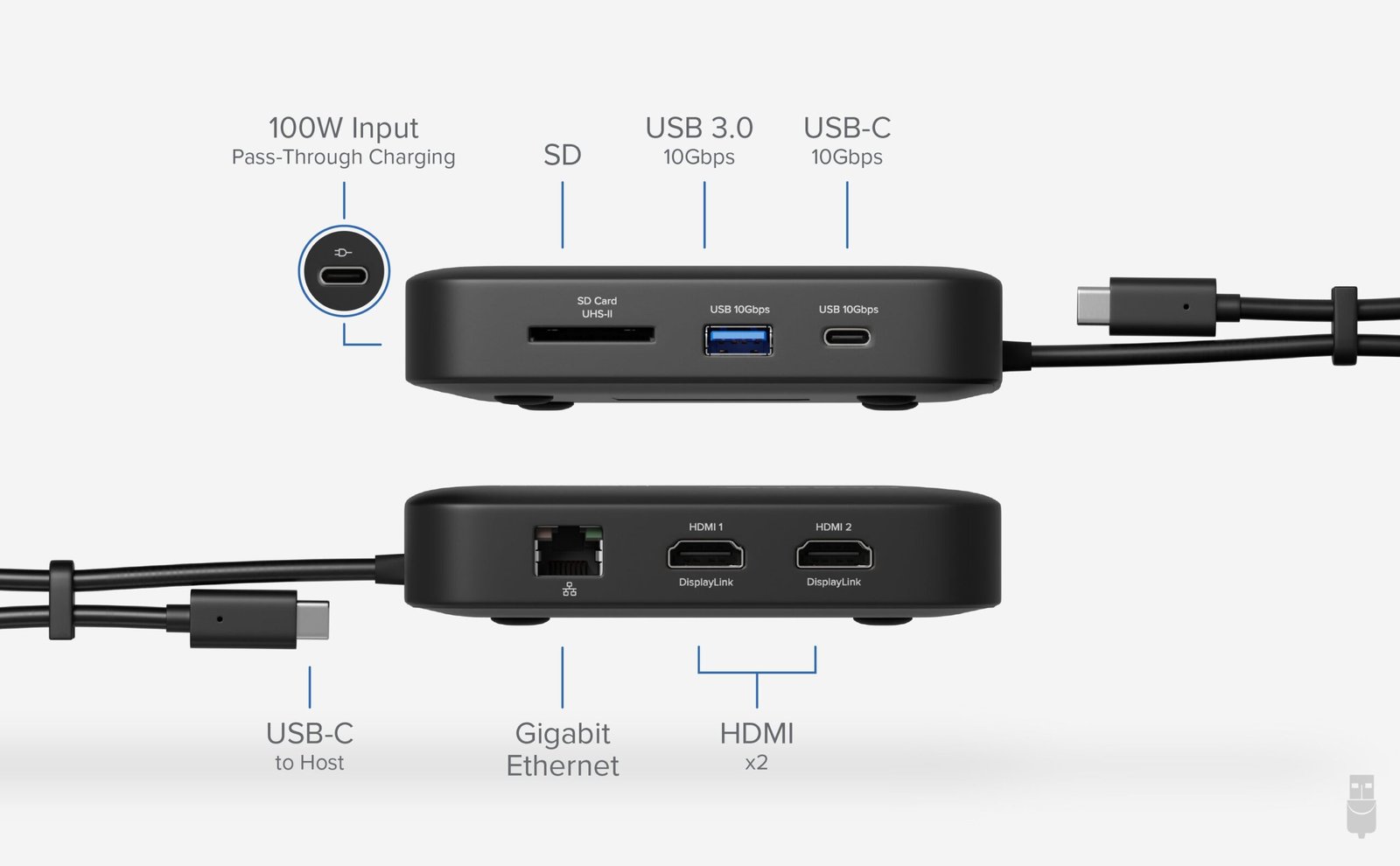
- It delivers the correct amount of power, often up to 100W for laptops.
This means you can use just one cable for everything: video, data, and power.

Credit: www.encased.com
Types Of Usb C Docking Stations
There are several types of USB C docking stations, and not all support charging. Here are the main types:
| Type | Charging Support | Best For |
|---|---|---|
| Basic Hubs | No or Low (15-30W) | Light devices, tablets |
| Full Docking Stations | Yes (60-100W) | Laptops, workstations |
| Pass-Through Hubs | Depends on charger used | Travel, flexibility |
- Basic hubs often only support data and video, or very low charging. They may not power a laptop fully.
- Full docking stations include their own power supply and can charge laptops while giving many ports.
- Pass-through hubs let you plug your own charger into the hub, which then passes power to your device.
Key Benefits Of Charging Through A Docking Station
Why do so many users want charging in their docking station? The main benefits include:
- One-cable convenience: Charge your laptop and connect everything with one cord.
- Cleaner desk: Fewer wires and chargers.
- Faster charging: Many docks offer higher wattage than default laptop chargers.
- Device charging: Some docks can charge phones, tablets, and headphones at the same time.
For example, if you have a MacBook Pro and a docking station with 96W PD, you can charge at full speed while using external monitors and accessories.
Credit: www.amazon.com
What Matters When Choosing A Usb C Docking Station For Charging
Many buyers focus on the number of ports or the price. But charging is more complex. Here’s what you need to look for:
1. Power Delivery (pd) Wattage
Most laptops need at least 45W to charge slowly, but 60W or more for normal use. High-end models, like the 16-inch MacBook Pro, may need 87W or 96W. If your docking station provides less than your laptop needs, it will charge slowly or not at all.
2. Power Allocation
Some docking stations share power between the laptop and other devices. For example, a station may offer 100W total, but only 85W goes to the laptop, with the rest for other USB devices. Always check the laptop charging wattage, not just the total.
3. Usb C Port Compatibility
Not every USB C port supports charging. Look for the thunderbolt or power delivery symbols on your device. Some older laptops only support data, not charging, on USB C.
4. External Power Supply
Full-featured docking stations come with their own power adapter—usually large and heavy. Cheap hubs often rely on your own charger, which may be underpowered.
5. Cable Quality
The included USB C cable must support high wattage. Low-quality cables may limit charging speed or cause overheating.
Common Buyer Mistakes
Even experienced buyers make errors. Here are two mistakes many people miss:
- Assuming all docking stations charge all laptops: Some laptops, especially older Windows models, do not support charging over USB C. Always check your device’s manual.
- Ignoring power split: If your docking station is charging phones, a tablet, and your laptop at once, the power divides between them. Your laptop may charge slowly if you use all ports at once.
A third mistake: Using a low-wattage wall adapter with a pass-through hub. If your wall charger only provides 30W, your laptop will not get enough power, even if the hub supports more.
Real-world Charging Examples
Let’s see how charging works in real life with a few popular laptops:
| Laptop Model | Recommended PD Wattage | Compatible with USB C Charging? |
|---|---|---|
| MacBook Air M2 | 30W-45W | Yes |
| MacBook Pro 16″ | 96W | Yes |
| Dell XPS 13 | 45W-60W | Yes |
| Lenovo ThinkPad T14 | 65W | Yes |
| HP Pavilion 15 (older models) | 45W | Sometimes (check model) |
As you can see, not all laptops need the same power. High-performance models may even drain battery under heavy use if the dock’s PD is too low.
Safety And Charging Speeds
High-wattage charging can be safe if the docking station is certified. Look for features like overcurrent protection, overvoltage protection, and temperature control. Certified brands are less likely to overheat or damage your devices.
It’s worth noting that fast charging (above 60W) may warm up your device more. This is normal, but if your laptop gets hot, try reducing the number of connected devices.
Credit: plugable.com
Advanced Features: Daisy-chaining And Dual Charging
Some high-end docking stations offer advanced features, such as:
- Daisy-chaining monitors: Connect several monitors through a single cable (DisplayPort MST).
- Dual charging: Charge your laptop and a tablet at high speed at the same time.
- Wake-on-USB: Wake your laptop from sleep using a keyboard or mouse connected to the dock.
These features can make your workspace even more efficient, but they often require a higher-priced docking station.
How To Set Up Usb C Docking Station Charging
Getting started is usually simple, but a few steps ensure everything works well:
- Plug the docking station’s power adapter into a wall outlet.
- Connect the dock to your laptop’s USB C port.
- Attach your monitors, keyboard, and other accessories.
- Check your laptop’s battery icon to confirm it’s charging.
- If it’s not charging, check the dock’s power LED and cable connections.
For best results, use the cable and power adapter that came with the docking station.
Troubleshooting Docking Station Charging Issues
If your docking station isn’t charging your device, try these steps:
- Check compatibility: Make sure your laptop supports USB C charging.
- Test with another cable: Low-quality cables can block charging.
- Restart your device: Some laptops need a restart to detect new power sources.
- Update firmware/drivers: Visit your laptop manufacturer’s website for updates.
- Reduce load: Disconnect other USB devices to ensure enough power for your laptop.
If all else fails, try connecting your laptop’s original charger. If it works, the problem is likely with the dock or cable.
Is Usb C Docking Station Charging Right For You?
A USB C docking station with charging is perfect if you:
- Want a tidy desk with one cable for everything.
- Use external monitors, keyboard, and mouse.
- Need to charge your laptop, phone, and other devices together.
- Frequently move between home and office.
However, if you have an older laptop, or only need a few extra ports, a basic hub may be enough.
Environmental Impact And Energy Usage
Some people worry about energy use. Docking stations do draw more power than a simple charger, especially with many devices attached. However, the difference is usually small. A typical docking station uses 1-3W extra at idle, rising to 10-20W with monitors and accessories. For most users, the convenience is worth the extra cost.
If you want to save energy, unplug the dock when not in use, or use power strips with switches.
Popular Brands And Models
Some of the most trusted brands for USB C docking stations with charging include:
- Dell WD19: Up to 130W charging, ideal for Dell laptops.
- Anker PowerExpand Elite: 85W laptop charging, compact design.
- CalDigit TS4: 98W charging, premium build, supports Mac and Windows.
- HP Thunderbolt G2 Dock: 100W charging, modular features.
- Lenovo ThinkPad Docking Station: Up to 90W, tested with Lenovo devices.
Always match the dock to your laptop’s power needs for best results.
Future Trends
USB C charging and docking stations are getting more advanced. New standards like USB4 and Thunderbolt 4 allow even higher speeds and more power. Some future docks may support up to 240W charging (enough for gaming laptops), and even wireless charging for phones.
If you want a future-proof setup, choose a docking station that supports the latest standards, even if your current laptop doesn’t.
Frequently Asked Questions
What Is The Difference Between Usb C Hubs And Docking Stations?
A USB C hub usually offers a few extra ports and may support basic charging (often 15-30W). A docking station is larger, has its own power supply, and offers full laptop charging (often 60-100W) plus more ports for monitors and accessories.
Can All Laptops Charge Through A Usb C Docking Station?
No. Only laptops with USB C Power Delivery support can charge through a docking station. Check your device manual or manufacturer’s website before buying.
How Much Power Do I Need From My Docking Station?
Check your laptop charger’s wattage. Most modern laptops need 45-65W, but high-end models may need 87-100W or more. Get a docking station that matches or exceeds your charger’s output.
Will Charging Through A Docking Station Damage My Battery?
No, if you use a certified docking station and cable. Power Delivery is a smart standard; it only delivers what your device requests. Avoid cheap, uncertified docks to reduce risk.
Where Can I Learn More About Usb Power Delivery?
You can read more on the official USB Implementers Forum website: USB.org.
A USB C docking station with charging makes work and home life simpler, faster, and more organized. By understanding power delivery, compatibility, and common mistakes, you can choose the right dock and enjoy a clutter-free, efficient workspace. With new technology arriving every year, this is one upgrade you’ll use every day.
Related Office Guides
Continue with these related workspace guides:
