
Setting up your desk for laptop charging may seem simple at first. But when you spend hours working, studying, or gaming, you quickly notice the small things that can make a big difference. A good laptop charging setup is not only about plugging in your device.
It’s about safety, convenience, and keeping your workspace tidy and efficient. Many people overlook critical details, like cable management or choosing the right charger. Over time, these small mistakes can damage your laptop battery, slow down your workflow, or even risk your safety.
Let’s look at how to create a desk setup that charges your laptop efficiently, protects your equipment, and helps you stay productive.
Choosing The Right Charger For Your Laptop
The charger is the heart of your charging setup. Using the wrong one can harm your battery or even damage your laptop. Always check the manufacturer’s recommendations. Look for the correct voltage (V) and current (A) for your device.
Modern laptops, especially those with USB-C charging, often support a range of power levels. A charger that’s too weak may charge your device slowly or not at all. Too strong, and it could overheat or shorten battery life. Many users assume any USB-C charger will work, but this is not always true.
| Charger Type | Power Output | Suitable For |
|---|---|---|
| Standard USB-C (45W) | 45 Watts | Light laptops, ultrabooks |
| High-power USB-C (65-100W) | 65-100 Watts | Gaming laptops, workstations |
| Proprietary Barrel Plug | Varies | Older models, some business laptops |
Non-obvious insight: A charger with a higher wattage is usually safe for laptops that support it, but always check your laptop’s maximum supported input.
Desk Power Access: Outlets And Extension Cords
Your desk location often decides how easy it is to charge your laptop. Some desks are near a wall outlet, others are far. If your desk isn’t close to a power source, you’ll need a quality extension cord or power strip.
Choose extension cords with surge protection. This helps protect your laptop from sudden spikes in electricity, which can happen during storms or power outages. Cheaper power strips may lack this feature and can put your device at risk.
Another tip: Don’t overload your power strip with too many devices. Each strip has a maximum wattage. Charging your laptop, phone, lamp, and other gadgets all at once can be too much for a single strip.
Cable Management For A Tidy Workspace
A common mistake is letting charging cables dangle or tangle across your desk. Messy cables can make your setup look untidy and may even cause accidents if you trip or pull your laptop off the desk.
Here are some effective ways to manage your cables:
- Use cable clips or holders to attach charging cables to the edge of your desk.
- Use cable sleeves to group wires together.
- Consider under-desk trays for hiding longer cables.
- Choose shorter cables for desktop charging to reduce clutter.
Some users forget that cable tension can damage the charging port over time. Make sure your cable is long enough to reach comfortably from the power source to your laptop, but not so long that it gets in the way.
Ideal Desk Placement For Charging
Where you put your laptop on your desk affects how easy it is to charge. Place your device close enough to the power source that the cable doesn’t stretch. Avoid routing the cable across places where you might roll over it with your chair or knock it with your feet.
If possible, position your desk near a wall outlet. If not, use a power strip mounted under the desk or on the side for easy access. Avoid running cables across walkways or high-traffic areas.
Another non-obvious tip: Consider the airflow around your laptop. Charging can cause laptops to heat up, especially if running heavy applications. Don’t block your laptop’s vents with papers, books, or other objects.
Multi-device Charging: Power Strips And Usb Hubs
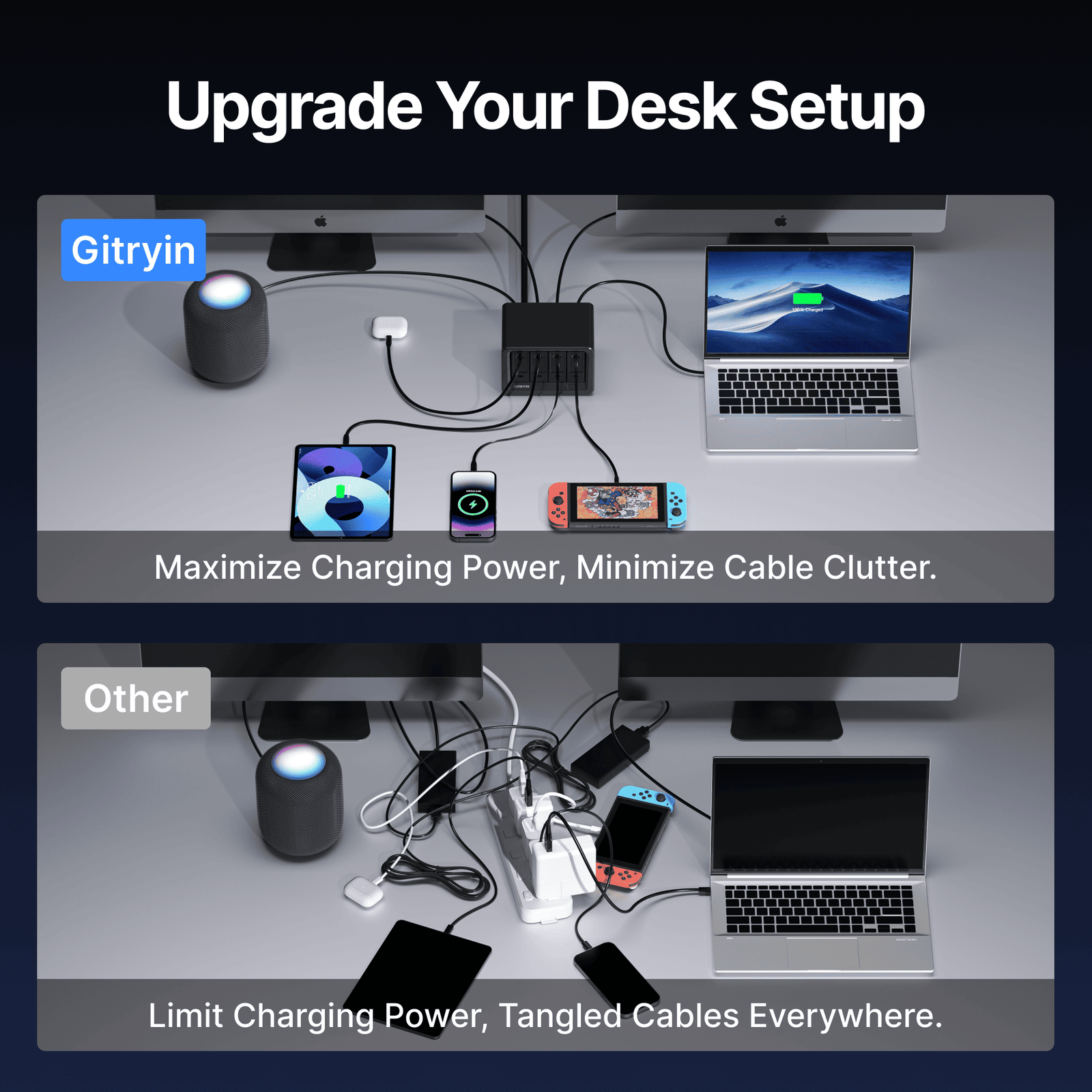
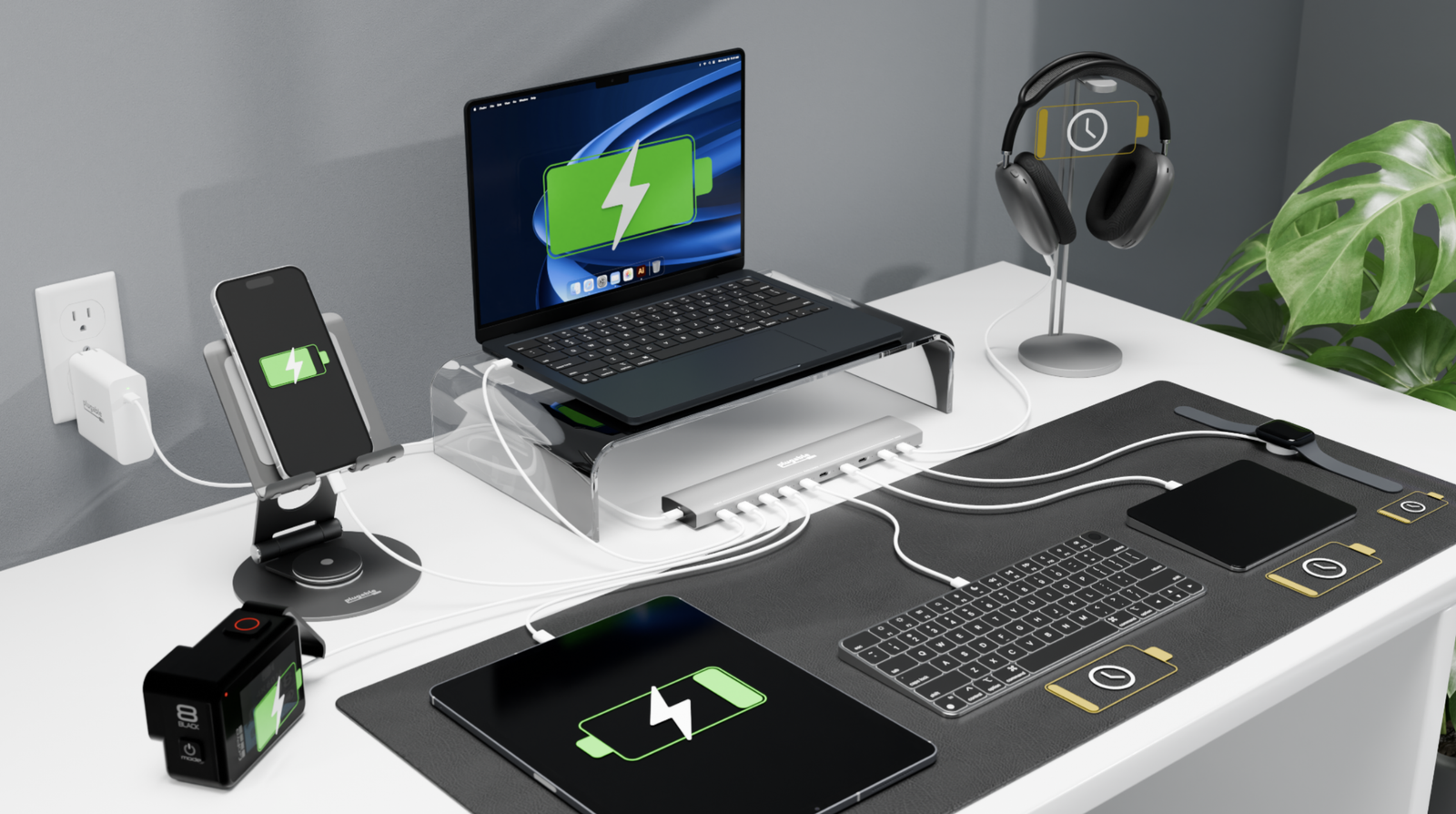
If you charge multiple devices (phone, headphones, tablet) along with your laptop, your desk can quickly become crowded with chargers. Multi-port power strips or USB charging hubs can help you organize.
Here’s a comparison of two popular options:
| Charging Solution | Ports | Best Use | Downside |
|---|---|---|---|
| Power Strip with USB | 3-6 AC, 2-4 USB | Charging laptops and small devices together | Can be bulky |
| USB Charging Hub | 4-10 USB | Charging phones, tablets, headphones | Does not support laptop charging |
Choose a solution that fits your needs. If you want to charge your laptop and phone together, a power strip with both AC and USB ports is ideal.
Safety Tips For Laptop Charging
Charging your laptop safely is more important than you might think. Overheating, electrical surges, and using low-quality chargers can all damage your laptop.
Follow these safety tips:
- Never cover your laptop while charging. This can trap heat and damage the battery.
- Use only certified chargers and power strips. Avoid cheap, unbranded products.
- Unplug the charger when not in use. This saves energy and reduces fire risk.
- Place your charger on a hard, flat surface. Soft surfaces (like beds) can overheat both the charger and your device.
- Do not use damaged cables. Exposed wires or bent connectors are dangerous.
Some users assume all chargers offer surge protection. In reality, only some do. Always check the packaging for this feature.
Desk Organization: Keeping Charging Gear Accessible
Efficient desk setups keep everything you need close at hand, but not in the way. Store your laptop charger in a dedicated spot, such as a drawer or a cable box, when not in use. If you often switch between rooms, consider a second charger for your desk.
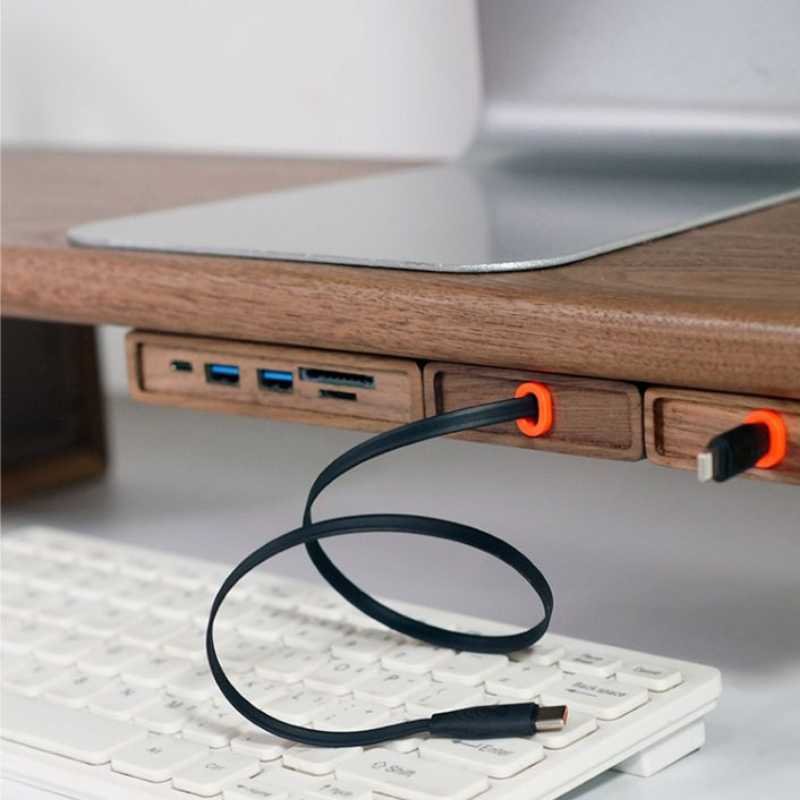
You can also use magnetic cable organizers to keep your charging cable ready to grab. For desks with built-in cable holes (grommets), run your cable through for a cleaner look.
One mistake beginners make: hiding the charger in a drawer while the laptop is charging. This can lead to heat build-up and risk of fire. Always keep chargers in the open while in use.
Improving Ergonomics While Charging
Your charging setup should not get in the way of comfort. If your cable is stretched across your desk, you might have to sit at an odd angle. Over time, this can cause discomfort or even pain.
Here’s how to maintain good ergonomics:
- Use a long enough cable to allow comfortable positioning.
- Avoid cables running under your wrists or arms.
- Position your laptop so the charging port is easy to reach.
- Consider a laptop stand to improve airflow and posture. Some stands include cable organizers for extra convenience.
Credit: iwoodstore.com
Charging Laptops With Docking Stations
For people who use their laptop as a desktop replacement, a docking station can simplify charging and connectivity. Many modern docking stations connect to your laptop via USB-C or Thunderbolt and provide power, monitor connections, and USB ports in a single device.
Advantages of a docking station:
- Charge your laptop and connect peripherals with one cable
- Reduce cable clutter
- Faster setup when moving between workspaces
But be aware: not all docking stations support laptop charging. Check the product details for Power Delivery (PD) support.
Here’s a quick comparison:
| Connection Type | Supports Charging | Typical Use |
|---|---|---|
| USB-C with PD | Yes | Modern laptops |
| Thunderbolt 3/4 | Yes | High-end devices, multiple monitors |
| USB 3.0 | No | Older laptops, data only |
Battery Health: Charging Habits That Matter
Many users worry about the effect of charging on battery life. Most modern laptops use lithium-ion batteries, which last longer with good charging habits.
Practical tips for better battery health:
- Do not keep your laptop plugged in all the time. Try to let the battery discharge to around 40–60% before recharging.
- Avoid letting your battery drain to 0% regularly.
- If your laptop supports it, use a battery health mode. Some brands offer software that stops charging at 80% to protect the battery.
- Keep your laptop and charger cool during use.
A non-obvious insight: Heat, not just charging cycles, is the biggest killer of laptop batteries. Always keep your laptop and charger well-ventilated.
Credit: gitryin.com
Travel-friendly Charging Desk Setups
If you move between home, office, or café, a portable charging setup is helpful. Consider these strategies:
- Carry a second charger in your bag so you don’t need to unplug at your desk.
- Use a universal adapter if you travel internationally.
- A compact travel power strip with USB ports can save space and let you charge multiple devices anywhere.
- Keep a cable pouch to avoid tangles in your bag.
Some people forget that not all places have grounded outlets. A travel adapter with surge protection is a smart investment.
Charging Accessories To Consider
There are many accessories that can make laptop charging at your desk easier:
- Magnetic charging adapters: Quick connect/disconnect, protects your port.
- Right-angle charging cables: Keeps the cable out of your way.
- Smart plugs: Set timers to stop charging after a set time.
- LED cable indicators: Easily see if your device is charging.
For more on safe electronics use, you can check the Consumer Reports guide.
Credit: www.laptopmag.com
Frequently Asked Questions
How Can I Tell If My Laptop Charger Is Safe To Use?
Look for certification labels such as UL, CE, or FCC. Avoid chargers that feel hot to the touch, have exposed wires, or make crackling noises. Use the original charger when possible.
Is It Okay To Leave My Laptop Plugged In All Day?
It is generally safe, but keeping your laptop plugged in 24/7 can slowly reduce battery health. If your laptop has a battery care setting, enable it to limit maximum charge.
Can I Use A Phone Charger To Charge My Laptop Via Usb-c?
Most phone chargers do not provide enough power for laptops. Only use chargers that meet your laptop’s wattage requirements. Check your laptop’s manual for compatible chargers.
What Should I Do If My Charger Cable Gets Hot?
Unplug the charger immediately. A hot cable can be a sign of a faulty charger or damaged cable. Replace it with a certified charger to avoid fire risk.
Will A Docking Station Charge My Laptop As Fast As The Original Charger?
Some docking stations deliver less power than the original charger, leading to slower charging. Check the Power Delivery (PD) rating and compare it to your laptop’s charger wattage.
A well-planned laptop charging desk setup can make your work easier, safer, and more comfortable. With the right charger, organized cables, and good habits, you protect both your device and your productivity. Remember, small changes—like adding cable clips or choosing a better power strip—can have a big impact over time.
Take a few minutes to review your current setup, and you’ll likely find ways to improve both safety and convenience.
Related Office Guides
Continue with these related workspace guides:
