
Many people use their laptop every day, but few pay attention to the touchpad—the small, sensitive area just below the keyboard. Over time, this surface collects oil from your fingers, dust, crumbs, and even bacteria. A dirty touchpad can cause the pointer to jump, gestures to lag, or clicks not to register. In some cases, it can make your laptop feel old before its time. If you want your laptop to work smoothly, and to last longer, cleaning the touchpad is an essential routine.
Cleaning a laptop touchpad isn’t just about wiping away fingerprints. It’s about protecting the delicate sensors, keeping the surface responsive, and avoiding damage. Many beginners use the wrong cleaning agents or too much water, which can cause permanent harm. In this guide, you’ll learn step-by-step how to clean your laptop touchpad safely, what tools to use, and which mistakes to avoid. Whether you use your laptop for work, gaming, or study, these tips will help you keep your device in top condition. Let’s get started.
Why Cleaning Your Laptop Touchpad Matters
The touchpad is often one of the most used parts of a laptop. You may not notice how much you touch it, but after a week, it can look cloudy or feel sticky. This isn’t just about appearance. Here’s why regular cleaning is important:
- Performance: Dirt and oil can cause the touchpad to lose sensitivity, making it hard to move the cursor or use gestures.
- Hygiene: Studies show that laptop touchpads can carry more bacteria than a toilet seat. Regular cleaning reduces the risk of illness.
- Longevity: Dust or liquid residue can seep around the edges, reaching the electronics and causing long-term damage.
- Comfort: A smooth, clean surface feels better to use, especially during long typing or gaming sessions.
Surprisingly, many users think cleaning the screen and keyboard is enough, but the touchpad needs special attention. Ignoring it can lead to bigger problems, including repairs.
Tools And Materials You Need
Before you start, gather the right tools. Using the wrong items can scratch the surface or push liquid inside the laptop. Here’s what you need for a safe and effective clean:
- Microfiber cloth: This is gentle and traps dust without scratching.
- Isopropyl alcohol (70% or higher): Evaporates quickly, removes oil, and is safe for electronics.
- Distilled water: Tap water can leave mineral spots.
- Cotton swabs: Good for cleaning around the edges.
- Compressed air: Removes crumbs and dust from gaps.
- Small bowl: For mixing cleaning solution.
- Soft brush: Optional, for loose dirt.
- Toothpick: For stubborn dirt in crevices (use with care).
- Latex or nitrile gloves: Keeps oils from your hands off the touchpad.
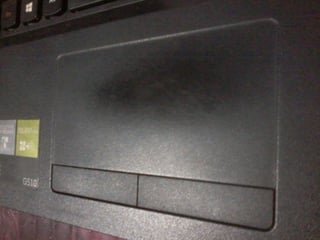
Many people make the mistake of using paper towels, which can scratch the surface, or household cleaners with bleach or ammonia, which can damage the finish. Always check the laptop manufacturer’s cleaning advice if you’re unsure.
Credit: lifehacks.stackexchange.com
Basic Cleaning: Quick Daily Touchpad Maintenance
For most people, a simple wipe-down is enough to keep the touchpad clean day to day. Here’s how to do it safely:
- Turn off your laptop and unplug it from power. This protects the electronics in case of a spill.
- Wash your hands or put on gloves. Avoid adding more oil to the touchpad.
- Use a dry microfiber cloth to gently wipe the surface. Move in circles to pick up more dust.
- Check the edges. Use a cotton swab to remove any buildup where the touchpad meets the palm rest.
- Inspect for sticky spots. If you find any, you’ll need to do a deeper clean (see next section).
Daily cleaning prevents buildup and keeps the touchpad responsive. If you use your laptop in a kitchen, cafe, or outdoors, you may need to clean it more often.
Deep Cleaning: Removing Oil, Stains, And Sticky Residue
If your touchpad feels sticky, looks shiny, or has visible stains, it’s time for a deeper clean. Here’s a step-by-step method that’s safe for most laptops.
Mixing A Safe Cleaning Solution
Mix equal parts isopropyl alcohol and distilled water in a small bowl. Isopropyl alcohol breaks down oil, and distilled water prevents streaks.
Step-by-step Deep Cleaning
- Power off and unplug the laptop.
- If possible, remove the battery (if not built-in) for extra safety.
- Dampen a microfiber cloth with your cleaning solution. It should be damp, not wet. Wring out excess liquid.
- Wipe the touchpad surface gently, using small, circular motions. Don’t let liquid pool or drip.
- Use a cotton swab dipped in the solution to clean around the edges. Be careful not to let liquid seep inside.
- For stubborn spots, press gently with the damp cloth. Never scrape with metal or your fingernail.
- Dry the touchpad with a fresh, dry microfiber cloth. Wait a few minutes before turning the laptop back on.
Example: Removing Sticky Soda
Suppose you spilled a little soda on the touchpad. Don’t panic. First, turn off and unplug the laptop. Use a dry cloth to blot up as much as possible. Then, follow the steps above for deep cleaning. Check the edges for stickiness, as liquids often dry there.
Cleaning Around The Touchpad: Edges, Buttons, And Crevices
Crumbs, dust, and hair can collect in the tiny spaces around the touchpad and physical buttons. Over time, this debris can make clicks feel sticky or cause buttons to jam.
Safe Cleaning For Edges And Buttons
- Use compressed air to blow out loose debris from the edges and button gaps.
- Dampen a cotton swab with cleaning solution, then run it carefully along the touchpad border.
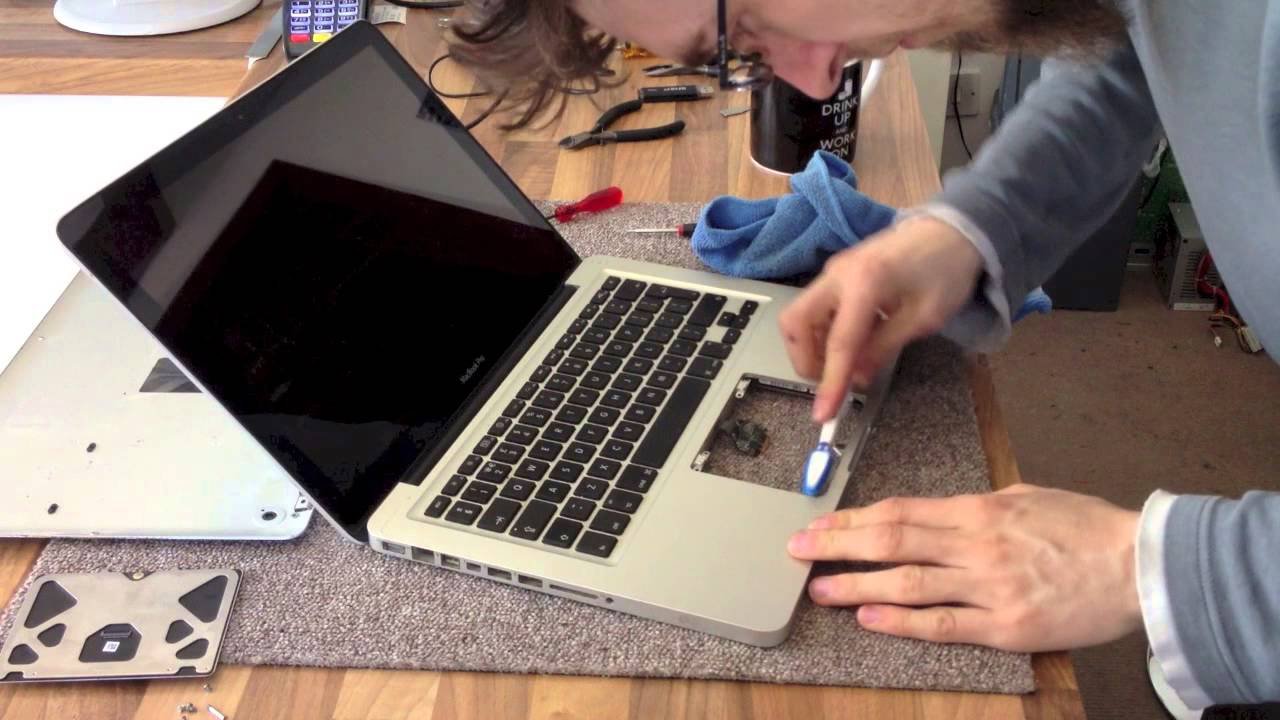
- For stubborn dirt, use a wooden toothpick or soft brush. Never use metal, which can scratch or cause a short circuit.
- Wipe away any loosened debris with a dry cloth.
A beginner’s mistake is using too much force or liquid here, which can push dirt inside the laptop. Take your time, and always use gentle tools.
How To Clean Different Types Of Laptop Touchpads
Not all laptops use the same touchpad technology. Some have a smooth glass surface, others use textured plastic, and some add physical buttons below or beside the touch area. Here’s how to adjust your cleaning for different types:
| Touchpad Type | Surface Material | Special Cleaning Notes |
|---|---|---|
| Standard Plastic | Matte or textured plastic | Avoid abrasive cloths; use circular motion to prevent shine spots. |
| Glass Touchpad | Smooth glass (MacBook, some premium laptops) | Use only microfiber cloth; alcohol/water mix is safe. |
| Touchpad with Buttons | Plastic with mechanical buttons | Pay extra attention to button gaps; clean with cotton swab and compressed air. |
| Integrated Clickpad | Single smooth surface, press to click | Do not press hard when cleaning; avoid pushing liquid under the edges. |
Two insights beginners often miss:
- Glass touchpads are more resistant to oil but show fingerprints more clearly.
- Plastic touchpads can develop shiny “wear spots” if cleaned with rough cloths.
Always check your laptop’s manual for manufacturer advice before using any cleaning product.
What Not To Do: Common Mistakes To Avoid
Many users damage their touchpads by using the wrong cleaning methods. Here’s what to avoid:
- Never spray liquid directly onto the touchpad. It can seep inside and cause a short circuit.
- Don’t use household cleaners with bleach, ammonia, or citrus. These can strip the coating or cloud the surface.
- Avoid paper towels or rough cloths. They leave scratches and fibers.
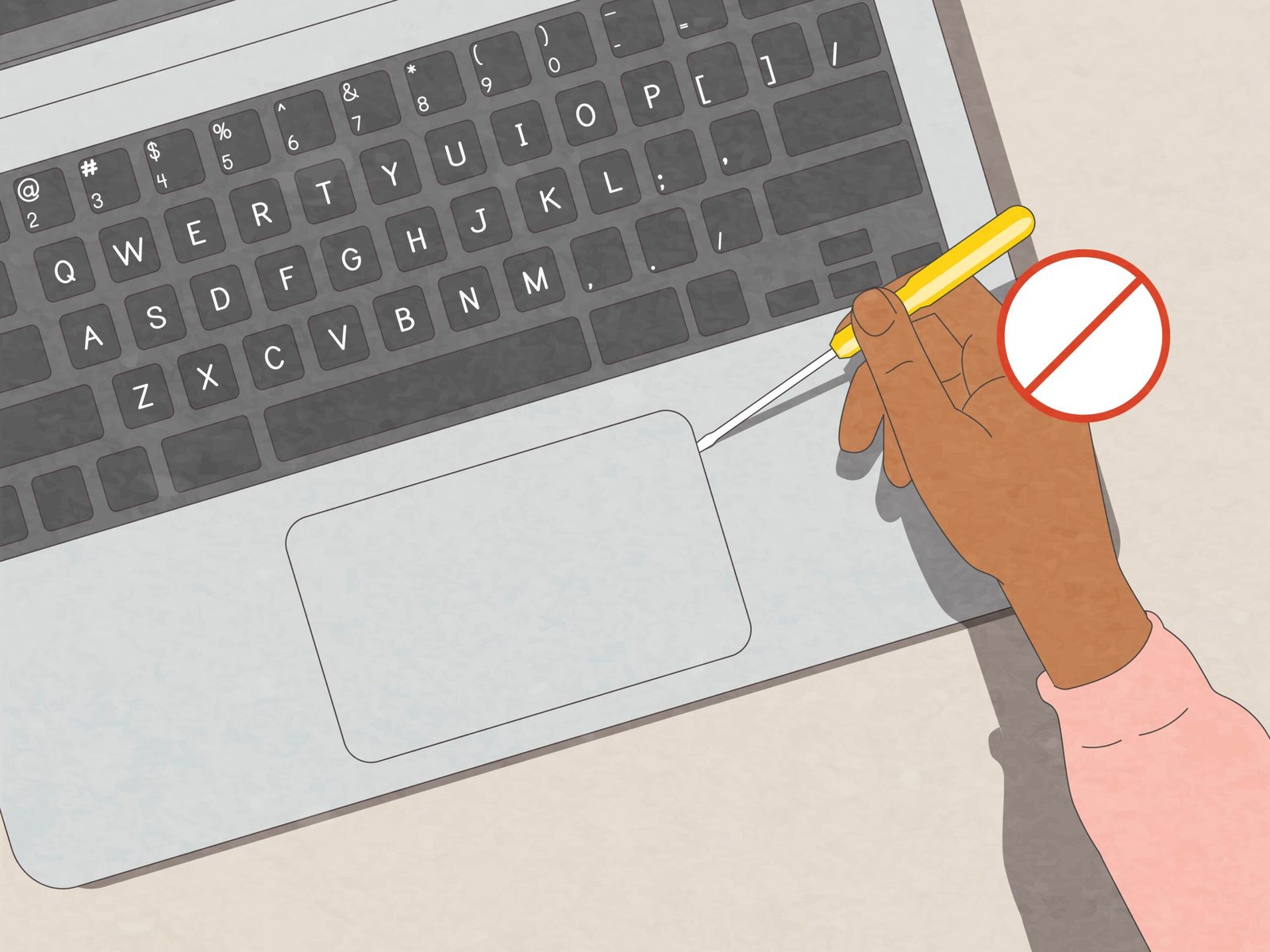
- Don’t dig out dirt with sharp tools. This can break the touchpad or cause permanent marks.
- Never clean while the laptop is on. Even a small amount of moisture can damage electronics if the device is powered.
A common overlooked mistake: not drying the touchpad completely before use. Even a slightly damp touchpad can cause erratic pointer movement or register false clicks.
How Often Should You Clean Your Laptop Touchpad?
How often you clean depends on your usage and environment. Here’s a rough guideline:
| User Type | Recommended Cleaning Frequency | Reason |
|---|---|---|
| Office worker (indoors) | Once a week | Moderate use, less exposure to dust or food |
| Student (cafe, library, home) | 2-3 times a week | Frequent moves, more dirt and spills |
| Gamer/Heavy user | Every 2-3 days | More oil and sweat buildup |
| Outdoor user (fieldwork) | Daily | High dust, dirt, and possible spills |
If you notice the touchpad feels less responsive, looks shiny, or you see fingerprints, it’s time to clean—even if it’s ahead of schedule.
Credit: www.youtube.com
Advanced Cleaning: Dealing With Stubborn Problems
Most touchpad cleaning is simple, but sometimes you’ll face stubborn problems like sticky residue, ink, or water damage. Here’s how to handle these safely.
Sticky Or Oily Build-up
If regular cleaning doesn’t help:
- Use a bit more isopropyl alcohol on the cloth (never pour directly).
- Gently rub the area, then wipe dry.
- Repeat if needed, but don’t soak the touchpad.
Ink Or Marker Stains
Some students accidentally mark their touchpad with a pen. Alcohol usually removes ink, but for permanent marker:
- Try a pencil eraser for gentle rubbing.
- If it doesn’t work, avoid using harsh chemicals—these can damage the surface.
Water Damage
If the touchpad was exposed to water:
- Turn off the laptop immediately.
- Remove power and battery if possible.
- Blot gently with a dry cloth.
- Let the laptop air dry for 24-48 hours before use.
- If the touchpad still malfunctions, consult a technician.
A non-obvious tip: if you spill sweet or sticky drinks, clean as soon as possible. Sugars can conduct electricity and attract more dirt.
Disinfecting Your Laptop Touchpad
In times of illness or shared laptop use, disinfecting is important. The safest way is:
- Use 70% isopropyl alcohol on a microfiber cloth.
- Wipe the touchpad gently, then let it air dry.
- Do not use disinfectant wipes with bleach or strong chemicals.
Disinfecting also removes oils, but do not overdo it—alcohol can dry out plastic over time. Once a week is enough unless the laptop is used by many people.
Protecting Your Touchpad After Cleaning
Keeping your touchpad clean is easier if you follow these steps:
- Wash your hands before using your laptop, especially after eating.
- Don’t use the touchpad with dirty or greasy fingers.
- Store your laptop in a case when not in use.
- Keep food and drinks away from your workspace.
- Use a keyboard cover if you often eat near your laptop; crumbs can fall onto the touchpad.
- Regularly clean your workspace to reduce dust and debris.
A practical tip: Some users apply a thin, clear touchpad protector (like a screen protector for phones). This can keep the surface clean, but be sure it doesn’t affect touch sensitivity.
Comparing Touchpad Cleaning Methods
Which cleaning method is best? Here’s a comparison to help you choose:
| Cleaning Method | Best For | Pros | Cons |
|---|---|---|---|
| Dry microfiber cloth | Daily dust & fingerprints | Quick, safe, no chemicals | Does not remove sticky residue |
| Alcohol/water solution | Oil, stains, sticky spots | Deep clean, disinfects | Overuse can dry plastic |
| Compressed air | Debris in edges & buttons | No contact, quick | Does not remove oil or stains |
| Cotton swab | Crevices, button gaps | Precise cleaning | Can leave fibers if not careful |
For most users, a combination of these methods works best.
Credit: www.wikihow.com
Eco-friendly Tips For Cleaning Your Touchpad
If you want to reduce your environmental impact:
- Use reusable microfiber cloths instead of paper towels.
- Choose distilled water over disposable wipes.
- Refill your isopropyl alcohol bottle instead of buying single-use cleaners.
- Properly dispose of any used cotton swabs or wipes.
A little care goes a long way in keeping your laptop and the planet cleaner.
Signs Your Touchpad Needs Professional Help
Sometimes, cleaning isn’t enough. If you see these signs, it’s time to get help:
- Pointer jumps or drifts even after cleaning.
- Physical damage like cracks, deep scratches, or warping.
- Touchpad doesn’t click or register gestures.
- Water or liquid seeped inside, and the touchpad stops working.
In these cases, a technician can open your laptop safely. Trying to repair or replace a touchpad yourself may void your warranty or cause more harm.
Frequently Asked Questions
How Can I Safely Clean My Laptop Touchpad Without Damaging It?
Always use a microfiber cloth and a mild solution of isopropyl alcohol and distilled water. Never spray liquid directly or use rough tools. Power off and unplug your laptop before cleaning.
Can I Use Hand Sanitizer Or Disinfectant Wipes On My Touchpad?
Some hand sanitizers contain oils or additives that leave residue. Use only 70% isopropyl alcohol on a cloth. Avoid wipes with bleach or citrus.
Why Does My Touchpad Feel Sticky Even After Cleaning?
Sticky residue often needs multiple gentle cleanings. Use a slightly damp cloth with alcohol, and check the edges for dried spills. If stickiness remains, it may be due to worn coating.
How Do I Clean The Touchpad If My Laptop Is Not Removable Battery Type?
Just power off, unplug from the wall, and wait a few minutes for safety. Clean as described above, avoiding excess liquid. Modern laptops are designed to be cleaned without removing the battery.
Is It Okay To Use A Screen Protector On My Touchpad?
A thin, clear touchpad protector can keep the surface clean, but make sure it doesn’t reduce touch sensitivity. Test gestures and clicks after applying.
Keeping your laptop touchpad clean is a small habit that brings big rewards. Not only will your laptop look and feel better, but you’ll also avoid frustrating pointer problems and extend the life of your device. With the right tools, techniques, and a little care, anyone can master this simple but important routine. For more about touchpad technology and cleaning, visit the Wikipedia Touchpad page—it’s a great resource for deeper learning.
Related Office Guides
Continue with these related workspace guides:
