
Removing keycaps can make a deep keyboard cleaning much easier, but it is not a universal procedure for every keyboard. The safest method depends on the keyboard design, the keycap mount, the stabilizers under larger keys, and whether the manufacturer expects the keys to be removable at all.
For most desktop mechanical keyboards with removable keycaps, the process is straightforward: disconnect the keyboard, photograph the layout, use a proper keycap puller, lift regular keys straight up, and handle stabilized keys carefully. Laptop, scissor-switch, low-profile, and some membrane keyboards need a different approach because their key mechanisms can be fragile or model-specific.
This guide explains how to remove keycaps for cleaning without turning routine maintenance into a repair job. It also shows when not to remove a keycap, how to clean the exposed keyboard safely, and how to reinstall everything correctly.
Check Whether Your Keycaps Are Meant to Come Off
Before using a puller, identify the keyboard you have. A removable-looking key is not automatically safe to remove. Mechanical keyboards commonly use separate keycaps mounted on switch stems, while many laptop and low-profile keyboards use scissor mechanisms, clips, or other retainers that can break if pulled in the wrong direction.
Start with the keyboard maker’s support page or manual when the model is known. That is especially important for laptops, ultra-thin boards, low-profile mechanical keyboards, office keyboards with integrated controls, and keyboards that use unusual stabilizers.
- Standard mechanical keyboard: keycaps are commonly removable, but large stabilized keys still need extra care.
- Low-profile mechanical keyboard: removal may be supported, but the cap and switch geometry can differ from standard MX-style hardware.
- Membrane desktop keyboard: some keycaps can be removed, but the construction varies widely.
- Laptop or scissor-switch keyboard: do not assume the cap should be pulled straight up. Check model-specific instructions first.
- Apple-style or other ultra-thin keyboards: individual key replacement may use delicate clips; routine cleaning usually does not require removal.
If the manufacturer does not describe keycap removal and the keyboard is difficult to replace, surface cleaning is often the lower-risk choice.
What You Need
A small amount of preparation prevents most avoidable mistakes. You do not need an elaborate cleaning kit.
- A wire keycap puller or a puller recommended for the keyboard
- A phone or camera for a clear layout photo
- A tray, divided container, or clean towel for organizing caps
- A soft, clean brush for loose debris
- A lint-free or microfiber cloth
- Compressed air or an electronics-safe air duster, used according to its instructions
- Manufacturer-approved cleaning materials for the keycaps and case
Avoid improvised metal tools such as knives, screwdrivers, or forks. They can scratch keycaps, slip into the switch area, or apply uneven force. If a key will not release with normal puller pressure, stop rather than escalating force.
Before You Remove Any Keycaps
Disconnect Power
Unplug a wired keyboard. Turn off a wireless keyboard and remove user-removable batteries when the manufacturer provides that option. For a laptop, shut it down and disconnect external power before cleaning. Keycap removal should never be performed while you are actively using the device.
Photograph the Layout
Take a clear overhead photo before removing anything. This matters more than it seems. Keyboards may use different key sizes, row profiles, legends, modifier positions, or regional layouts. A reference photo is especially useful for compact boards and custom keycap sets.
Look at the Large Keys
Spacebar, Enter, Shift, Backspace, and other wider keys may use stabilizers. Stabilizer designs vary. Some use wire hardware; others use different mounting arrangements. If you are unsure how a large key is retained, inspect the board’s documentation or remove regular keys first so you can see the surrounding mechanism more clearly.
How to Remove Regular Keycaps
For a compatible mechanical keyboard, regular single-unit keycaps are usually the simplest.
- Place the puller evenly over the keycap.
- Make sure the puller is gripping the cap rather than catching an adjacent key.
- Pull upward with controlled, even pressure.
- Avoid twisting aggressively while the cap is still attached.
- Place the removed key in your tray in layout order if possible.
Some caps fit more tightly than others, especially new caps or certain stem combinations. Tight fit alone does not justify prying from the side with a hard tool. Reposition the puller and try again with steady upward force.
If the switch itself begins moving unusually, the cap appears connected to a stabilizer you did not expect, or the board uses a nonstandard mount, stop and identify the mechanism before continuing.
How to Handle Stabilized Keys
Large keys deserve more care because damage often occurs at the stabilizer rather than the keycap stem. Do not assume that every spacebar or Shift key detaches the same way.
On many mechanical keyboards, you can gently lift the key until you can see how the stabilizer is engaged. From there, follow the manufacturer’s design rather than pulling harder. If the board uses a stabilizer wire that must be released in a specific way, forcing the cap can bend hardware or break plastic mounts.
For routine cleaning, you also do not have to remove every large key. If loose debris can be brushed or blown out safely with the cap in place, leaving a complicated stabilized key alone may be the better maintenance decision.
What to Do With a Stubborn Keycap
A stubborn keycap should trigger inspection, not more force. Check that the puller is centered and that the cap is actually designed to be removable. Look for stabilizer hardware, unusual low-profile mounts, clips, or signs that the cap has been damaged or previously repaired.
Do not drip cleaning fluid around the stem to “loosen” a cap. Liquid can move into the switch or electronic assembly and create a different problem. If sticky residue from a spill is holding the key, treat it as a spill-cleaning issue rather than a normal keycap-removal task.
For spill response, use the dedicated keyboard-after-spill guide rather than continuing to pull on a stuck key.
How to Clean the Removed Keycaps
Cleaning method depends on the material, legend process, coating, and manufacturer guidance. Many standard plastic keycaps tolerate gentle cleaning, but it is not safe to declare every keycap compatible with soaking, alcohol, hot water, or household cleaners.
For routine dirt, start conservatively. Wipe the cap with a soft cloth slightly dampened with an appropriate mild cleaning solution. If the manufacturer confirms that the caps can be washed separately, clean them as directed and make sure they are fully dry before reinstalling them.
- Avoid hot water and direct heat.
- Avoid abrasive pads and harsh solvents.
- Do not assume printed, coated, backlit, artisan, or specialty caps tolerate the same cleaner as plain molded plastic.
- Keep liquids away from switches and electronics.
There is no universal soak time or universal drying time that applies to every keycap set. What matters is that the material is cleaned in a compatible way and no moisture remains when the caps go back on the keyboard.
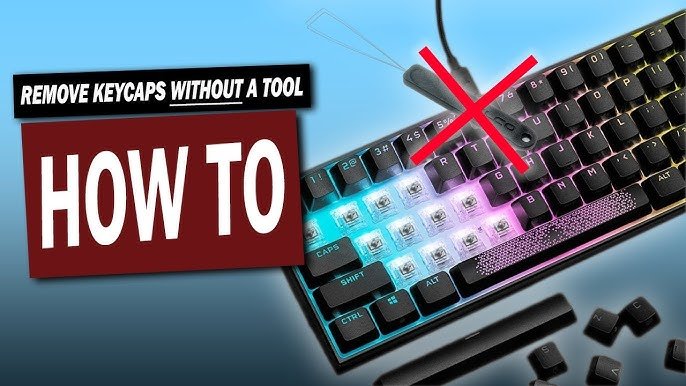
Credit: www.youtube.com
How to Clean the Exposed Keyboard
Once the removable caps are off, focus on loose debris first. A soft brush can move dust, hair, and crumbs toward the edge of the board. An electronics-safe air duster may help in tight spaces when used according to its label. Keep the nozzle or can positioned as instructed so you do not spray liquid propellant or create unnecessary force around switches.
For surface residue on the case or plate, use a lightly dampened cloth only when the keyboard maker permits it. Do not pour cleaner onto the board. Do not flood switch openings. If residue is inside a switch, socket, or circuit area, that may require model-specific service rather than more surface cleaner.
If your real goal is cleaning dust and crumbs between keys rather than removing caps themselves, see how to clean under a keyboard. That article keeps the focus on debris access rather than keycap-removal technique.
How to Reinstall Keycaps
Wait until every cleaned part is completely dry. Use the layout photo and work methodically. For regular compatible mechanical keycaps, align the cap with the stem and press down gently until it is seated. If it feels crooked, unusually loose, or requires excessive force, remove it and inspect the alignment.
Reinstall stabilized keys according to the keyboard’s stabilizer design. Do not force a large key simply because the center stem lines up. The stabilizer also has to engage correctly.
After reassembly, reconnect the keyboard and test every key. Verify that large keys return smoothly, modifiers are in the correct positions, and no cap rubs against its neighbor.
Common Mistakes to Avoid
- Assuming every keyboard supports removal: laptop and low-profile mechanisms can be model-specific and fragile.
- Using metal prying tools: they can scratch parts and apply uneven force.
- Forcing a resistant key: resistance may indicate stabilizer hardware, a different mount, or damage.
- Removing large keys first without inspecting stabilizers: this adds unnecessary risk.
- Using liquid to free a stuck cap: it can carry residue deeper into the keyboard.
- Relying on a fixed drying time: the safe point is when the cleaned part is fully dry, not when a generic timer expires.
- Mixing rows on sculpted keycap sets: keys that look similar can have different profiles.
- Reinstalling a damaged cap: a cracked stem can fit poorly or stress the switch.
Keycap Compatibility Matters When Replacing or Upgrading
Removing keycaps often leads to another question: can you replace them with a different set? Compatibility is more than stem shape. Check the keyboard layout, key sizes, bottom-row dimensions, stabilizer arrangement, switch/keycap mount, and the keycap profile you want.
Backlighting also matters. A keycap set can physically fit while producing very different legend visibility. Low-profile boards may require a specific cap family. Some ergonomic and compact layouts use uncommon key sizes that are not included in every replacement kit.
Use the keyboard and keycap manufacturer specifications rather than assuming that a set labeled “mechanical keyboard compatible” will cover every key.
When You Should Not Remove the Keycaps
Skip keycap removal when the model documentation warns against it, when a laptop key uses a delicate scissor mechanism you do not know how to reattach, when the board is under service for liquid damage, or when the key is already cracked or mechanically damaged.
You should also avoid unnecessary removal if light surface cleaning and debris removal solve the problem. Maintenance should reduce risk, not create additional disassembly.
Keycap Removal vs. General Keyboard Cleaning
It helps to keep these maintenance tasks separate. General keyboard cleaning covers routine cleaning for different keyboard types. This page is specifically about the removal and reinstallation of removable keycaps. The spill guide addresses liquid contamination, where power isolation and damage control take priority over cosmetic cleaning.
Keeping those intents separate also leads to safer instructions. A dusty keyboard, a sticky keycap, and a liquid-contaminated laptop should not all be treated with the same procedure.
Final Checklist Before You Finish
- Confirm the keyboard supports keycap removal.
- Disconnect the keyboard from power.
- Photograph the layout.
- Use a proper puller on compatible regular keycaps.
- Inspect stabilizers before removing large keys.
- Keep liquid away from electronics and switches.
- Clean keycaps using material-appropriate guidance.
- Allow all cleaned parts to dry completely.
- Reinstall carefully and test every key.
For a standard mechanical keyboard, keycap removal can be a practical part of deep cleaning. The key is to treat it as a hardware-specific procedure rather than a universal cleaning trick. When the design is uncertain, model-specific manufacturer instructions should win over generic advice.
