
Cleaning under a keyboard is mainly about removing dust, hair, crumbs, and other debris without pushing it deeper into the device or damaging the key mechanisms. The right method depends on whether you are cleaning a desktop mechanical keyboard, a membrane keyboard, a low-profile board, or a laptop.
For light debris, you often do not need to remove keycaps at all. Disconnect the keyboard, turn it so loose debris can fall away, use a soft brush, and use an electronics-safe air duster according to its instructions. Keycap removal becomes useful only when the keyboard design supports it and debris is trapped where surface cleaning cannot reach.
This guide focuses specifically on cleaning under the keys. It is different from general keyboard cleaning, keycap-removal instructions, and liquid-spill response. Keeping those tasks separate helps you choose a safer method and avoid unnecessary disassembly.
Start by Identifying the Keyboard Type
Before cleaning under the keys, work out what kind of keyboard you have. This determines how much access is safe.
- Standard mechanical keyboard: many models allow keycap removal and give relatively open access to the plate around the switches.
- Membrane desktop keyboard: construction varies. Some caps can be removed, while others are not intended for frequent disassembly.
- Low-profile mechanical keyboard: caps and switches may use a different mount from standard mechanical boards.
- Laptop or scissor-switch keyboard: key mechanisms are often fragile and model-specific. Routine cleaning should normally avoid key removal unless the manufacturer provides instructions.
- Sealed or spill-resistant office keyboard: cleaning procedures may be defined by the manufacturer and can differ from open mechanical designs.
If you know the exact model, the manufacturer’s support documentation is the best place to confirm whether keys are removable and what cleaning products are permitted.
What You Need
For most routine cleaning, keep the tool list simple.
- A soft, clean brush
- A microfiber or other lint-free cloth
- An electronics-safe air duster or compressed-air product used according to its instructions
- A keycap puller only if the keyboard supports removable keycaps
- A small tray or container for removed keycaps
- Manufacturer-approved cleaner for exterior surfaces when needed
Avoid metal prying tools, sharp objects, and any method that requires pouring liquid into the keyboard. You usually do not need aggressive chemicals to remove ordinary dry debris.
Step 1: Disconnect the Keyboard
Unplug a wired keyboard. Turn off a wireless keyboard and remove user-removable batteries if the manufacturer provides that option. For a laptop, shut it down and unplug the charger before cleaning.
Disconnecting power also prevents accidental key presses and reduces risk if you need to clean around openings. Do not clean a powered keyboard just because you are only dealing with dust.
Step 2: Remove Loose Debris First
Begin with the least invasive method. Hold a detached desktop keyboard at an angle that allows crumbs and dust to move toward an edge. Use a soft brush to loosen debris between the keys. Work gradually rather than shaking the keyboard hard.
If you use an air duster, follow its label. Keep the nozzle at an appropriate distance and avoid holding or tilting a pressurized can in a way that releases liquid propellant. Short, controlled bursts are more useful than blasting one area continuously.
For a laptop, avoid aggressive inversion or shaking. The keyboard is attached to the rest of the computer, so the manufacturer’s cleaning guidance should take priority.
Step 3: Decide Whether Keycap Removal Is Necessary
Removing keycaps is not automatically “deeper” or “better” cleaning. It adds access, but it also adds mechanical risk.
If debris comes out with brushing and air, stop there. If a compatible mechanical keyboard has stubborn debris trapped around switch housings or under key edges, removing selected caps may help.
Use our keycap-removal guide for the actual removal process. That page covers puller use, stabilizers, and reinstallation. This page stays focused on cleaning the area underneath.
Step 4: Clean Around the Exposed Switches or Key Mechanisms
Once compatible keycaps are removed, brush away loose debris before using any damp cleaning method. Hair and crumbs are easier to control when dry.
Pay attention to the gaps around switch housings, stabilizers, and the edge of the keyboard case. Use a soft brush to move debris toward open areas where it can be lifted out. Tweezers may be appropriate for a clearly visible hair or thread if you can remove it without touching or pulling delicate components, but do not probe blindly into the electronics.
Do not lubricate switches, stabilizers, or moving parts as part of ordinary cleaning unless the keyboard maker specifically describes that maintenance procedure. Lubrication is a separate modification/service task.
Step 5: Deal With Sticky Surface Residue Carefully
If the area under the keys feels sticky, first decide whether you are dealing with dried surface residue or a past liquid spill. That distinction matters.
For a small amount of residue on an accessible, non-electronic surface, use only a lightly dampened swab or cloth with a cleaner permitted by the manufacturer. The goal is to lift residue, not wet the keyboard.
If the stickiness came from a recent spill, stop treating it like routine debris. Use the keyboard spill-response guide because power isolation, internal contamination, and device-specific service are more important than routine cleaning.
Cleaning Under a Mechanical Keyboard
Mechanical keyboards are often the easiest to clean under because the keycaps are separate from the switch housings. Even so, the exact design still matters.
- Disconnect the keyboard.
- Photograph the layout if you plan to remove multiple caps.
- Remove only compatible keycaps with a proper puller.
- Brush away loose debris around switches and stabilizers.
- Use controlled air only where it helps move debris out rather than deeper into the case.
- Wipe accessible case or plate surfaces with an appropriate lightly dampened cloth if the manufacturer permits it.
- Allow any cleaned surface to dry fully before replacing keycaps.
- Reinstall the caps and test the keys.
If debris appears to be inside a switch, socket, or circuit-board area, stop at the point where normal user maintenance ends. Depending on the keyboard, the safe solution may be switch replacement, model-specific disassembly, or professional service.
Cleaning Under a Laptop Keyboard
Laptop keyboards deserve a more conservative approach. A scissor mechanism can be much easier to damage than a standard mechanical keycap mount, and the keyboard sits directly above other laptop components.
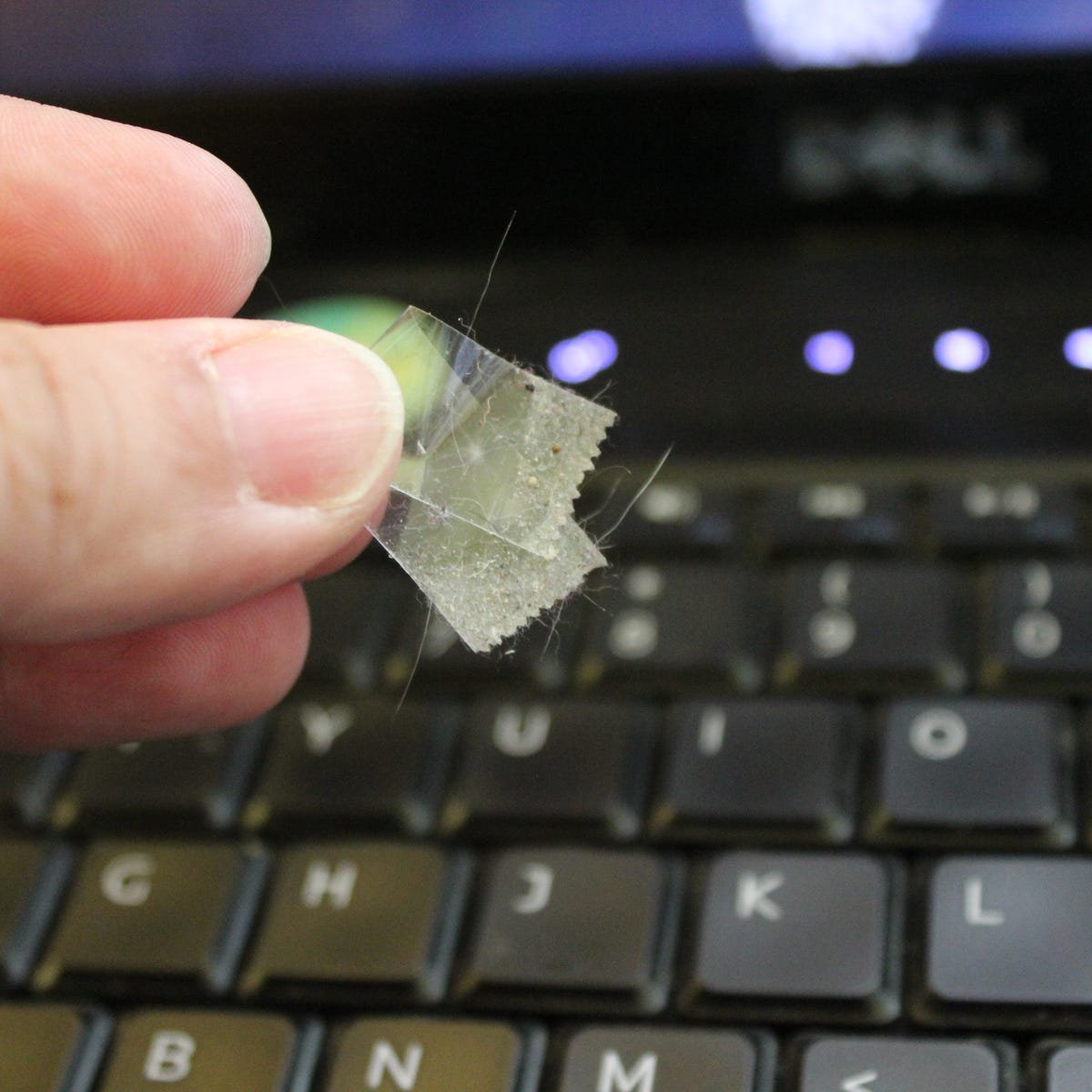
Shut the laptop down, disconnect power, and use a soft brush or manufacturer-approved air-cleaning method around the key edges. Do not pry off laptop keycaps unless the service documentation for that exact model tells you how.
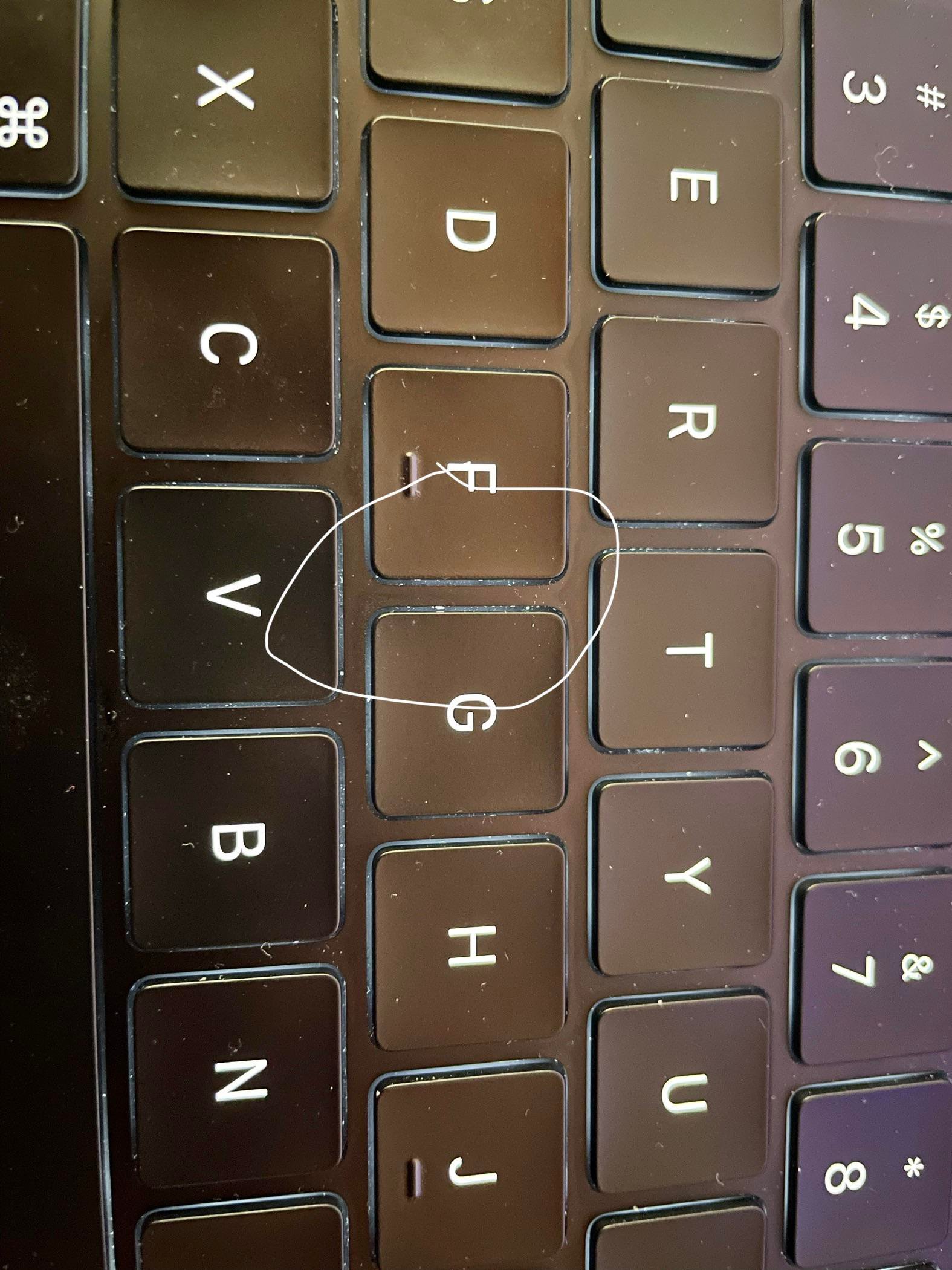
If one laptop key is sticky or blocked, the cause may be debris, a damaged clip, a damaged scissor mechanism, or residue underneath. Repeatedly forcing the key or flooding cleaner around it can turn a small issue into a replacement-keyboard repair.
Credit: www.cnet.com
Cleaning Under a Membrane Keyboard
Membrane keyboards vary greatly. Some desktop models use removable caps over a membrane assembly; others use different clips or integrated parts. If the manual does not indicate that the keycaps are user-removable, use brushing and air around the installed keys instead.
Do not assume that a membrane board should be opened simply because debris is visible under the keys. Opening the case can expose flexible membranes, conductive layers, or other assemblies that are easy to misalign.
What Not to Do
- Do not blow into the keyboard with your mouth. Breath adds moisture and gives you little control over where debris goes.
- Do not pour alcohol, water, or cleaner between the keys. Surface-safe liquid is not the same as electronics-safe flooding.
- Do not use a hair dryer or high heat. Heat can damage plastics, adhesives, batteries, and coatings.
- Do not force laptop keycaps off. Scissor mechanisms can break or detach.
- Do not use metal tools to scrape around switches. They can damage surfaces and electrical components.
- Do not follow a universal cleaning schedule. Clean when debris, usage, or the environment makes it necessary.
- Do not confuse cleaning with disinfecting. A cleaner that removes dust is not automatically a disinfectant, and a disinfectant may not be safe for the device.
How Often Should You Clean Under a Keyboard?
There is no evidence-based schedule that fits every keyboard. A private home-office keyboard used with clean hands and no food nearby may need less frequent deep cleaning than a shared workplace keyboard or a setup exposed to pets, dust, or desk snacks.
Use visible condition and function as your guide. Clean when you see accumulating debris, when keys feel obstructed by crumbs or hair, or when the environment creates a clear need. Frequent unnecessary keycap removal can add wear without providing meaningful benefit.
Shared Office Keyboards Need a Different Plan
For shared keyboards, routine surface hygiene may matter more than repeatedly removing keycaps. Follow workplace policies and the keyboard maker’s cleaning instructions. If disinfection is required, use a product and contact method that is compatible with the device rather than applying a generic household disinfectant.
Cleaning under the keys is still useful when crumbs, hair, or dust accumulate, but it should not be presented as a substitute for appropriate hand hygiene or surface-disinfection practices.
Credit: www.reddit.com
How to Tell Whether Cleaning Solved the Problem
After reassembly or surface cleaning, reconnect the keyboard and test it methodically.
- Check that every key registers normally.
- Make sure large stabilized keys return smoothly.
- Listen for scraping or rubbing that was not present before.
- Confirm no keycap was installed in the wrong position or row.
- Verify that sticky behavior is gone if residue was only on an accessible surface.
If a key still sticks, repeats, fails to register, or feels mechanically damaged, the issue may not be dirt. A switch, scissor clip, stabilizer, membrane contact, or another component may need repair or replacement.
Cleaning Under Keyboard vs. Other Keyboard Cleaning Tasks
OfficeToolsGuide has several keyboard-cleaning pages because the intents are different:
- How to clean a keyboard properly covers routine whole-keyboard maintenance.
- How to remove keycaps for cleaning focuses on safe keycap removal and reinstallation.
- How to clean a keyboard after a spill focuses on liquid contamination and electrical risk.
- This page focuses on accessing and removing dry debris from the area under the keys.
Keeping the procedures separate prevents a reader with a few crumbs under a key from following spill-recovery instructions, and prevents someone with a liquid spill from treating it as routine dust cleaning.
When Professional Service Makes Sense
Professional help is worth considering when the keyboard is integrated into an expensive laptop, the key mechanism is already damaged, liquid has entered the device, debris is trapped below a layer you cannot safely access, or disassembly would require removing internal components.
For a low-cost external keyboard, replacement may also be more practical than unsupported deep disassembly. The best decision depends on replacement cost, repairability, data/device value, and whether the problem is cosmetic or functional.
Final Cleaning Checklist
- Identify the keyboard type and model.
- Disconnect power before cleaning.
- Start with brushing and loose-debris removal.
- Use air carefully and according to the product instructions.
- Remove keycaps only when the keyboard supports it.
- Keep liquids away from switches and electronics unless the manufacturer explicitly permits a cleaning method.
- Treat spills as a separate, higher-risk problem.
- Reassemble only after cleaned parts are fully dry.
- Test every key after cleaning.
For most keyboards, cleaning under the keys should be a conservative maintenance job, not a full disassembly. Start with the least invasive method that can remove the debris, and only move to keycap removal or deeper service when the keyboard design and the actual problem justify it.
