
A liquid spill on a keyboard is not a normal cleaning problem. The first priority is to stop electrical activity and limit how far the liquid can spread. What you do next depends on whether the device is a separate keyboard or a laptop, what liquid was spilled, how much entered the device, and what the manufacturer recommends for that model.
For an external keyboard, disconnect it immediately and remove user-removable batteries if present. For a laptop, shut it down, unplug the charger and accessories, and avoid powering it back on just to “see if it still works.” A spill that looks minor at the surface can reach internal layers or electronics.
This guide explains how to clean a keyboard after a spill without relying on universal drying times or aggressive home remedies. It focuses on safe first actions, residue control, model-specific cleaning, and clear signs that professional service is the better choice.
What to Do Immediately After a Keyboard Spill
Speed matters, but controlled action matters more than panic. The safest first steps are simple.
- Stop using the keyboard. Do not keep typing to test whether the keys still work.
- Disconnect power. Unplug an external keyboard. Shut down a laptop and disconnect its charger and peripherals.
- Remove user-removable batteries if the manufacturer allows it. Do not disassemble a sealed laptop battery unless you are trained and the service documentation supports it.
- Blot visible liquid. Use an absorbent, lint-free cloth. Do not scrub liquid deeper into gaps.
- Keep the liquid from spreading. Position an external keyboard so gravity helps it drain without forcing liquid toward ports or controls. For laptops, follow the manufacturer’s spill guidance rather than assuming one “tent” position is right for every chassis.
If you see smoke, hear popping, notice a burning smell, or the battery area becomes unusually hot, stop handling the device and move away from it if that can be done safely. Those are no longer routine cleaning conditions.
Identify What Was Spilled
The liquid type affects the cleanup because residue can remain after the water portion evaporates. The goal is not to rank liquids with a universal “least harmful” or “worst” label, but to understand what may be left behind.
- Plain water: may leave less sticky residue, but it can still create electrical or corrosion problems if it reaches electronics.
- Coffee or tea: may contain sugar, milk, cream, flavoring, or oils that leave residue.
- Soda, juice, or energy drinks: can leave sugars, acids, colorants, and sticky deposits.
- Milk or other dairy drinks: can leave organic residue and odor.
- Alcoholic beverages: composition varies widely; mixers, sugars, acids, and water can all matter.
A clean-looking surface does not prove that the inside is dry or residue-free. Likewise, a keyboard that still works immediately after the spill is not proof that there will be no later problem.
External Keyboard vs. Laptop: Treat Them Differently
External Keyboard
A separate keyboard is generally easier to isolate from the rest of the computer. Disconnect it from USB or turn it off. Remove user-removable batteries from a wireless model if the manual permits. Blot the exterior and allow accessible liquid to drain without shaking the keyboard aggressively.
Do not reconnect the board until you are confident it is dry and no residue remains in areas that matter. If the spill entered switches, the PCB, battery compartment, or controller area, surface cleaning alone may not be enough.
Laptop Keyboard
A laptop spill can affect far more than the keyboard. Liquid may reach the touchpad, battery area, mainboard, speakers, ports, or other internal components. Shut the laptop down and unplug it. Do not continue charging it. If the battery is externally removable and the manufacturer tells users how to remove it, do so; otherwise leave internal battery work to qualified service.
Do not remove laptop keycaps just because they look similar to desktop keys. Scissor mechanisms and clips can be delicate and model-specific. For anything beyond exterior blotting and manufacturer-approved surface cleaning, the exact service manual or professional repair guidance is more reliable than a generic keyboard tutorial.
Do Not Use These Common Spill “Fixes”
Several popular shortcuts can make damage worse.
- Do not use a hair dryer, heat gun, oven, radiator, or direct high heat. Heat can damage plastics, adhesives, battery components, coatings, or internal parts.
- Do not power the device on repeatedly to check progress. Testing while moisture or conductive residue remains can increase risk.
- Do not pour isopropyl alcohol, distilled water, or any other cleaner into an assembled keyboard. A cleaner that is suitable for one exposed component is not automatically safe to flood through the device.
- Do not put a laptop in rice. It does not remove sticky residue and can introduce dust or particles into openings.
- Do not vacuum aggressively around loose key mechanisms. Suction can pull at keycaps or small parts.
- Do not force laptop keycaps off. A spill does not turn a fragile key mechanism into a removable one.
How to Clean a Spilled External Mechanical Keyboard
If the manufacturer supports user removal of the keycaps, a mechanical keyboard gives you better access to surface residue than many laptop keyboards.
1. Photograph the Layout
Take a clear photo before removing caps. Compact, ergonomic, and nonstandard layouts can be easy to reassemble incorrectly.
2. Remove Only Compatible Keycaps
Use a proper keycap puller and follow the process in our keycap removal guide. Large stabilized keys may use hardware that needs special handling. If a cap is stuck by dried residue, do not force it.
3. Clean the Keycaps Separately
Follow the keycap maker’s material guidance. Many common plastic keycaps can be gently cleaned away from the keyboard, but printed, coated, artisan, transparent, rubberized, or specialty caps may need different care. Avoid assuming that soaking, hot water, alcohol, or dishwashing is safe for every set.
4. Remove Accessible Residue From the Plate or Case
Use a soft cloth or swab lightly dampened with a cleaner that the keyboard manufacturer permits for that surface. Do not let liquid pool around switch openings. Sticky residue inside switches, sockets, or the PCB may require deeper service rather than more surface wiping.
5. Reassemble Only When Fully Dry
There is no universal number of hours that proves a keyboard is safe to power on. Drying time changes with the amount of liquid, where it traveled, ventilation, device construction, and whether residue remains. The safe decision is based on the actual device condition and manufacturer guidance, not a generic 8-, 24-, or 48-hour chart.
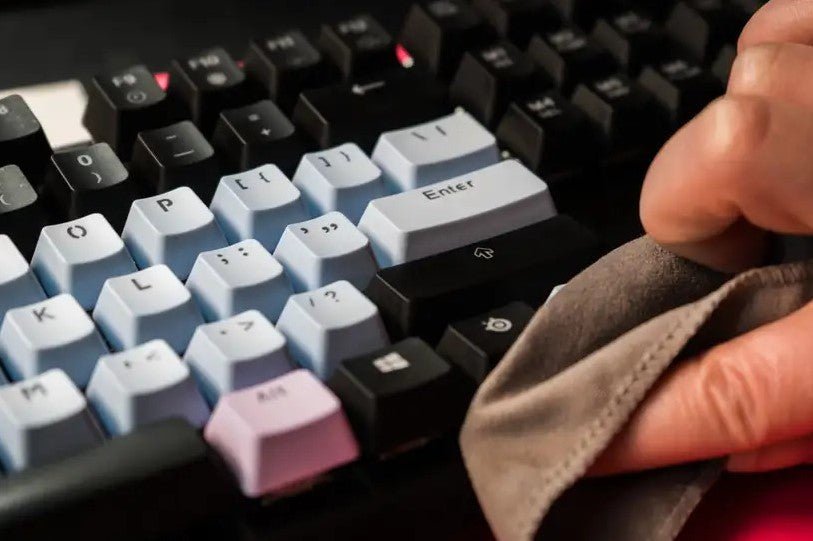
Credit: www.aziocorp.com
What About Membrane and Office Keyboards?
Many membrane keyboards are not designed for the same level of user disassembly as enthusiast mechanical boards. Some allow caps to be removed; others use clips, domes, layers, or integrated assemblies that make deep cleaning riskier.
For an office keyboard, check the manufacturer’s cleaning instructions before taking it apart. If only a small amount of liquid touched the top surface and no liquid entered the case, careful exterior cleaning may be enough. If sticky liquid entered the keyboard and keys begin misbehaving, replacement can sometimes be more practical than unsupported disassembly, especially for low-cost units.
How to Handle a Spill on a Laptop Keyboard
Laptop spills deserve a lower threshold for professional service because the keyboard is only one part of the affected device.
- Shut the laptop down.
- Disconnect the charger, USB devices, docks, and external displays.
- Blot the exterior without pressing liquid deeper into the keys.
- Follow the manufacturer’s spill or service instructions for that model.
- If significant liquid entered the chassis, arrange qualified inspection rather than relying on surface drying alone.
If the laptop contains important unsaved or irreplaceable data, resist the temptation to power it on for a quick backup. A technician may be able to advise on safer recovery options based on the model and the severity of the spill.
Cleaning Sticky Residue
Sticky keys after a spill usually mean residue remains somewhere in the key mechanism or surrounding surfaces. The location determines the correct response.
- Residue on removable desktop keycaps: remove and clean the caps using a material-compatible method.
- Residue around a removable mechanical switch area: clean only accessible surfaces according to the keyboard maker’s instructions.
- Residue inside a switch: switch replacement or model-specific service may be more reliable than flooding the switch with cleaner.
- Residue under a laptop key: use the laptop manufacturer’s service guidance; do not pry off a key unless the mechanism is documented as user-serviceable.
If the problem is dry debris rather than a spill, use our guide to cleaning under a keyboard. Spill cleanup and routine debris removal have different priorities.
When Is It Safe to Turn the Keyboard Back On?
A fixed waiting period cannot guarantee safety. “Wait 24 hours” sounds precise, but it ignores where the liquid went and what it contained. A small surface splash can behave very differently from a drink that reached internal electronics.
Before reconnecting an external keyboard, confirm that accessible surfaces and removable parts are fully dry and that there is no visible sticky residue or pooled liquid. For a laptop or any keyboard where liquid reached internal electronics, follow manufacturer or technician guidance before applying power.
If you cannot tell whether moisture remains inside, more waiting is not the same as inspection. Significant spills may require opening the device under proper service procedures so contamination can be assessed and cleaned.
Warning Signs That Need Professional Repair
- Burning smell, smoke, heat, or unusual battery behavior
- The laptop or keyboard will not power on after appropriate drying/service
- Keys type by themselves, repeat, or fail across multiple areas
- USB connection repeatedly drops after the spill
- Visible corrosion or residue is present inside accessible areas
- The spill entered a laptop chassis, charging port, battery area, or mainboard region
- The device contains valuable data and further testing could increase risk
Professional repair does not guarantee recovery, but it can provide inspection and cleaning methods that are not appropriate for a general home guide.
How Spill Type Changes the Cleanup Decision
The useful distinction is not a universal drying-time table. Instead, ask what the liquid leaves behind.
Plain water may evaporate without sticky sugar deposits, but minerals or contaminants can still remain and electrical exposure can still matter. Sweet drinks leave residue that may make keys stick even after the water evaporates. Milk, flavored coffee, and similar drinks add oils, proteins, or solids. That residue needs cleaning; drying alone does not remove it.
For this reason, a keyboard can feel “dry” yet still need cleaning. Conversely, aggressive washing intended to remove residue can be unsafe if you do not know which parts are water-tolerant.
Preventing the Next Spill
Prevention is mostly about workspace layout rather than buying a special product.
- Keep drinks on a separate side surface when possible.
- Use a stable container that is harder to knock over.
- Route charging cables so they do not catch a cup or pull a device.
- Avoid placing open drinks directly behind a laptop where a tip can flow toward vents or ports.
- For shared offices, keep cleaning supplies available for surface cleanup, but do not use disinfectants or liquids that conflict with device-manufacturer instructions.
Spill Cleanup vs. Routine Keyboard Cleaning
Our general keyboard-cleaning guide is for normal dust, oils, and routine maintenance. This page is different: it is about responding to liquid contamination and minimizing electrical and residue-related damage.
Keeping those search intents separate matters for readers. Routine cleaning can be planned; spill response begins with power isolation and damage assessment.
Final Decision Guide
For a small spill on a detachable desktop keyboard, disconnecting power, blotting the liquid, cleaning removable compatible parts, and waiting until the board is genuinely dry may be enough. For sticky drinks, residue must also be addressed. For laptops, substantial spills, or any sign of electrical trouble, the safer path is model-specific manufacturer guidance or qualified repair.
The most important rule is simple: do not trade uncertainty for false precision. There is no universal cleaner, no universal drying time, and no single disassembly method that fits every keyboard. Identify the device, isolate power, clean only what you can safely access, and escalate when the spill reaches areas you cannot inspect.
