
When you use a computer, you might notice an option called power saving mode. This setting is easy to overlook, but it plays a big role in how your computer uses energy. Many people only think about power saving when their laptop battery runs low. But this feature can help every user—whether you have a desktop, laptop, or even a small office with many computers. Saving power is not just good for your electricity bill; it also helps the environment and keeps your computer healthy for longer.
Let’s explore what power saving mode really does, how it works, and why you should care. By the end, you will know how to set it up, avoid common mistakes, and use it to your advantage—even if you are not a computer expert.
What Is Power Saving Mode?
Power saving mode is a feature found in almost every modern computer and operating system. When activated, it reduces the amount of electricity your computer uses. It does this in several ways: by dimming the screen, lowering the CPU speed, stopping hard drives that are not in use, and putting unused devices to sleep.
There are usually different levels of power saving. For example, some settings only turn off the screen, while others put the whole computer into sleep mode or even hibernate mode. The goal is simple: use less power when full performance is not needed.
Why Power Saving Mode Matters
Some people think power saving is only for laptops. But this is not true. Here are a few reasons why everyone should care:
- Lower Electricity Bills: Computers can use a lot of power, especially desktops and gaming machines. Power saving mode can cut the cost.
- Protect the Environment: Reducing energy usage means fewer greenhouse gases are produced. This helps fight global warming.
- Longer Hardware Life: When your computer runs cooler and takes breaks, its parts last longer. This means fewer repairs and upgrades.
- Less Noise and Heat: Power saving mode slows down fans and hard drives, making your computer quieter and cooler.
Many offices and schools now use power saving settings to control costs and meet green energy rules.
How Power Saving Mode Works
The exact way power saving mode works depends on your computer and operating system. But the main ideas are the same.
Key Actions In Power Saving Mode
- Screen Dimming or Turning Off: The monitor or screen uses a lot of power. Dimming or turning it off when not in use is the fastest way to save energy.
- Sleep and Hibernate: In sleep mode, your computer quickly pauses everything but can wake up fast. In hibernate, it saves your work and completely shuts down until you turn it on again.
- Slowing Down the Processor (CPU Throttling): If you are only reading emails or writing documents, your computer lowers its speed to save power.
- Spinning Down Hard Drives: If you don’t use the hard drive for a while, it stops spinning.
- Turning Off Unused Ports: USB ports, Wi-Fi, and Bluetooth can be powered down if you are not using them.
These actions are automatic when you set up power saving mode, so you do not need to do them one by one.
Types Of Power Saving Modes
Most computers offer several types of power saving settings. Here’s a breakdown:
| Mode | What It Does | Wake-Up Time | Use Case |
|---|---|---|---|
| Sleep | Puts computer in a low-power state; keeps memory alive | 1-5 seconds | Short breaks |
| Hibernate | Saves memory to disk and shuts down fully | 10-30 seconds | Long breaks or overnight |
| Display Off | Turns off screen only | Instant | When you step away for a moment |
| Hard Disk Off | Stops spinning hard drive | 1-3 seconds | While working but not reading/writing files |
Most laptops combine these settings to give you the best battery life.
Credit: www.reddit.com
Setting Up Power Saving Mode
The process is simple, but the steps are a bit different for Windows, macOS, and Linux. Here’s how to set it up on the most common systems.
Windows
- Click the Start Menu.
- Go to Settings > System > Power & sleep.
- Choose when to turn off the screen and when to put the computer to sleep.
- For advanced settings, click Additional power settings.
- Select a plan (Balanced, Power saver, or High performance) or create your own.
For laptops, you can set different rules for battery and when plugged in.
Macos
- Click the Apple Menu > System Settings (or System Preferences).
- Choose Battery or Energy Saver.
- Set times for the display and computer to sleep.
- You can also schedule sleep and wake times.
Linux
Linux desktops (like Ubuntu or Fedora) have their own power management tools. Look for Power settings in your system menu.
Non-obvious Tips
- Test Your Settings: Sometimes, aggressive power saving can interrupt downloads or background tasks. Try your settings for a few days and adjust as needed.
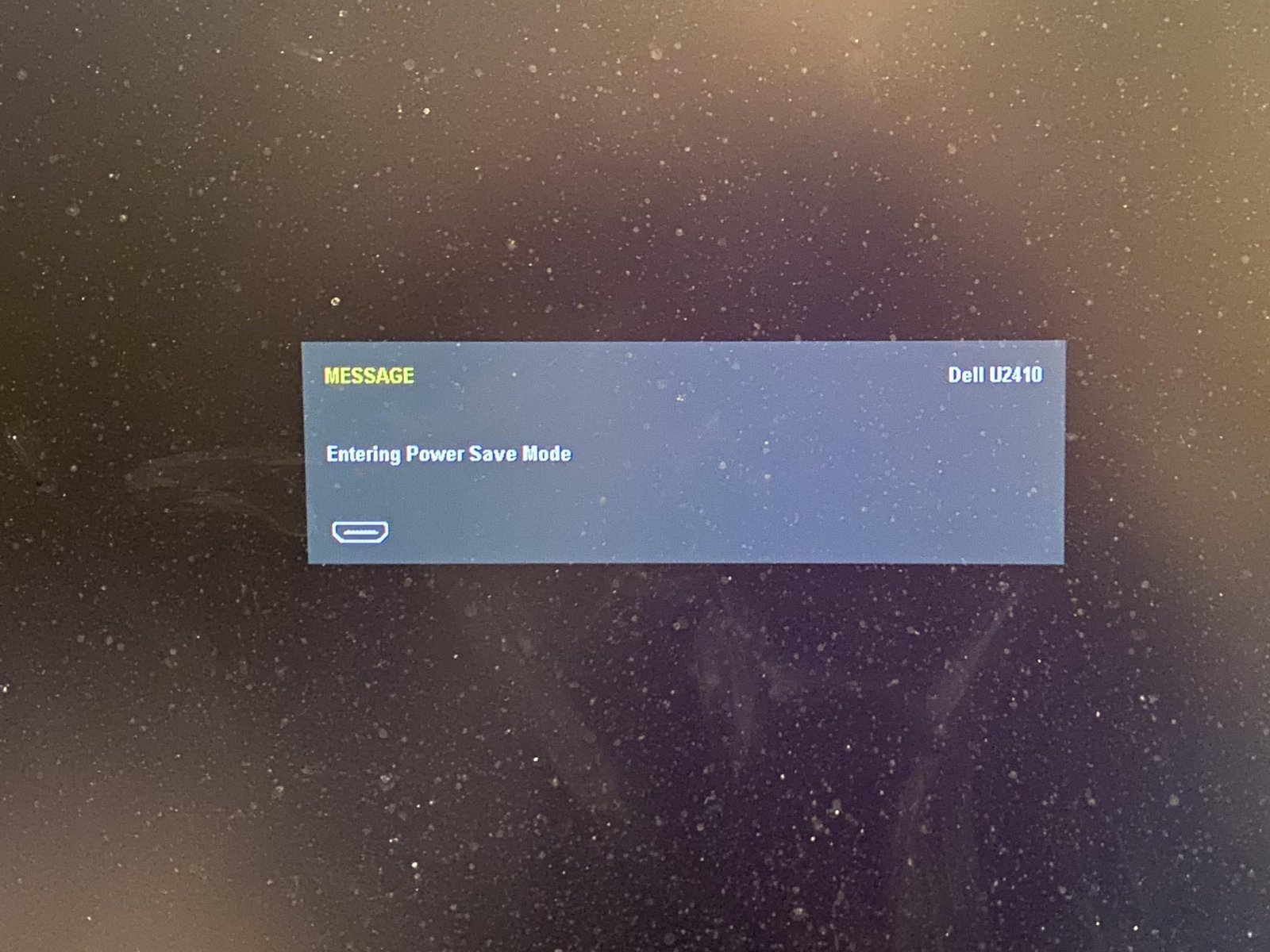
- Don’t Ignore External Monitors: If you use a second screen, set power saving for both. Some monitors stay on unless you set them to sleep in their menu.
Common Mistakes To Avoid
Even people who set up power saving mode can make mistakes. Here are some to watch out for:
- Setting Sleep for Active Tasks: If you are downloading files, running updates, or rendering videos, sleep mode can pause or stop these jobs. Adjust your settings if you run long tasks.
- Forgetting About Wake Timers: Some updates or scheduled tasks wake your computer at night. Check your settings if your device keeps turning on.
- Not Updating Drivers: Power saving features depend on up-to-date drivers, especially for graphics and storage. Old drivers can cause crashes or prevent proper sleep.
- Ignoring Peripheral Devices: Printers, webcams, and external drives may not work well with aggressive power saving. Test your setup if you use many accessories.
Power Saving Mode Vs. Performance Mode
Some computers let you pick between power saving and performance profiles. Here’s how they compare:
| Feature | Power Saving Mode | Performance Mode |
|---|---|---|
| CPU Speed | Reduced | Maximized |
| Screen Brightness | Lowered | Full |
| Fan Noise | Quiet | Loud/Variable |
| Battery Life | Longer | Shorter |
| Best For | Web, Office | Games, Video Editing |
Switch modes depending on what you’re doing. For example, use power saving for work and switch to performance for games.
Power Saving For Desktops Vs. Laptops
Laptops are built for mobility, so power saving features are more aggressive. They dim the screen, slow the processor, and turn off Wi-Fi quickly to save battery.
Desktops don’t have batteries, but power saving mode still helps. It keeps your hardware cooler and cuts your electricity bill. Many office buildings use automatic power saving for all computers to reduce costs.
One non-obvious fact: some high-end desktops offer “Eco” modes in their BIOS or UEFI settings. These can lower the computer’s energy use even before the operating system starts.
Credit: www.cgdirector.com
How Much Power Can You Save?
You might wonder if power saving mode really makes a difference. The answer is yes, especially over time.
- A desktop computer can use 60 to 250 watts per hour, depending on its parts.
- A laptop typically uses 15 to 60 watts per hour.
If you let your computer sleep instead of running all night, you can save up to 75% of energy use. Over a year, this can mean saving $30–$100 for a single desktop, and even more in large offices.
A real-world example: If a business has 100 computers, switching to power saving mode could save enough energy to power several homes for a month.
Advanced Power Saving Features
Some modern computers and operating systems offer advanced features, like:
- Adaptive Brightness: Uses sensors to adjust your screen to room light.
- USB Selective Suspend: Shuts off USB ports when not in use.
- Modern Standby: Keeps your computer always ready but in a deep sleep.
Check your manufacturer’s support page for the latest tools and features.
Credit: www.youtube.com
Power Saving And The Environment
Saving power is not just about money. According to the U.S. Department of Energy, if everyone in the United States enabled power management on their computers, the country could save over $2 billion in energy costs and reduce carbon pollution by the same amount as removing millions of cars from the road.
Some companies use power saving mode as part of their corporate social responsibility. They can report lower carbon footprints, which is valuable for their brand and for meeting environmental laws.
If you want to learn more about the environmental impact of computer energy use, visit the ENERGY STAR Computers page.
Troubleshooting Power Saving Problems
Sometimes, power saving features do not work as expected. Here are a few solutions:
- If your computer won’t wake up, check your keyboard and mouse settings. Some need permission to wake the computer.
- If Wi-Fi disconnects after sleep, update your network drivers.
- If your applications do not run after sleep, check for updates or contact the app maker.
Rarely, older computers may not support all power saving features. In those cases, you can set the monitor to turn off, which still saves a lot of energy.
Frequently Asked Questions
What Is The Difference Between Sleep And Hibernate Mode?
Sleep mode puts your computer in a low-power state and keeps your work in memory. Hibernate mode saves your work to the hard drive and shuts down almost completely. Sleep wakes up faster, but hibernate uses less energy.
Does Power Saving Mode Slow Down My Computer?
When in power saving mode, your computer may run slightly slower, especially during heavy tasks. But for web browsing, writing, or watching videos, you usually won’t notice much difference.
Can I Set Power Saving Mode For Individual Parts, Like Just The Monitor?
Yes. Most systems let you set the monitor to turn off before the rest of the computer. You can also adjust settings for hard drives and Wi-Fi separately.
Is Power Saving Mode Safe For My Computer?
Yes. Power saving mode is built into the operating system and designed to protect your computer. It does not harm your hardware. In fact, it often helps parts last longer by reducing heat and wear.
Why Does My Computer Sometimes Wake Up From Sleep By Itself?
This can happen if you have scheduled tasks, updates, or devices like a mouse that send signals. Check your system’s wake timers and device settings to control when your computer wakes up.
—
Using power saving mode is one of the easiest ways to save energy, lower costs, and help the planet. With just a few clicks, you can make your computer smarter and more efficient. Whether you use a desktop at home or manage many devices in an office, taking a few minutes to set up and understand these options pays off for years to come. If you haven’t tried it yet, now is the perfect time to start.
Related Office Guides
Continue with these related workspace guides:
