
Printer Paper Feed Cleaning: Complete Guide For Smooth Printing
If your printer often jams or shows “paper feed error,” you are not alone. Many people face this problem, but most don’t know the real cause. The paper feed system is the part that pulls paper into the printer. Dust, tiny bits of paper, and ink residue can build up and stop the feed rollers from working properly.
Cleaning this area is simple, but you need to do it correctly for best results. In this guide, you’ll learn how to clean your printer’s paper feed, tools you need, step-by-step instructions, and practical tips to avoid common mistakes. Whether you use a home inkjet or a large office laser printer, this article gives clear, easy advice to keep your printer running smoothly.
Understanding The Paper Feed System
The paper feed system is a group of parts inside your printer that moves paper from the tray into the printing area. It usually includes:
- Feed rollers
- Separation pads
- Paper tray guides
- Sensors
These parts work together. Feed rollers grip the paper and move it forward. Separation pads prevent more than one sheet from entering at a time. If any part gets dirty, the paper may slip, jam, or feed unevenly.
Why Cleaning Matters
Over time, dust, paper fibers, and even dried ink stick to the rollers and pads. This causes:
- Paper jams
- Multiple sheets feeding at once
- “No paper” errors
- Skewed or crooked printing
According to a survey by PCMag, about 42% of printer users report paper jams as their main problem. Most of these jams are caused by dirty feed rollers or sensors, not mechanical failure.
Signs Your Printer Needs Paper Feed Cleaning
You may not notice a dirty paper feed until problems start. Look for these signs:
- Frequent paper jams: Especially near the tray or start of printing.
- Printer says “out of paper”: Even when the tray is full.
- Multiple sheets pulled at once: This can waste ink and paper.
- Paper feeds crookedly: Printing is not straight or gets cut off.
- Unusual noises: Grinding or squeaking from the paper tray area.
If you notice one or more of these, cleaning the paper feed system should be your first step.
Credit: ij.manual.canon
Tools And Materials You Need
Before you start cleaning, gather these simple tools:
- Lint-free cloths (microfiber works best)
- Cotton swabs
- Isopropyl alcohol (at least 70%)
- Compressed air can
- Small brush (soft bristles)
- Gloves (optional, for sensitive skin)
- Flashlight (to see inside dark printer areas)
Avoid using regular tissues or paper towels, as they can leave lint behind.
Step-by-step Paper Feed Cleaning Guide
Cleaning your printer’s paper feed system is safe and easy if you follow these steps. Always turn off and unplug your printer before starting.
Step 1: Remove Paper And Access The Feed Area
- Take out all paper from the tray.
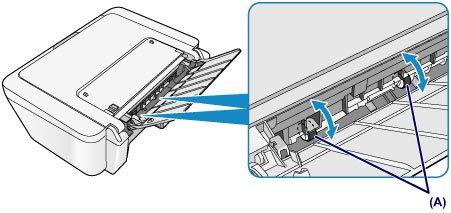
- Open the access panel or rear cover (refer to your printer manual if unsure).
- Use a flashlight to look for feed rollers and separation pads.
Step 2: Clean Feed Rollers
- Dip a lint-free cloth in a small amount of isopropyl alcohol.
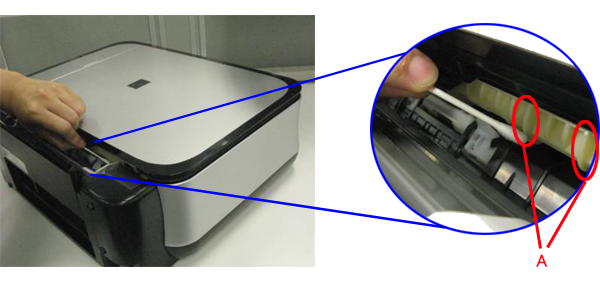
- Gently wipe each feed roller. Rotate the roller to reach all sides.
- For tight spaces, use a cotton swab with alcohol.
- Let rollers dry for 5–10 minutes before continuing.
Step 3: Clean Separation Pads And Guides
- Find the separation pad (usually a small rubber piece near the rollers).
- Wipe gently with a damp cloth or swab.
- Clean the paper guides and any visible sensors.
Step 4: Remove Dust And Debris
- Use a compressed air can to blow out loose dust.
- Brush away remaining bits with a small, soft brush.
Step 5: Reassemble And Test
- Put the panels and tray back in place.
- Load a stack of clean paper.
- Plug in and turn on the printer.
- Print a test page to check if feeding is smooth.
Common Mistakes And How To Avoid Them
Many beginners make errors during cleaning that can cause more harm than good. Here are mistakes to avoid:
- Using too much liquid: Excess moisture can damage electronics.
- Scrubbing too hard: Can wear out rubber rollers.
- Leaving lint behind: Causes new jams.
- Forgetting to dry rollers: Wet rollers won’t grip paper.
- Missing hidden rollers: Some printers have rollers under trays or in rear access.
Always check your printer’s manual for special instructions.
Inkjet Vs Laser Printer Feed Cleaning
Paper feed systems vary between inkjet and laser printers. Here’s a quick comparison:
| Aspect | Inkjet Printers | Laser Printers |
|---|---|---|
| Roller Material | Soft rubber, sensitive to ink | Harder rubber, resistant to toner |
| Cleaning Frequency | Every 2–3 months | Every 3–6 months |
| Common Problems | Ink residue, dust | Toner dust, paper debris |
| Access Difficulty | Easy for most models | Some rollers hidden |
Inkjet printers often get sticky from ink spills, while laser printers attract fine toner dust. Adjust your cleaning method based on your printer type.
How Often Should You Clean The Paper Feed?
Regular cleaning prevents problems before they start. For most home users, cleaning every 3 months is enough. Heavy office use may require monthly cleaning.
Some signs you should clean sooner:
- You print on rough or recycled paper (which creates more dust)
- Your printer is in a dusty room
- You notice jams or misfeeds even after recent cleaning
Set a reminder or add it to your office maintenance routine.
Advanced Cleaning: Dealing With Stubborn Feed Problems
Sometimes, simple cleaning doesn’t solve the issue. Here are advanced tips:
Rejuvenate Hard Rollers
If rollers are dry or shiny, they may not grip paper. Try this:
- Rub gently with fine sandpaper (400–600 grit) to restore grip
- Clean again with alcohol
Replace Worn Parts
Feed rollers and separation pads wear out after thousands of prints. If cleaning doesn’t help:
- Order replacement parts from your printer brand
- Follow manual instructions to swap rollers or pads
Clean Optical Sensors
Some printers use light sensors to detect paper. Dust blocks these sensors, causing feed errors. Use a dry cotton swab to clean sensor windows.
Professional Service
If your printer still jams after cleaning and part replacement, consider professional repair. Service technicians have special tools and can diagnose hidden problems.
Practical Tips To Prevent Paper Feed Problems
Good habits can keep your printer feeding smoothly longer.
- Store paper in a dry place: Humid paper can stick together and jam.
- Fan paper before loading: Loosens sheets for easier feeding.
- Do not overload tray: Too much paper increases jams.
- Use quality paper: Cheap or rough paper sheds more dust.
- Keep printer closed: Prevents dust from settling inside.
- Clean hands before handling paper: Oils can transfer to rollers.
- Avoid using wrinkled or folded paper: Causes misfeeds.
- Regularly clean surrounding area: Less dust means fewer jams.
These small steps can save you from bigger problems later.
Real-world Examples And Data
A study by HP found that printers with routine feed cleaning had 63% fewer jams than those left uncleaned. In a busy office, this can mean saving hours of lost productivity each month. One large school district reported that after teaching staff to clean feed rollers every quarter, printer downtime fell by 30%.
Another practical insight: printers used in areas with carpet or open windows collect more dust. Moving your printer to a less dusty spot can reduce cleaning needs.
Comparing Manual Cleaning Vs. Automated Cleaning Features
Some modern printers have built-in cleaning cycles for feed rollers. How do these compare to manual cleaning?
| Method | Effectiveness | Time Required | Ease of Use |
|---|---|---|---|
| Manual Cleaning | High (removes stubborn debris) | 10–20 minutes | Requires some skill |
| Automated Cleaning | Medium (works for light dust) | 5–10 minutes | Very easy |
Manual cleaning is more effective but takes more time. Automated cleaning is good for light maintenance but cannot remove sticky residue.
Non-obvious Insights For Beginners
- Roller placement varies: Many printers have hidden rollers behind the rear panel or under the tray. Always check these areas if jams continue.
- Alcohol concentration matters: Use at least 70% isopropyl alcohol. Lower concentrations leave water behind, which can damage electronics.
- Feed problems can start with paper storage: Even if your printer is clean, storing paper in humid or dusty conditions causes jams.
Credit: hk.canon
What To Do If Cleaning Doesn’t Work
If you cleaned the paper feed and the printer still jams, try these steps:
- Check for foreign objects: Small staples or paper clips sometimes fall into the tray.
- Update printer firmware: Manufacturers sometimes fix feed sensor bugs.
- Try a different paper type: Some printers are sensitive to thickness or texture.
- Contact customer support: They may have model-specific advice.
Environmental Impact And Safe Cleaning
Printer cleaning uses alcohol and sometimes compressed air. Dispose of used cloths and swabs safely. Never pour alcohol near open flames. If you use canned air, spray in short bursts and avoid inhaling fumes.
For eco-friendly cleaning, use reusable microfiber cloths and avoid strong chemicals.

Credit: www.tonerbuzz.com
When To Replace Your Printer
If your printer jams constantly and parts are worn out, it may be time for a new model. Modern printers have improved feed systems and easier access for cleaning.
Signs you should consider replacement:
- Parts are no longer available
- Feed rollers are cracked or missing
- Repairs cost more than a new printer
Research new models with better feed reliability. Look for reviews and real-world feedback.
Frequently Asked Questions
Why Does My Printer Keep Jamming Even After Cleaning?
Sometimes, jams are caused by damaged rollers, worn separation pads, or sensor issues. If cleaning doesn’t solve the problem, check for worn parts or objects stuck inside. Also, ensure you are using the correct paper type and size.
Can I Use Water Instead Of Isopropyl Alcohol To Clean Feed Rollers?
No, water is not recommended. It can leave residue and cause the rollers to lose grip or even damage sensitive electronics. Always use isopropyl alcohol for safe, effective cleaning.
How Can I Tell If My Feed Rollers Need Replacement?
Feed rollers should feel slightly tacky and grip paper easily. If they are shiny, cracked, or smooth, they may need replacing. Frequent jams and misfeeds even after cleaning are signs the rollers are worn out.
Are Automated Cleaning Cycles As Effective As Manual Cleaning?
Automated cycles remove light dust, but manual cleaning is better for sticky ink, toner, or heavy debris. For best results, use both methods: run the automated cycle regularly, then do manual cleaning every few months.
Where Can I Find Reliable Information About Printer Maintenance?
For official guidance, check your printer brand’s support page or manuals. A good general resource is Wikipedia’s printer page, which covers different printer types and maintenance tips.
Final Thoughts
Cleaning your printer’s paper feed system is one of the simplest ways to prevent jams, misfeeds, and wasted paper. With the right tools and careful steps, you can keep your printer running smoothly for years. Don’t wait for problems to start—make feed cleaning a regular habit.
Remember, most feed errors are caused by dust and debris, not broken parts. If you follow these practical tips and understand your printer’s unique needs, you’ll spend less time fixing jams and more time printing what matters.
Related Office Guides
Continue with these related workspace guides:
