
Keeping your keyboard clean is more important than most people realize. Every day, your fingers touch the keys, bringing along dust, crumbs, and oils. Over time, this build-up can cause keys to stick, attract germs, and even shorten the life of your keyboard.
Many people only clean their keyboards when something goes wrong, like a stuck key or a visible stain. However, with a few simple habits and some practical tips, you can keep your keyboard looking and working like new. This guide will show you the best ways to clean your keyboard, avoid common mistakes, and protect your device for the long run.
Why Keyboard Cleaning Matters
A dirty keyboard is more than just an eyesore. Bacteria and viruses can live on your keyboard for days. In fact, some studies found that keyboards can be dirtier than toilet seats. This is especially true in shared spaces like offices or schools. A clean keyboard also means fewer sticky keys, better typing, and less chance of mechanical problems. Regular cleaning can even improve the air quality around your workspace by reducing dust.
How Often Should You Clean Your Keyboard?
The right frequency depends on how you use your keyboard. If you eat at your desk or share your keyboard, clean it at least once a week. If you use it alone and keep food away, a deep clean every month is usually enough.
However, a quick wipe-down every few days can prevent most grime from building up.
Here’s a simple table to help you decide:
| Usage Type | Cleaning Frequency |
|---|---|
| Shared or Public | Weekly Deep Clean |
| Personal/Home | Monthly Deep Clean |
| Eats at Desk | Every Few Days |
| Light Use | Monthly Wipe-Down |
What You Need Before Cleaning
You don’t need expensive tools to clean your keyboard. Most people already have everything they need at home or in the office. Here’s what you should gather:
- Soft brush or old toothbrush: For brushing away crumbs and dust
- Compressed air can: To blow out dirt from hard-to-reach places
- Microfiber cloth: For gentle wiping
- Cotton swabs: To clean between keys
- Mild cleaning solution: Diluted dish soap or isopropyl alcohol (70%)
- Small bowl: For mixing cleaning solution
- Toothpicks: For stubborn debris
- Paper towels: For drying
If you have a mechanical keyboard, a keycap puller is helpful, but not required.
Basic Keyboard Cleaning Steps
Even if you’re short on time, a basic cleaning can make a big difference. Here’s a quick method:
- Unplug the keyboard or turn off your wireless keyboard.
- Turn it upside down and gently shake it to dislodge crumbs and loose debris.
- Use a soft brush to sweep between the keys.
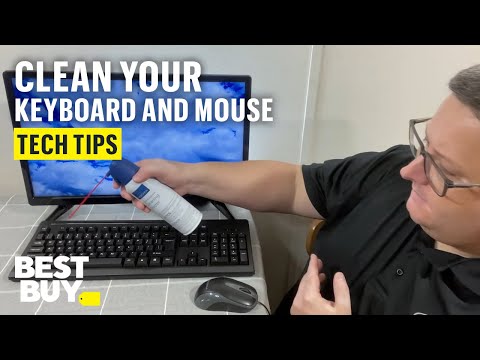
- Spray compressed air between rows to remove dust.
- Lightly dampen a microfiber cloth with cleaning solution and wipe the surface.
- Use cotton swabs dipped in solution for tight spots.
- Dry with a clean cloth before plugging back in.
Never spray liquid directly onto the keyboard. Always apply to a cloth or swab first.

Credit: www.reddit.com
Deep Cleaning: Step-by-step
Sometimes, a quick clean isn’t enough. For sticky keys or visible grime, follow these deeper steps.
Removing Keycaps (if Possible)
Mechanical keyboards often allow you to remove keycaps. Check your manual first. If you can, gently pry off each keycap using a keycap puller or your fingers.
- Soak keycaps in warm, soapy water for 10–15 minutes.
- Scrub with a toothbrush if needed.
- Rinse and let them dry completely.
Cleaning The Keyboard Base
With keycaps removed:
- Use compressed air to blow out all dust and particles.
- Dip a cotton swab in alcohol and clean around each key stem.
- Wipe the surface with a microfiber cloth.
Let everything dry fully before reassembling. Plug the keyboard back in only after it is completely dry.
What If You Can’t Remove Keycaps?
Not all keyboards allow keycap removal. In this case, use a brush, compressed air, and swabs to clean as thoroughly as possible without taking anything apart.
Cleaning Laptop Keyboards
Laptop keyboards are more delicate. Removing keys is not recommended unless you know exactly how. Here’s a safer method:
- Power off and unplug the laptop.
- Turn it upside down to shake out debris.
- Use compressed air at an angle to avoid pushing debris deeper.
- Lightly wipe with a damp microfiber cloth.
- Use swabs for the spaces between keys.
Never let liquid drip between the keys, as it can damage the circuits underneath.
Cleaning Between The Keys
Dust and crumbs often hide between keys. Here’s how to reach them:
- Use a folded sticky note or a toothpick to gently remove particles.
- A cotton swab dipped in alcohol can help dissolve sticky spots.
- Compressed air removes fine dust quickly.
For stubborn grime, a soft brush is safer than sharp objects, which can scratch plastic.
Disinfecting Your Keyboard
Regular cleaning removes dirt, but disinfecting kills germs. Use isopropyl alcohol (70%) or disinfectant wipes that are safe for electronics.
- Wipe the surface and keys gently.
- Avoid wipes with bleach, as they can damage plastic.
- Let the keyboard dry before use.
This is especially important if you share your computer with others or use it in a public place.
Common Mistakes To Avoid
Many people damage their keyboards by cleaning the wrong way. Here are mistakes to watch for:
- Using too much liquid: Water and electronics don’t mix. Always use a lightly damp cloth, not a soaking one.
- Spraying directly: Never spray cleaner onto the keyboard. Spray onto a cloth or swab first.
- Removing all keys at once: If you remove keycaps, do it in sections to avoid losing the order.
- Skipping drying time: Let everything dry completely before use.
- Using harsh chemicals: Bleach or ammonia can discolor and weaken plastic.
Avoiding these mistakes will help your keyboard last longer and look better.
Mechanical Vs. Membrane Keyboards: Cleaning Differences
Different keyboards need different care. Here’s how they compare:
| Keyboard Type | Keycap Removal | Cleaning Difficulty | Durability |
|---|---|---|---|
| Mechanical | Easy | Medium | High |
| Membrane | Not Recommended | Easy | Medium |
| Laptop | Not Recommended | High | Low |
Mechanical keyboards are easier to clean deeply, but membrane and laptop keyboards need a gentler touch.

Credit: www.reddit.com
Special Cleaning Tools: Do You Need Them?
You might see tools like gel cleaners, mini vacuums, or UV sanitizers for keyboards. Are they worth it?
- Cleaning gels can pick up dust but sometimes leave residue. Not always needed.
- Mini vacuums are helpful for heavy users but not essential for most.
- UV sanitizers can kill germs but don’t remove dirt. Use only as a supplement.
For most people, a brush, air, and cloth are enough. But if you love gadgets, these tools can make cleaning faster.
How To Prevent Keyboard Dirt
Cleaning is easier if you prevent dirt in the first place. Try these habits:
- Wash your hands before using the keyboard.
- Don’t eat or drink at your desk.
- Cover your keyboard when not in use.
- Keep your workspace dust-free.
- Shake out the keyboard regularly.
Small changes can keep your keyboard cleaner for longer.
What About Spills?
Spills are a common problem. If you spill something:
- Unplug the keyboard or turn off your laptop immediately.
- Turn the device upside down to drain liquid.
- Use a cloth to blot (not rub) as much liquid as possible.
- If possible, remove keycaps for faster drying.
- Leave the device upside down for several hours.
For laptops, take special care. If the spill is large, seek professional help.
Cleaning Keyboards In Shared Spaces
In offices, schools, or internet cafes, keyboards are used by many people. Here, regular disinfecting is crucial. Keep a pack of disinfectant wipes nearby, and clean before and after use. Encourage others to clean as well.
Credit: www.youtube.com
How Keyboard Cleaning Improves Performance
A clean keyboard isn’t just about looks. It can help you type faster and make fewer mistakes. Sticky keys slow you down and cause frustration. Dust can block sensors and cause missed keystrokes. By keeping your keyboard clean, you maintain both comfort and productivity.
Quick Comparison: Keyboard Cleaning Methods
Here’s a comparison of common cleaning methods for different needs:
| Method | Best For | Effectiveness | Time Needed |
|---|---|---|---|
| Compressed Air | Removing Dust | High | Short |
| Brush & Cloth | Everyday Cleaning | Medium | Short |
| Keycap Removal | Deep Clean | Very High | Long |
| Disinfectant Wipe | Germ Removal | High | Short |
Choose the method that fits your schedule and your keyboard’s needs.
Non-obvious Insights For Keyboard Cleaning
Many people forget to clean the underside of their keyboard. Dust and crumbs can build up here and attract pests. Wipe the bottom every few weeks.
Another detail: Check the USB port or connector. Dust can collect here too, causing connection problems. A quick brush or blow of air can prevent issues.
Making Keyboard Cleaning A Habit
The best way to keep your keyboard clean is to make cleaning part of your routine. Set a reminder on your phone or calendar. Even a few minutes every week can prevent bigger problems later. Over time, cleaning will become automatic, and your keyboard will last longer.
Frequently Asked Questions
How Can I Safely Clean A Keyboard If I Don’t Have Compressed Air?
You can use a soft brush or an old toothbrush to gently sweep between the keys. Turning the keyboard upside down and tapping it also helps. For fine dust, a sticky note edge or a cotton swab works well.
Is It Safe To Use Alcohol Wipes On Every Type Of Keyboard?
Yes, as long as the wipes are not too wet and do not contain bleach. Isopropyl alcohol (70%) is safe for most keyboards. Avoid excess liquid and always dry after wiping.
What Should I Do If I Spill Water Or Coffee On My Laptop Keyboard?
Turn off your laptop immediately and unplug it. Turn it upside down to drain the liquid. Wipe away excess and let it dry for at least 24 hours. For large spills, seek professional repair to avoid damage.
Can I Put Keyboard Keycaps In The Dishwasher?
It’s possible for some mechanical keyboard keycaps, but not recommended for all. Wash by hand with soapy water, rinse, and let dry completely before reattaching. Never put the entire keyboard in water.
How Do I Know If My Keyboard Needs A Deep Clean?
If keys feel sticky, some don’t register, or you see visible grime, it’s time for a deep clean. A regular schedule prevents most of these problems.
Cleaning your keyboard is quick, simple, and pays off with better hygiene and performance. With regular care, your keyboard can last for years. For more details on electronic cleaning, you can visit Consumer Reports. Small habits today can prevent big problems tomorrow. Your fingers and your device will thank you.
