
Scanned documents are a big part of our daily work and study. They help us keep records, share information, and go paperless. But if you have used a scanner, you may have faced an annoying problem—streaks on your scanned images or PDFs.
These streaks look like lines, marks, or smudges that run across the page. They make documents hard to read, look unprofessional, and sometimes even hide important details.
Many people think streaks mean the scanner is broken or too old. But that is not always true. Most streaks come from simple issues like dust, dirt, or software settings. The good news is, you can fix these problems yourself, often with just a few tools and some careful steps.
You do not need to be a technician.
In this guide, you will learn how to remove streaks from a scanner. You will discover why streaks happen, how to clean your scanner safely, what to check in your software, and even how to scan better next time. This article will give you clear steps, real examples, and useful tips you won’t find in basic manuals.
By the end, you will be able to scan clean, clear documents—without streaks.
What Causes Streaks In Scanned Documents?
Before you start fixing, it helps to know why streaks appear in the first place. There are several common reasons, and sometimes more than one thing is wrong at the same time.
- Dust or Dirt on Glass: Tiny particles on the glass (also called the scanner bed) can block the light as the scanner moves across the page. This often causes thin, straight lines in the same spot on every scanned page.
- Marks on the Document Feeder: If you use an automatic document feeder (ADF), dirt or ink on the feeder’s glass strip or rollers can cause streaks, especially if you scan a stack of pages.
- Scratches on the Glass: Over time, the glass can get scratched. These scratches make permanent lines on all scans. They are harder to fix without replacing the glass.
- Ink or Correction Fluid: Wet ink or correction fluid on the paper can stick to the glass. This leaves smudges and sometimes oily streaks.
- Software Settings: Incorrect contrast, brightness, or color settings in the scanning software can create digital streaks. This is less common but still possible.
- Hardware Problems: Sometimes, the scanner’s internal parts—like the CCD (Charge Coupled Device) sensor or the light source—can malfunction. This may cause colored bands or repeating patterns.
- Static Electricity: In dry weather, static can attract dust quickly. This is a hidden cause many beginners miss.
- Poor Cleaning Habits: Using the wrong cleaner, wiping with a rough cloth, or cleaning only part of the glass often makes streaks worse.
How To Prepare For Scanner Cleaning
Fixing streaks starts with proper preparation. Rushing the process can lead to more problems or even damage the scanner.
- Unplug the Scanner: Always turn off and unplug your scanner before cleaning. This prevents electric shock and keeps moving parts still.
- Gather the Right Tools:
- Microfiber cloth (never use paper towels or tissue)
- Glass cleaner (without ammonia or harsh chemicals)
- Cotton swabs
- Soft brush (for dust)
- Compressed air (optional, for blowing away dust)
- Lint-free gloves (optional, to avoid fingerprints)
- Pick a Clean Area: Clean your scanner in a dust-free room. Avoid open windows or fans that can blow dust onto the glass.
- Check the Manual: Some scanners have special instructions for cleaning. Look for details about opening the lid, removing the feeder, or cleaning sensitive parts.
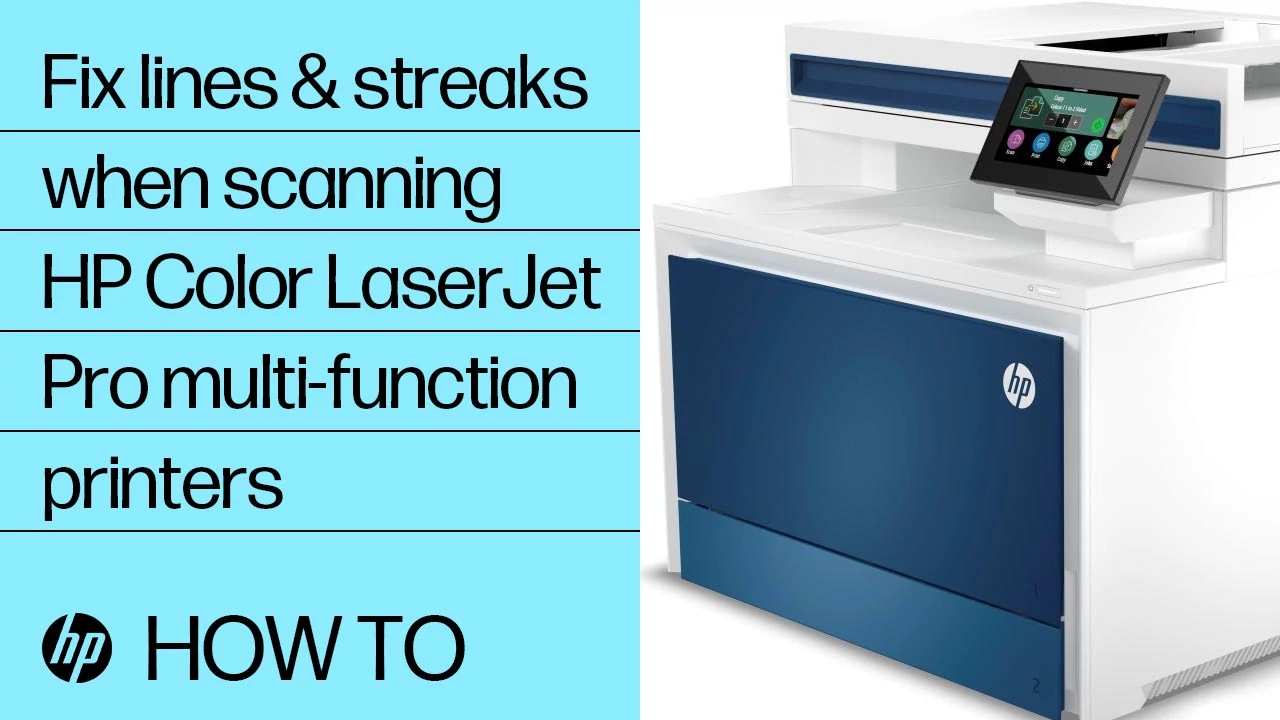
Credit: support.hp.com
Step-by-step: Cleaning The Scanner Glass
Most streaks come from dirty glass. Cleaning it the right way is the most important step. Follow these steps for best results.
1. Open The Scanner Lid
Gently lift the lid. If your scanner has an ADF, open or remove any covers to expose the glass.
2. Inspect The Glass Surface
Look closely under good light. Tilt the glass to see fingerprints, dust, or smudges. Some streaks are almost invisible until you scan a page.
3. Remove Loose Dust
Use a soft brush or a burst of compressed air to remove any loose dust or hair. Do not blow with your mouth—moisture can cause spots.
4. Wipe With A Microfiber Cloth
Spray a small amount of glass cleaner on the cloth (not directly on the glass). Wipe gently in straight lines from one end to the other. Do not use circles—this can spread dirt around.
5. Pay Attention To The Edges
Most dirt collects at the edges. Use a cotton swab with a drop of cleaner to reach corners and edges.
6. Dry The Glass
Use a dry part of the microfiber cloth to remove any streaks left by the cleaner. The glass must be fully dry before closing the lid.
7. Clean The Underside (if Possible)
Some scanners allow you to open the bottom or remove the glass. Check your manual. If you can, gently clean the underside as well—dust sometimes gets trapped there.
8. Check For Scratches
If you see deep scratches, try to remember if they match the streaks in your scans. Minor scratches can sometimes be polished, but deep ones usually require a replacement glass.
Cleaning The Automatic Document Feeder (adf)
Many office scanners use an ADF for quick scanning of many pages. The ADF has its own small strip of glass, often just a few centimeters wide. Streaks from the ADF are very common.
1. Open The Adf Cover
Most ADF units open easily. Look for clips or levers. Be gentle—plastic parts can break.
2. Find The Adf Glass Strip
This is usually at the front or side of the feeder. It is much smaller than the main glass bed.
3. Clean The Glass Strip
Use a microfiber cloth and glass cleaner. Wipe in one direction. If you see ink, use a cotton swab for stubborn spots.
4. Clean The Rollers
If your scanner’s manual allows, gently wipe the ADF rollers with a slightly damp cloth. Do not soak them; too much water can cause damage.
5. Let Everything Dry
Before closing the cover, wait a few minutes for all parts to dry. Moisture can attract more dust.
How To Handle Persistent Streaks
If you have cleaned both the main glass and the ADF but still see streaks, try these extra steps.
1. Scan A Blank Sheet
Scan a clean white page. If the streaks remain, the problem is with the scanner—not your documents.
2. Change Scanner Settings
Open your scanning software and check the following:
- Resolution (DPI): Try a lower or higher DPI.
- Color Mode: Switch between black-and-white, grayscale, and color.
- Contrast/Brightness: Reset to default.
Sometimes, extreme settings create digital streaks.
3. Update Scanner Driver
An outdated or corrupt driver can cause image problems. Visit your scanner manufacturer’s website and download the latest driver for your model.
4. Try A Different Computer
If possible, connect the scanner to a different computer. This will rule out software conflicts.
5. Use Scanner Maintenance Tools
Some scanners come with a built-in cleaning or calibration tool. Check your software for options like “calibrate,” “clean,” or “maintenance. ”
6. Inspect For Hardware Issues
If nothing works, the problem could be inside the scanner:
- Light source: A flickering or weak lamp may create bands.
- CCD/CMOS sensor: Dirt or failure causes stripes.
Professional repair may be needed if you suspect hardware faults.
Preventing Streaks In Future Scans
Prevention is easier than cleaning up after a problem. Small habits can keep your scanner streak-free.
- Clean Regularly: Wipe the glass and ADF every week if you scan often.
- Protect the Scanner: Keep the lid closed when not in use. Cover the scanner with a cloth or case.
- Check Paper Quality: Dusty, torn, or wet papers can leave marks on the glass.
- Avoid Correction Fluid: Never scan documents with wet correction fluid or ink. Wait until everything is dry.
- Use Lint-Free Gloves: This prevents fingerprints on the glass.
- Control Humidity: High humidity can cause condensation, while dry air increases static. Both attract dust.
- Replace Worn Parts: Rollers and glass can wear out after thousands of scans. Check your manual for replacement intervals.
Comparing Cleaning Methods
To help you understand which cleaning methods are most effective, see the comparison below:
| Method | Effectiveness | Time Needed | Best For | Risk Level |
|---|---|---|---|---|
| Microfiber Cloth & Glass Cleaner | Very High | 5-10 min | Most streaks, regular dust | Low |
| Compressed Air | Medium | 1-2 min | Loose dust, hair | Very Low |
| Cotton Swab | High | 2-5 min | Edges, stubborn spots | Low |
| Professional Service | Very High | 1-2 days | Scratches, hardware | Very Low |
Common Mistakes To Avoid
Even careful users sometimes make mistakes that cause or worsen streaks. Here are the most common ones:
- Using Rough Cloths: Paper towels or tissues can scratch the glass and leave lint.
- Spraying Cleaner Directly on Glass: Excess liquid can drip inside the scanner and damage electronics.
- Cleaning Only the Visible Area: Streaks often start at the edges or in the feeder—clean the whole surface.
- Ignoring the ADF: Many people forget the feeder glass or rollers, which is a major source of streaks.
- Not Letting Glass Dry: Closing the lid on wet glass causes new streaks and may damage paper.
- Skipping Regular Checks: Dust builds up slowly; weekly cleaning is much easier than fixing a big mess.
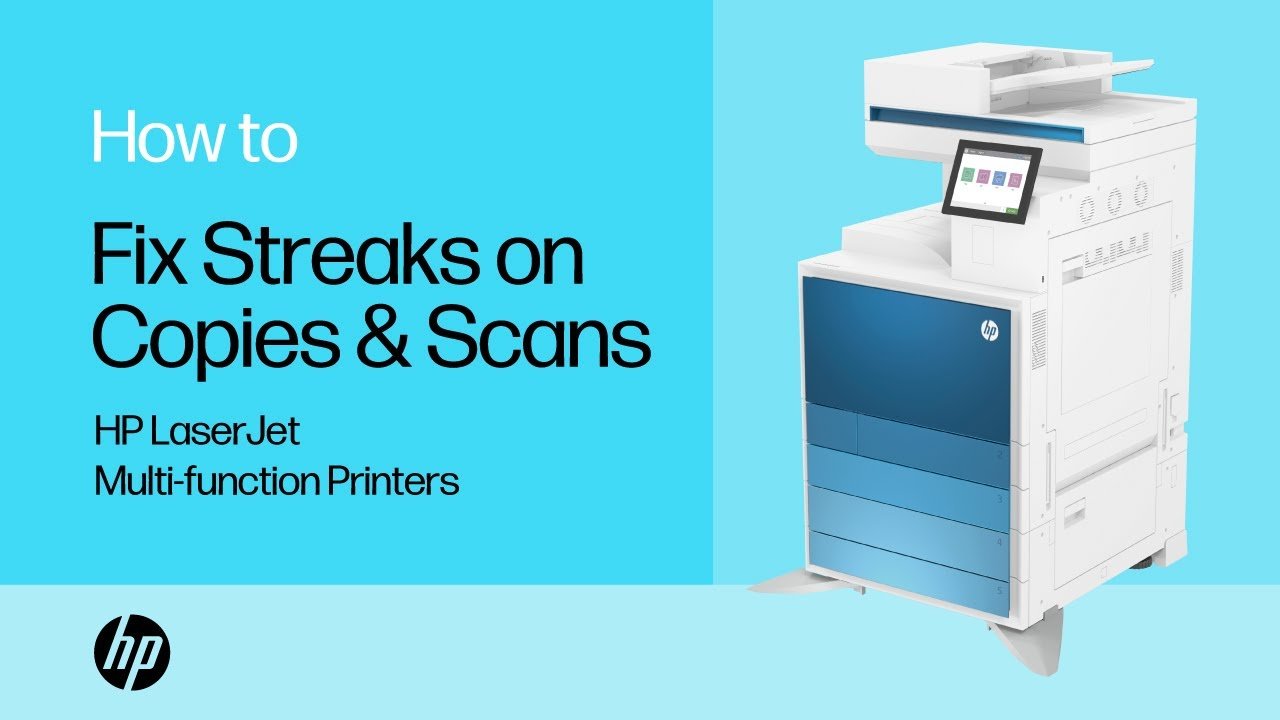
Credit: www.youtube.com
Troubleshooting Table: Streak Types And Solutions
Here’s a quick reference for common streak problems and how to fix them:
| Streak Type | Appearance | Likely Cause | Solution |
|---|---|---|---|
| Thin black/white line | Straight, always same spot | Dust or dirt on glass/ADF | Clean glass/ADF with microfiber cloth |
| Colored band | Wide, color varies | Hardware or sensor issue | Try calibration; may need repair |
| Blurry streak | Smudged, uneven | Wet ink or correction fluid | Clean glass; let documents dry first |
| Multiple lines | Parallel, all over page | Dirty rollers or ADF | Clean ADF rollers and glass strip |
| Repeating patterns | Regular, geometric | Software or driver | Update/reinstall driver, reset settings |
When To Seek Professional Help
Some scanner streaks can’t be fixed with cleaning. If you see these signs, it’s time to get help:
- Deep scratches on the glass that do not go away with cleaning
- Colored or rainbow bands that appear even after software updates
- Flickering light inside the scanner
- Error messages about hardware or calibration
- No change after multiple careful cleanings
Professional repair shops have special tools and parts. For expensive or business-use scanners, regular maintenance contracts can prevent downtime.
Real-world Examples
Let’s look at a few practical examples:
- Office Scanner with ADF Streaks: A law office scanned hundreds of contracts daily. Streaks appeared after a few months. Cleaning the main glass did nothing. When they opened the ADF and cleaned the small glass strip and rollers, all streaks disappeared.
- Home Scanner with Faint Lines: A student noticed faint lines on every homework scan. After checking, they found dust under the glass—hidden from view. They followed the manual to remove the glass, cleaned both sides, and the scans were perfect again.
- Persistent Streaks from Wet Ink: A teacher scanned documents right after signing them. The ink left oily marks on the glass, causing smudges. Waiting a few minutes for ink to dry and cleaning with a microfiber cloth solved the problem.
Advanced Tips For Cleaner Scans
If you want to go further, try these expert suggestions:
- Use Anti-Static Wipes: These reduce static electricity, so less dust sticks to the glass.
- Install an Air Purifier: In very dusty rooms, a small air purifier near your scanner helps keep dust away.
- Schedule Regular Maintenance: Set a calendar reminder to clean your scanner every week or after every 500 scans.
- Check Manufacturer’s Website: Some brands (like Canon, Epson, HP) offer free cleaning guides and software tools. For more details, see this EPA Safer Choice list for safe cleaning products.
- Keep Scanned Area Clear: Do not store papers, pens, or drinks near your scanner. Spills and clutter lead to accidents.
Frequently Asked Questions
How Often Should I Clean My Scanner To Prevent Streaks?
For home use, clean your scanner glass and ADF once a month. For office or heavy use, clean every week or after every 500 pages. Regular cleaning prevents streaks before they start.
Can I Use Alcohol Or Window Cleaner On My Scanner Glass?
Use only non-ammonia glass cleaner or isopropyl alcohol. Never use strong chemicals, as they can damage coatings on the glass. Always spray onto the cloth, not directly onto the scanner.
Why Do Streaks Appear Only When I Use The Adf?
ADF streaks usually come from dirt or ink on the feeder glass or rollers. Even if the main glass is clean, the small ADF strip needs cleaning too. Check both areas for best results.
My Scanner Is Still Under Warranty. Does Cleaning Void It?
No, basic cleaning does not void your warranty. In fact, manufacturers recommend regular cleaning. Just avoid opening sealed parts or using unapproved cleaners.
What If Cleaning Does Not Remove The Streaks?
If you have cleaned all glass and rollers and updated your software, the problem could be hardware-related. In this case, contact technical support or a professional repair service.
Keeping your scanner free from streaks is mostly about simple, regular cleaning and good habits. With the right tools and careful attention to detail, you can enjoy clear, professional scans every time. If you follow these steps and tips, streaks will become a rare problem—not a daily headache.
Credit: www.youtube.com
Related Office Guides
Continue with these related workspace guides:
